
As your business and teams scale, project management tools like ClickUp generate thousands of tasks, time entries, comments, and custom fields. Eventually, that volume becomes more than ClickUp was designed to analyze. Dashboards take longer to load, and you lose visibility into patterns like workload trends or budget overruns.
Exporting your ClickUp data into the right destination, like a spreadsheet, BI tool, or data warehouse, lets you actually make sense of all that activity. Not to speak of the integration of ClickUp with AI. But to do it effectively, you need to understand the different methods to export data from ClickUp and which one gives you reliable and up-to-date data for reporting.
How to automate ClickUp data export on a schedule
Coupler.io is a no-code data integration platform that exports information from 400+ business apps into spreadsheets, BI tools, data warehouses, and AI tools on a schedule.
Coupler.io makes it easy to automate ClickUp exports and send your data to the destination of your choice. You can pull multiple entities at once, including tasks, users, time entries, custom fields, and comments.
It also lets you combine ClickUp data with information from other sources, making it easy to build advanced dashboards and unify your reporting.
The setup of the ClickUp connector takes only a few minutes, and once configured, your data updates automatically without manual effort.
Here’s how the process works.
Step 1: Collect ClickUp data
Sign up for the Coupler.io account and create a dataflow by selecting ClickUp as your data source. Or you can select your destination app for the ClickUp data in the form below and click Proceed. You’ll be offered to create a Coupler.io account for free with no credit card required.
Then connect your ClickUp account. To do this, generate an API token in ClickUp (Settings → ClickUp API → Generate token) and paste it into the connector.
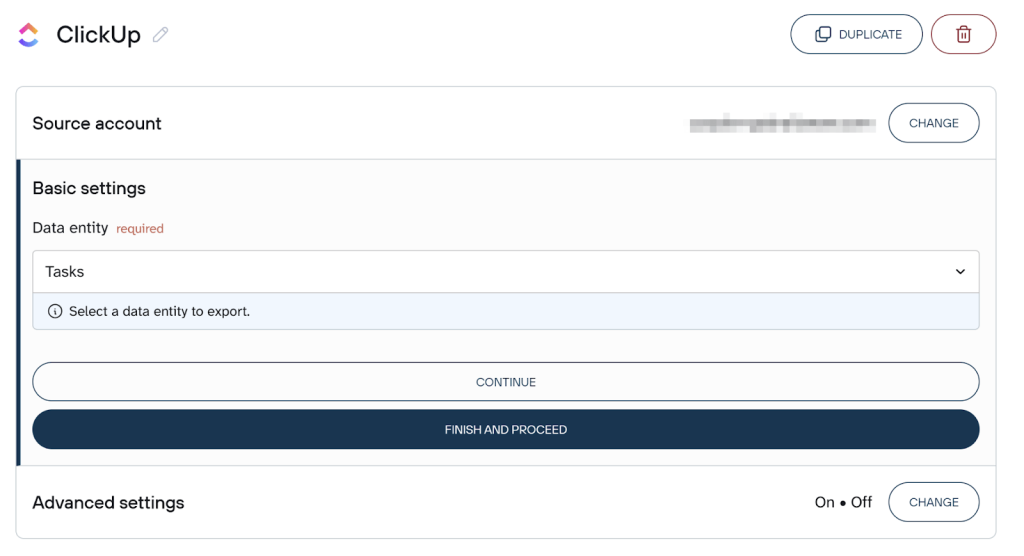
When connected, select which ClickUp data entity you want to export: tasks, users, lists, teams, time entries, or custom fields.
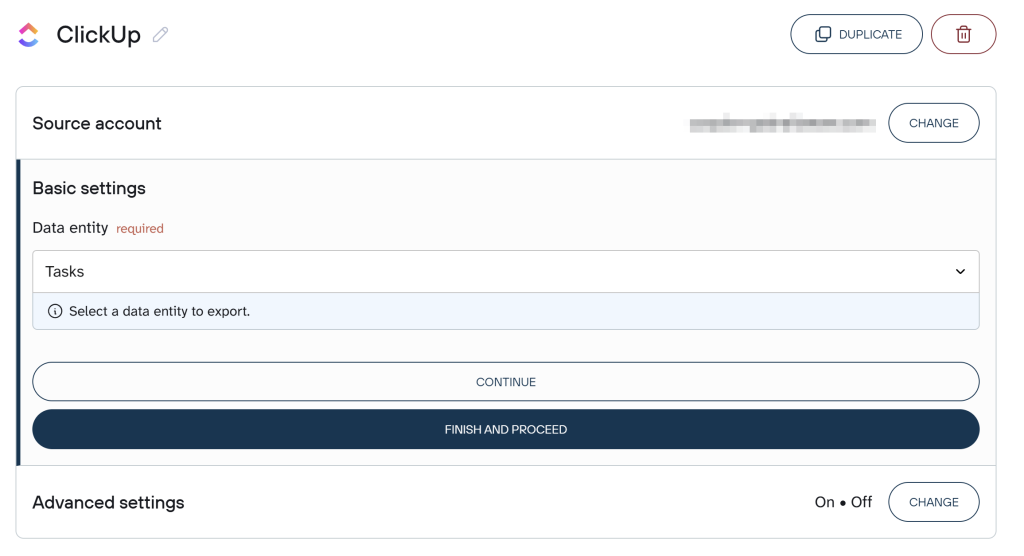
If you need a broader dataset, you can also add more ClickUp entities or even connect other apps.
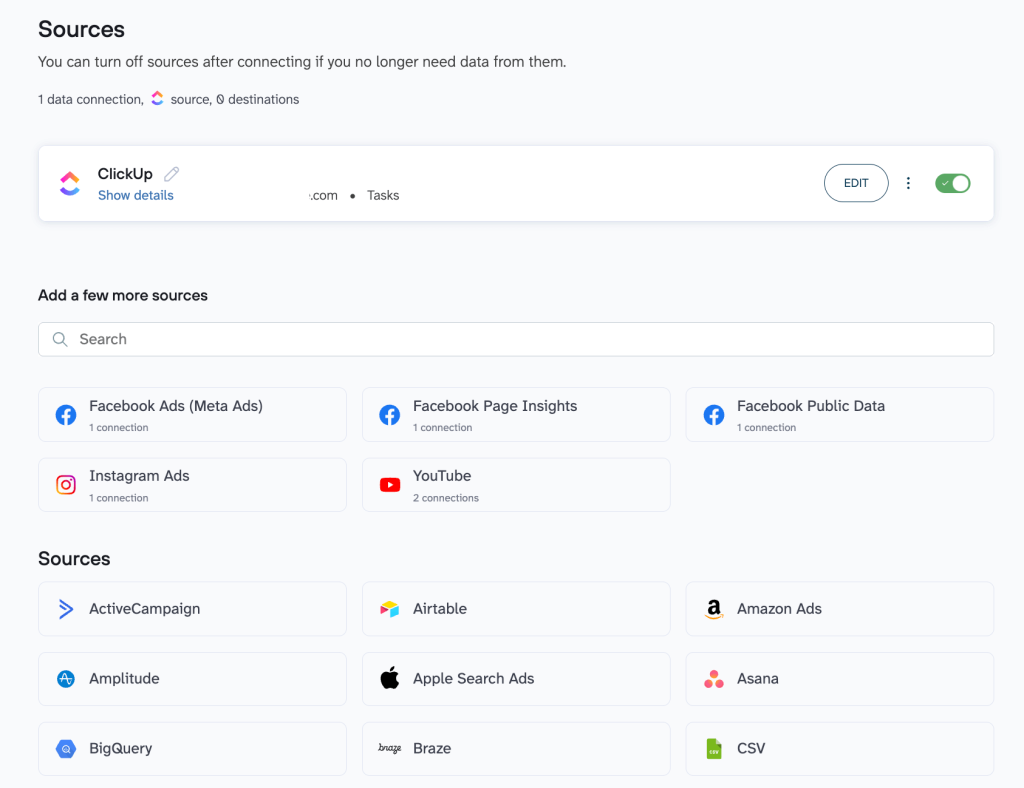
For example, a team lead might combine task data with time tracking to compare estimates vs. actuals in one dashboard, or merge multiple spaces into a single reporting view.
Step 2: Organize the data set
Next, refine your data so it’s analysis-ready. Coupler.io’s transformation features let you clean and prepare your dataset before it lands in your destination. You can:
- Filter or sort rows: For example, show only tasks from specific Spaces, filter by due dates, or sort tasks by priority or assignee
- Hide, rename, or reorder columns: To keep only the fields you need, clean up naming conventions, or align columns for reporting.
- Create calculated fields: Time remaining, duration between start and due dates, or custom performance metrics
- Aggregate values: Summing time spent, averaging estimates, counting completed tasks, or calculating totals per team or project.
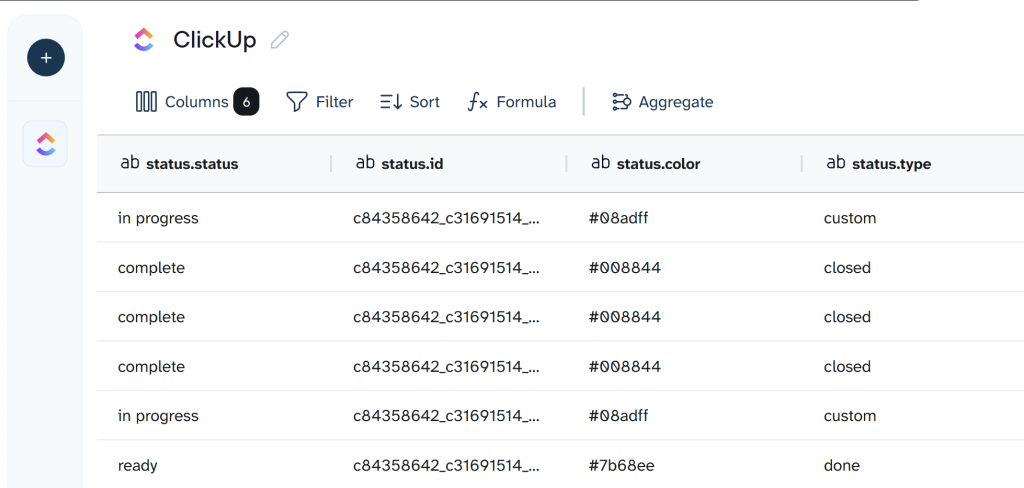
If you’ve connected multiple sources, such as merging task details with time tracking or combining multiple ClickUp Spaces into one dataset.
This saves you from repetitive data cleanup and ensures your dashboards or reports use consistent, structured data every time.
Step 3: Load data and schedule updates
Choose your destination and connect the corresponding account. Configure the destination settings about how and where your ClickUp data should appear.
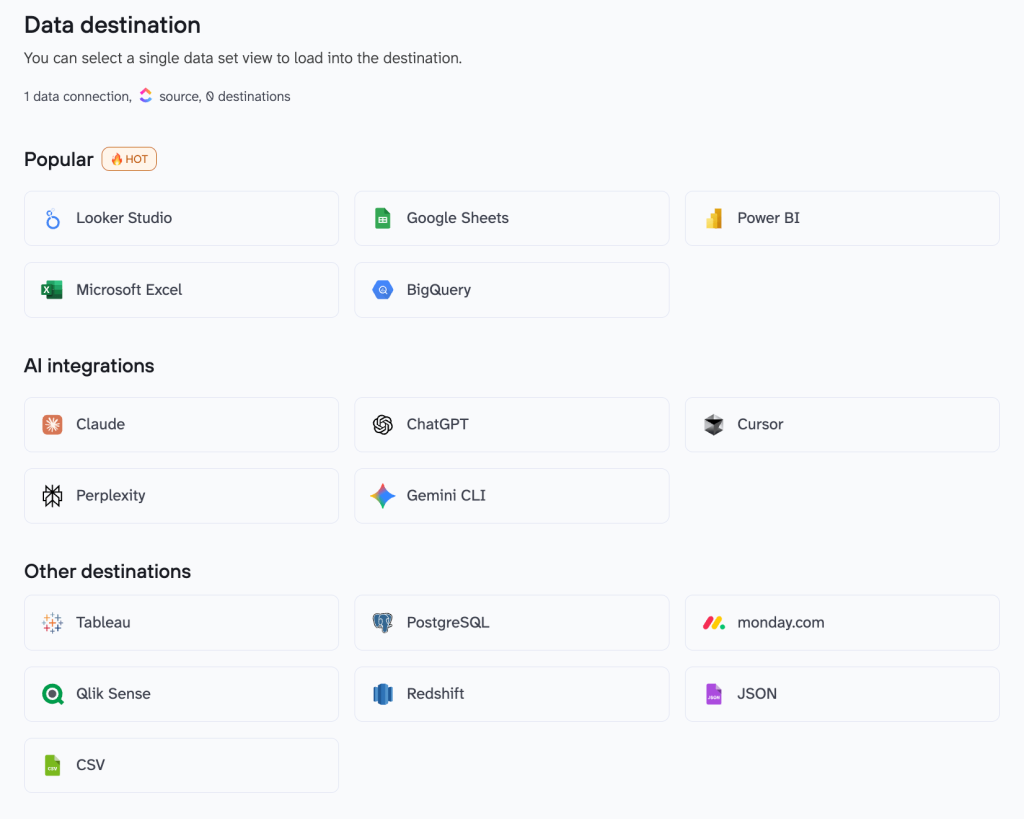
Once the connection is set, click Save and Run to load your data.
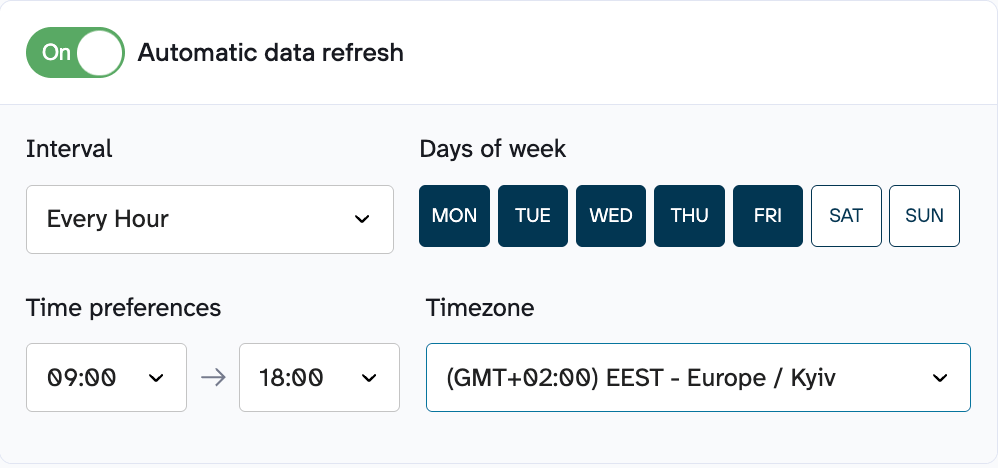
Finally, enable Automatic data refresh and set your preferred update frequency. Whether you want updates daily, hourly, or every 15 minutes, Coupler.io keeps your data in sync so your reports and dashboards always reflect the latest activity in ClickUp.
What data can be exported by Coupler.io from ClickUp?
Coupler.io lets you extract a wide range of ClickUp entities so you can build complete reports without manually stitching data together. Here’s what you can export:
- Tasks: all task details, including statuses, assignees, due dates, and hierarchy
- Users: member information and roles for workload or permission reporting
- Teams: team structures and assignments for capacity planning
- Lists: metadata about Lists, including names, IDs, and associated projects
- Spaces: workspace sections and structural data for portfolio-level reporting
- Folders: project groupings used to organize Lists and tasks
- Time tracking: tracked hours, billable entries, and time logs across tasks and users
- Custom fields: your organization’s unique data points, such as budgets, points, scores, or categories
- Space tags: tags applied within Spaces for filtering and categorization
- Team goals: goal progress, targets, and status changes over time
- List comments: conversations and updates that provide context behind work
Where you can export data from ClickUp and why?
Once you export ClickUp data with Coupler.io, you can send it to a variety of destinations depending on how you want to analyze, store, or automate it. Each destination type serves a different purpose. For example, building dashboards, training AI models, consolidating data, or powering operational workflows.
Here are all the destinations and how to choose the right one for your needs.
Spreadsheets (Google Sheets, Excel)
Spreadsheets are ideal when you need quick analysis, lightweight dashboards, or collaborative reporting. Teams often use Sheets or Excel to track sprint progress, build project summaries, calculate KPIs, or share reports with stakeholders who don’t use ClickUp.
Best for: ad-hoc analysis, small team reporting, operational dashboards, client updates.
Data warehouses (BigQuery, Redshift, PostgreSQL)
Warehouses are designed for companies that want to centralize large volumes of operational data. Exporting ClickUp to a warehouse lets you join task data with metrics from CRMs, finance tools, time-tracking apps, or product analytics.
Best for: enterprise reporting, historical analysis, cross-team metrics, and building scalable data pipelines.
BI tools (Looker Studio, Power BI, Tableau, Qlik Sense)
BI platforms turn your ClickUp data into interactive dashboards and visual reports. With automated refreshes, your sprint velocity, workload trends, cycle times, or team performance metrics stay up to date without manual exports.
Best for: leadership dashboards, OKR tracking, PMO reporting, portfolio management visuals.
AI tools (ChatGPT, Claude, Perplexity, Cursor, Gemini CLI)
Coupler.io doesn’t export ClickUp data into AI tools. It makes your ClickUp datasets accessible to AI tools through secure integrations for conversational analytics. Instead of exporting static files, the platform creates a connection that allows AI assistants to query your data in real-time. When you ask Claude or ChatGPT to analyze project performance, identify bottlenecks, or generate insights, it retrieves answers directly from your structured and up-to-date ClickUp data prepared by Coupler.io.
Best for: automated summaries, insights generation, AI-driven reporting, productivity workflows.
JSON
Exporting ClickUp to JSON is useful when you need structured data for development, migrations, backups, or internal systems that consume JSON. It’s also helpful if you’re building custom apps or integrations on top of ClickUp.
Best for: developers, system integrations, backups, and flexible machine-readable formats.
Team management tools (monday.com, etc.)
If you’re moving to a new platform or syncing tasks across tools, exporting ClickUp data into another project management system helps you migrate or maintain cross-tool visibility.
Best for: migrations, multi-tool ecosystems, and maintaining mirrored boards or workflows.

Automate ClickUp data exports with Coupler.io
Get started for freeOther ClickUp data export options
While Coupler.io lets you automate ClickUp data export, there are alternative methods available depending on your technical resources and specific needs. Each comes with a different scope and limitations depending on your volume of data, your reporting needs, and how frequently you need updates.
Manual export
ClickUp allows you to manually export Lists, Table views, tasks, attachments, Docs, and some Dashboard cards, usually as CSV, XLSX, PDF, or HTML. It’s straightforward when you only need a small snapshot of your workspace.
But the process gets complicated fast. Each data type requires a different export path (tasks from Imports/Exports, attachments per task, and Lists only on higher plans). Most exports are limited to CSV/XLSX. If you need to export multiple entities, work across teams, or update reports regularly, manual exporting becomes time-consuming and inefficient.
ClickUp API
The ClickUp API lets you extract data programmatically using a personal token or by creating an OAuth2 app. This gives developers full control over what they export and where the data goes, which is ideal for custom integrations or advanced workflows.
However, it requires ongoing technical effort. You have to manage authentication, rate limits, data transformation, and maintenance anytime API schemas change. If you don’t have engineering support or need non-technical users to access data, the API can be more work than it’s worth.
FAQ
How to export tasks from ClickUp?
You have two options: manual export and automated export with Coupler.io.
Coupler.io automated export: Coupler.io sends ClickUp tasks into Excel, Google Sheets, BigQuery, or BI tools on a schedule. You simply connect your ClickUp account (via API token), choose “Tasks” as the data entity, and select your destination. The data refreshes automatically, so you always have up-to-date task information without manual work.
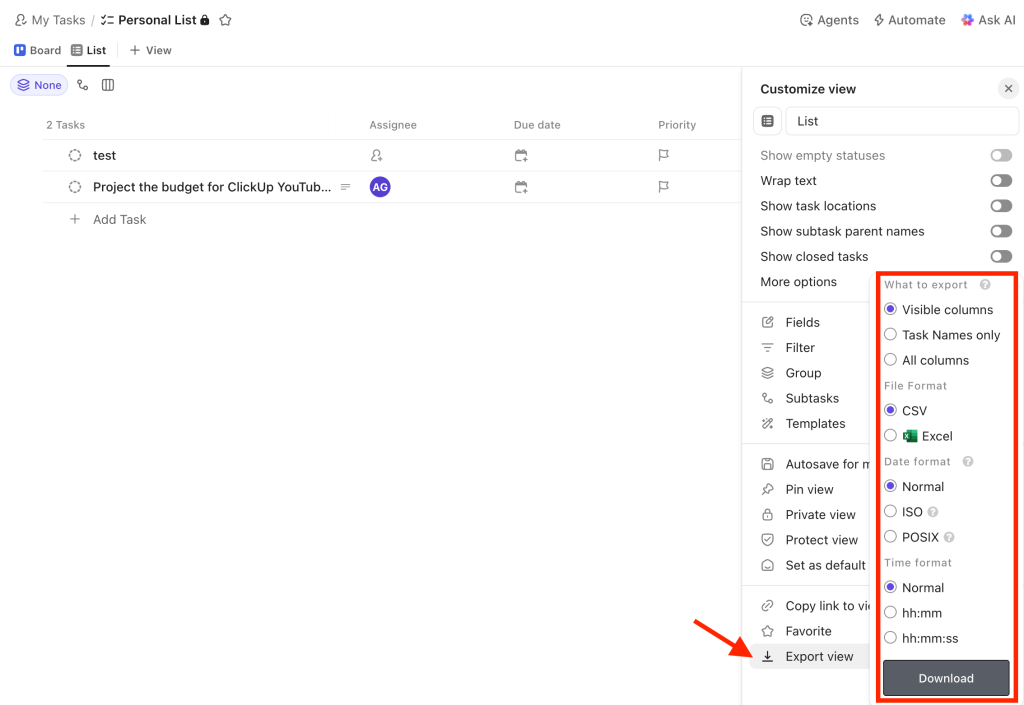
Manual export: ClickUp lets you export tasks in two ways:
- From a specific List or Table view using Customize → Export, which supports CSV or Excel formats.
- At the workspace level from Workspace Settings → Imports/Exports → Export Items, which provides a full workspace task export in CSV format.
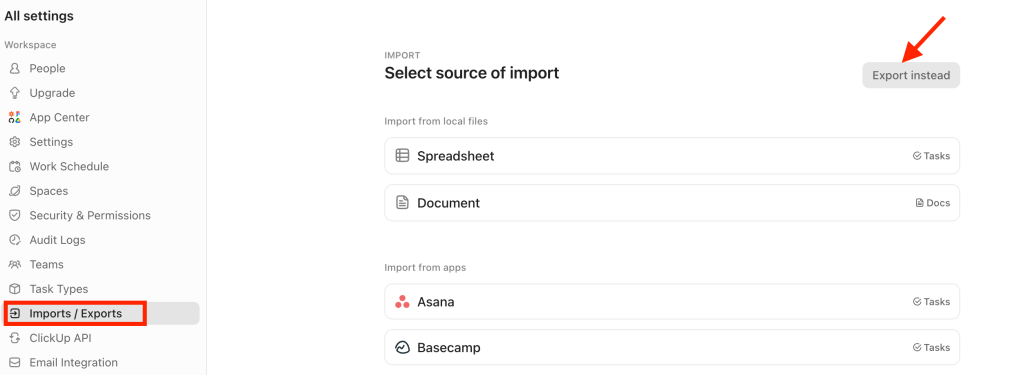
While this works for small or one-time downloads, each export is static. If your data changes or you need regular updates, you’ll have to repeat the process manually every time.
Does Coupler.io support the ClickUp export list?
Yes. Coupler.io can export data from ClickUp Lists, including metadata such as list names, IDs, associated folders/spaces, and structural hierarchy. In the ClickUp source settings, select your Lists as your data entity.
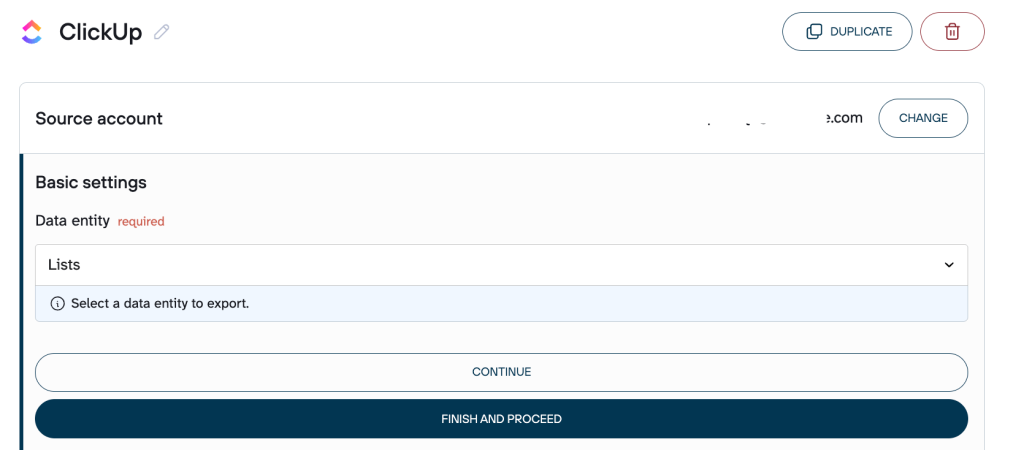
You can also combine List data with task-level information or other ClickUp entities to create portfolio-level reports or multi-list dashboards.
Why should I use Coupler.io instead of a custom API integration for ClickUp data export?
A custom API pipeline gives you control, but it requires engineering effort like authentication handling, pagination, rate limits, data cleaning, schema updates, maintenance, and monitoring. Every ClickUp change or new data requirement means more development time.
Coupler.io is built on top of the ClickUp API, but it removes the complexity of working with it directly. Instead of building and maintaining your own integration, Coupler.io handles the API logic and provides a ready-to-use export layer. It works without coding, delivers clean analysis-ready tables, supports 400+ other data sources, automates refreshes on a schedule, requires no maintenance or monitoring, and lets non-technical team members manage data pipelines.
This gives you the benefits of an API pipeline without the cost, time, or upkeep of building one yourself.
Automate your ClickUp reporting with Coupler.io
Get started for free