
Google Business Profile holds daily performance metrics such as views, clicks, calls, direction requests, and bookings. It also shows the search keywords people use to discover your business and the reviews customers leave. Getting this data outside the GBP dashboard makes it easier to track performance across multiple locations and build client reports. You can also combine it with Google Ads or GA4 data, or use AI to analyze local SEO performance.
You can export data from Google My Business automatically with Coupler.io and keep it up to date on a schedule. From there, you can build dashboards or use AI to analyze performance and uncover trends across locations. API and manual exports are also available for workflows that do not require an automated connection.
How to set up an automated export of data from Google My Business on a schedule
Coupler.io is a data integration platform and AI analytics that connects Google Business Profile (and 400+ other data sources) to the tools where you do your analysis. You pick the source, organize the data, send it to spreadsheets, BI tools, data warehouses, or AI tools. Automatic schedule refreshes are also available, so the numbers stay up-to-date without manual work.
Use conversations to create and manage your data flows in Coupler.io. Ask the AI Agent or an AI tool connected to Coupler.io, such as Claude or ChatGPT, to set up a flow with a specific source, destination, and refresh schedule. For example: “Create a data flow from Google Business Profile to Google Sheets and refresh it every Monday at 9 AM.” You can use the same approach to modify existing flows, such as adding or removing a source or destination.
Let Coupler AI do the data work for you
Tell Coupler AI what you need to know, from which source, and how often. It connects your account, sets up the data flow, keeps it refreshed, and lets you analyze the results inside Coupler.io or another AI tool.
Try for free
You can also use the manual walkthrough to control each step or see how the setup works before handing it to AI. For this, use our interactive form where you only need to select a destination. Click Proceed, and you’ll be prompted to sign up for Coupler.io for free (no credit card required).
Step 1. Collect Google Business Profile data
First, connect the Google Business Profile data you want to keep updated automatically.
- Select the Locations for your report.
- Choose the Report type (the actual data you’re going to load). Daily metrics are selected by default, but you have 2 other options: Reviews list and Search keywords
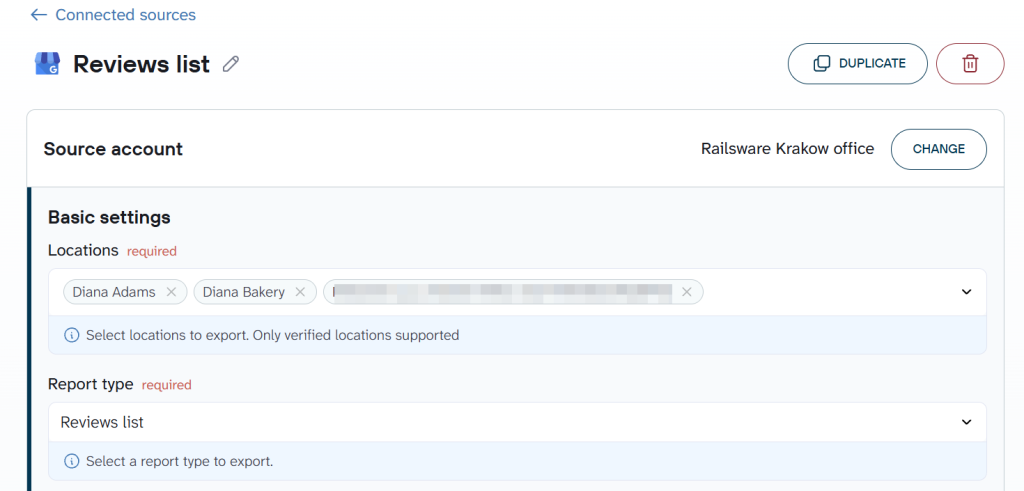
- After that, specify the preferred Report period (it is not required for the Reviews list report type).
💡 If you also run Google Ads, track GA4, or manage other Google properties, Coupler.io connects to all of them. You can pull data from multiple sources into the same workflow and analyze everything together.
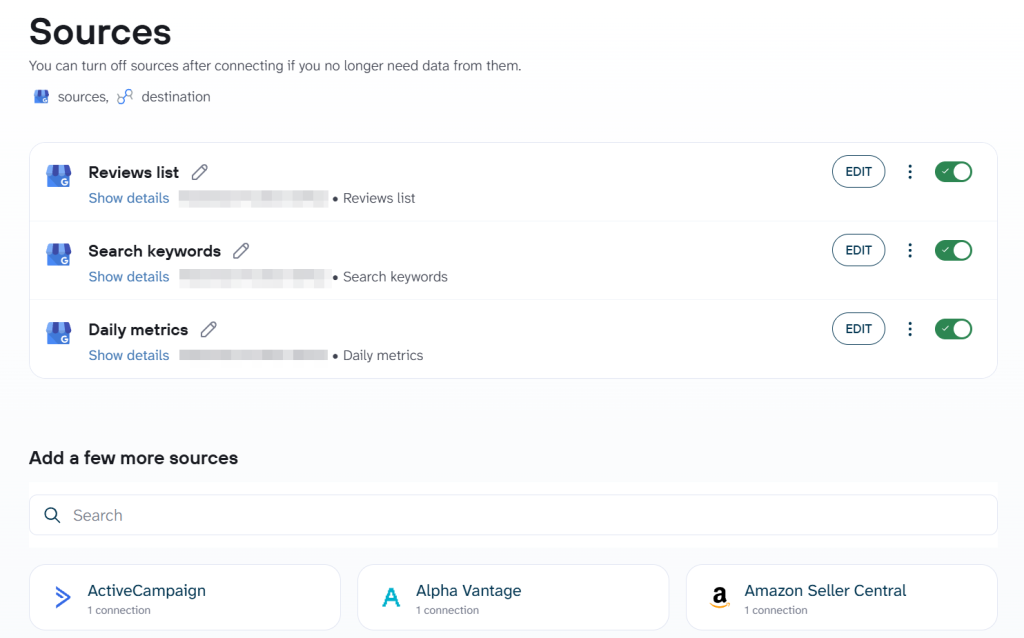
Step 2. Organize and transform your data set
This step is where you shape the dataset before it goes anywhere, including AI tools. Preview your data and transform it if needed. You can make several transformations:
- Edit, rearrange, hide, or add columns.
- Apply different filters and sort your data.
- Create columns with custom formulas.
- Aggregate and merge data from multiple accounts or apps.
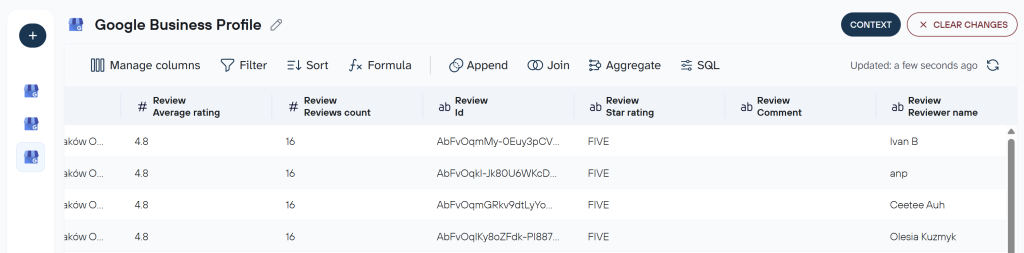
The columns and filters you configure here control what every downstream destination can see. If your reviews contain customer names or personal details, this is where you decide to hide those columns before the data reaches AI tools or shared reports.
You can also add context about your data: for example, which locations are flagship stores vs. newer openings, or what “direct” vs. “discovery” searches mean for your business. That context carries through to AI analysis, which means better answers when you ask questions later.
One thing worth noting: AI never connects to your Google Business Profile account directly. It only works with the structured dataset you build in this step.
Once you’ve verified that your data is in order, proceed to schedule data imports.
Step 3. Load data and schedule your updates
Follow the instructions to connect your selected destination. Coupler.io supports multiple destinations within a single data flow. You can send your GBP data to Google Sheets, Data Studio, BigQuery, and an AI tool at the same time, all from one setup.
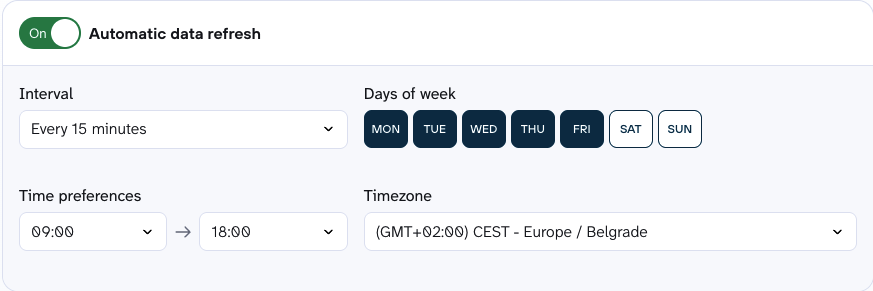
Turn on automatic data refresh. Next, specify the interval, days of the week, hours, and time zone for report updates. If you need daily refreshes, leave the interval unchanged. Otherwise, you can make it more or less frequent, choosing between monthly, hourly, or as often as every 15 minutes.

Automate Google Business Profile exports with Coupler.io
Get started for freeBonus step: Analyze Google Business Profile data with AI
Once your data flow is running, you can ask questions about your local business performance in plain English directly inside Coupler.io, using the AI Agent.
No extra setup is needed. Coupler.io’s Analytical Engine queries your dataset, runs the calculations, validates the results, and passes only confirmed numbers to AI. The AI model handles interpretation and explains findings in natural language. It doesn’t do the math itself, which reduces the risk of numerical hallucinations.
Try asking:
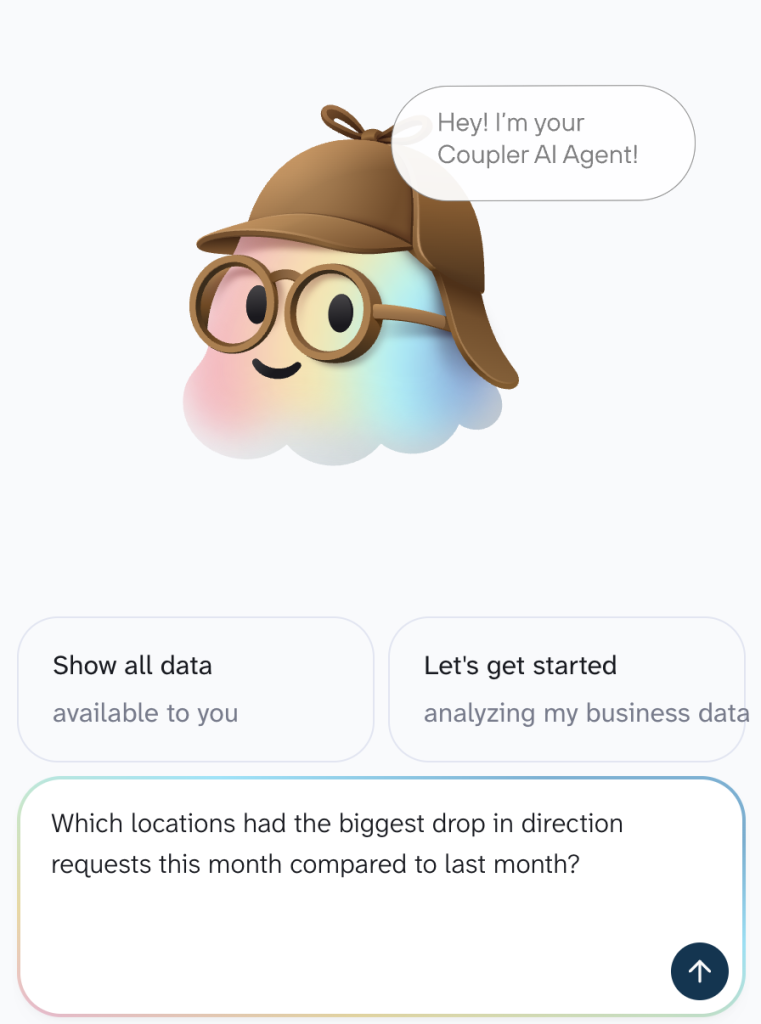
A few more prompts to try:
- “What search keywords are driving the most profile views across all my locations?”
- “Show me the correlation between review response time and average star rating by location”
- “Compare call volume and website clicks for my top 5 locations over the last quarter”
- “Which locations have a declining discovery search share, and what keywords are they losing?”
The AI Agent also supports skills that shape how it responds. The marketing-analytics skill covers performance trend analysis and anomaly detection across locations. The report-generation skill formats output into a structured report with a summary, key metrics, and recommendations. Skills work inside Coupler.io and in external AI tools via MCP.
If you prefer working in Claude, ChatGPT, Gemini, or another AI tool, Coupler.io connects GBP data flows to external AI tools through AI Integrations. The same structured data and calculated results are delivered under the hood, just to a different interface.
For a walkthrough of the Claude setup specifically, see How to connect Google Business Profile to Claude.
Keep in mind that the columns and filters you set up in Step 2 control what AI can access in this step. Reviews may contain customer names or personal details; you decide what gets shared.
Export Google Business Profile data automatically
Get started for freeWhat data can be exported by Coupler.io from Google My Business?
Coupler.io enables you to export 3 data entities from your Google Business Profile. You choose the report type from the dropdown list while setting up the source.
| Report type | Description |
| Daily metrics | Daily performance data for your business, including views, clicks, and interactions. Use it to understand how visitors engage with your profile and how that activity changes over time. |
| Search keywords | The search terms people use to find your business on Google. This data shows how customers discover your business and can help you refine your local SEO strategy accordingly. |
| Reviews list | Customer reviews about your business. Use them to understand how customers perceive your business and monitor your reputation across locations. |
Where you can export Google Business Profile data with Coupler.io
You can send Google Business Profile data to multiple destinations from a single data flow. Here’s what’s available:
- Spreadsheets: Google Sheets and Microsoft Excel. Good for quick reporting and ad hoc analysis.
- BI and dashboard tools: Data Studio, Power BI, Tableau, Qlik, and monday.com. Connect your GBP data to build interactive dashboards and track performance visually.
- AI tools: Claude, ChatGPT, Gemini, Perplexity, CursorAI, Copilot, and OpenClaw through AI Integrations. Your GBP data arrives pre-structured with schema, definitions, and calculated results, so the AI tool can analyze it accurately.
- Data warehouses: BigQuery, PostgreSQL, Snowflake, Supabase, and Redshift. Good for teams that need to store, query, and run advanced analysis on larger datasets.
- Other formats: JSON and CSV exports for custom workflows or tools that accept structured files.
Visualize data from Google Business Profile with dashboards
GBP data makes more sense when you can see it on a chart instead of scanning rows of numbers. Coupler.io connects your Google Business Profile to Data Studio, Power BI, Tableau, and Qlik. Once the data arrives at the destination, you can build dashboards around it.
To load data from your Google Business Profile into these applications, complete the step-by-step process outlined earlier in the article. As soon as data arrives at the destination, you can start building dashboards like the one below.
Coupler.io provides a ready-to-use dashboard template for Google Business Profile. It’s designed to track your business profile performance and get a detailed overview of ratings and reviews.
Google Business Performance dashboard
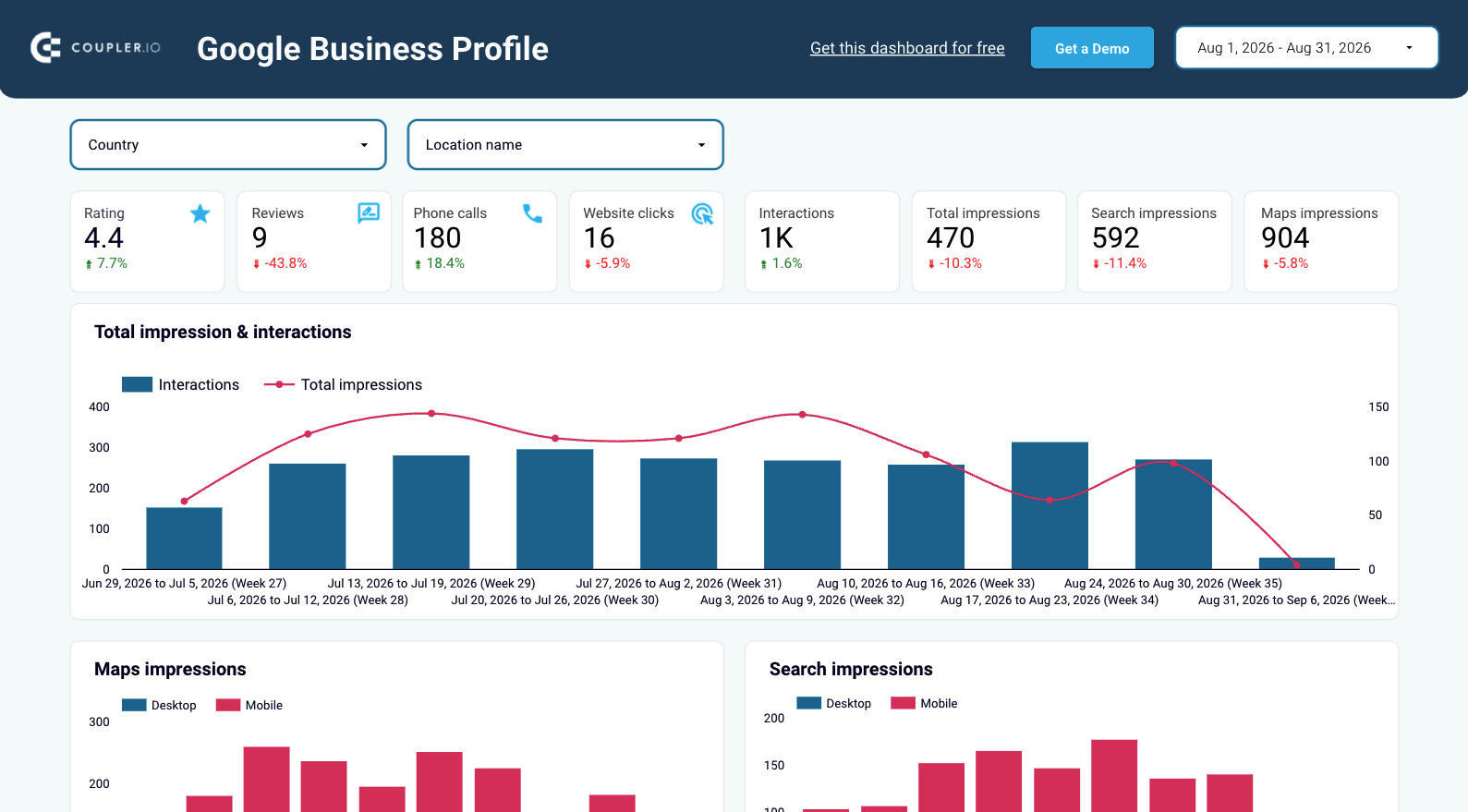 Preview dashboard
Google Business Performance dashboard
Preview dashboardThis Google Data Studio template is free and you can set it up by following the instructions on the Readme page.
Coupler.io can get your Google Business Profile data to many more destinations than BI tools. And with automated refreshes, your reports stay accurate and up-to-date without manual re-exports.
For a broader range of data visualization ideas, see our dashboard templates in Data Studio, Google Sheets, Power BI, and Tableau.
What Google Business Profile metrics to track
Your Google Business Profile data may include various vital metrics. Here’s a list of some:
- Searches: This metric reveals the queries people use to discover your business. It reflects the effectiveness of your profile’s visibility for specific search terms and offers insights into user intent and search trends.
- Users who viewed your profile: This is the number of unique visitors to your profile. This measurement illustrates the profile’s reach and attractiveness to potential customers across different devices and platforms.
- Direction requests: Track the number of unique customers who request directions to your business. This indicates potential customers’ interest and intent to visit your physical location.
- Calls: Monitor the number of clicks on the call button in your business profile. If you provide a phone number, you can track the volume of direct inquiries from customers interested in your products or services.
- Website clicks: These are the number of clicks on the website link in your profile. It demonstrates user engagement with your online presence beyond the profile itself.
- Messages: Keep an eye on the number of unique conversations initiated through messages to discover customer interest and engagement with your business.
- Bookings: If you provide booking services, monitor the number of bookings customers complete to learn about their conversion and satisfaction.
- Booking clicks: For hotels, track the number of clicks on your free booking link. This reflects customer interest in booking accommodations directly through your business profile.
- Total interactions: When summarized, interactions with your profile let you see the big picture of customer engagement and activity.
- Food orders: Are you running a business that offers food pickup or delivery? If so, check the number of orders placed directly through your profile. This way, you can determine how well your online ordering system works.
- Products: The number of views on products sold at your location shows customer interest in specific offerings.
- Menus: Watch the number of clicks on menu content per user daily, including menu photos, URLs, and structured menu data.
Other methods to export data from Google My Business
The Coupler.io path above covers automated, scheduled exports with built-in transformations and AI analysis. If you prefer a more hands-on approach, here are two alternatives.
API integration
If you’ve got some coding experience, you can export data from Google My Business using the Google My Business API. It’s a flexible and scalable method to extract and transfer your data wherever you like.
Still, it will only meet your needs if you have the appropriate skills or a specialist who can sort this out.
Manual data exports
You can also download a report straight from your Google Business Profile and upload it from your device to the destination. No external applications required.
This method works well for small datasets or one-off reporting. It becomes impractical if you need to pull large volumes of data regularly or keep reports up-to-date across multiple locations.
Why export Google Business Profile data with Coupler.io
The API works if you have a developer available. Manual downloads handle one-off needs. Coupler.io covers everything in between and beyond:
- All 3 GBP report types (daily metrics, search keywords, reviews) from one connector.
- Scheduled refreshes, from every 15 minutes to monthly, without manual work.
- Transformations before the data leaves: filter columns, apply formulas, merge data from multiple accounts.
- Multiple destinations from a single data flow: spreadsheets, BI tools, data warehouses, and AI tools.
- Multi-location support for agencies and businesses managing several profiles.
- AI analysis of local performance through the AI Agent or external AI tools like Claude and ChatGPT.
- Data control. You choose exactly which columns and rows reach each destination.
The setup takes a few minutes. The data keeps flowing on its own after that.
Automate your Google Business Profile reporting
Get started for free