
To analyze the performance of your ecommerce store, you need to create an analytics report in spreadsheets or a BI tool. For this, you need to export WooCommerce data. In this tutorial, we’ll show how you can automate exports of customers from WooCommerce to turn this information into meaningful insights.
What are the options to export WooCommerce customers?
Basically, there are two ways to export customers from WooCommerce:
- Manual export – this allows you to export WooCommerce customers as a CSV file, which you can later open in a spreadsheet app or upload to another software.
- Coupler.io – this is a reporting automation platform to turn your data into reports. It allows you to export customers from WooCommerce to a spreadsheet app, database, or BI tool and automate data refresh on a schedule, say every day or every hour.
Also, some users consider the option of installing a WordPress plugin to do the export. However, we recommend you stay away from this since, as you know, the more plugins you install, the worse the performance of your WP website is.
How to export customers from WooCommerce with Coupler.io
With Coupler.io, you can connect WooCommerce to the destination app of your choice (for example, a spreadsheet app). This process takes just a few minutes and requires no special knowledge on your side. Also, you will only need to do this once. With that, Coupler.io will keep refreshing your WooCommerce customers’ data automatically on a schedule.
1. Extract your customer data
Select the desired destination app in the form below and click Proceed. You can set up a WooCommerce export to Excel, Google Sheets, BigQuery, and other apps. You’ll be offered to sign up for Coupler.io for free with no credit card required.
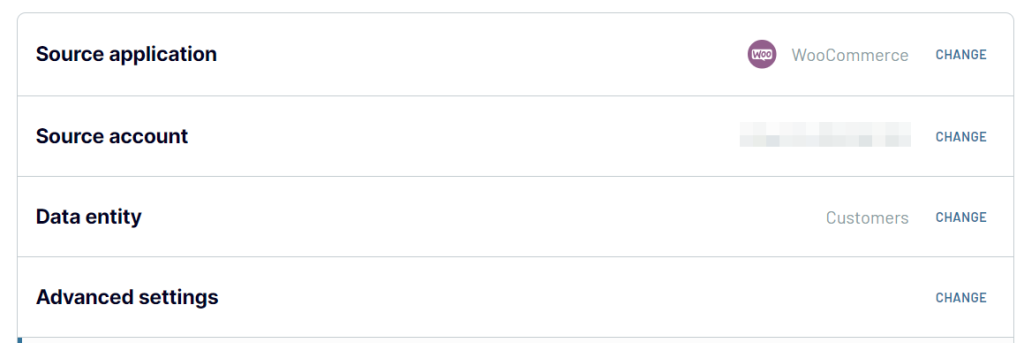
Then, follow the instructions in the wizard to connect your WooCommerce account. Select Customers as a data entity to export. Optionally, you can filter your customer data before exporting.
2. Preview and transform your data
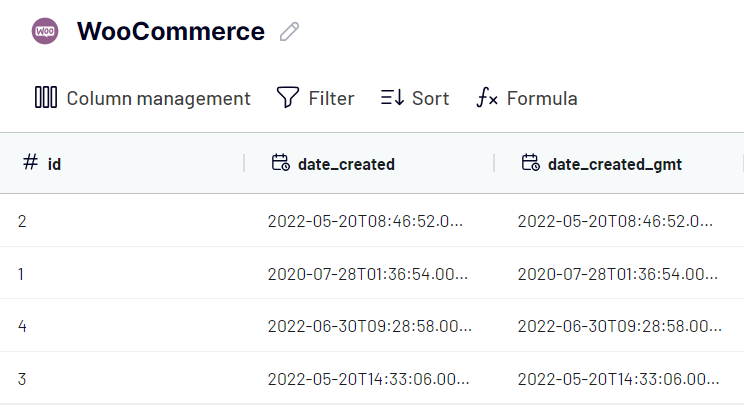
Coupler.io allows you to actually see data that you are about to export. So you can check if everything is okay, and also edit and transform your data, including:
- Hide unnecessary columns – they won’t be exported
- Rearrange columns – just drag and drop them
- Rename, merge, and split columns
- Add new columns, including formula-based ones
- Filter and sort your data
- Merge data from several accounts or from different sources
3. Load data and schedule refresh
Follow the in-app instructions to load your customers’ data to the chosen destination. The flow will differ based on where your data is going. For example, you’ll need to specify a spreadsheet and a sheet, if you connect WooCommerce to Google Sheets.
Since we want to automate exports of customers from WooCommerce, we need to enable the automatic data refresh and configure the schedule. Once this is done, Coupler.io will automatically update your customer information in the spreadsheet.

Then, Save and Run the importer. In a few moments, you’ll have your WooCommerce customers’ data in your destination – ready for analysis.
Export customers from WooCommerce manually
- Go to Customers. Click the Download button. A CSV file with information about your WooCommerce customers will be downloaded to your computer.


That’s the end of the story 🙂 This exporting method is rather fast and simple, but it’s not the only option you can use.
Can I auto export WooCommerce customers as CSV?
You can’t automate the export of WooCommerce customers’ data with the native exporting option. But you can do this with Coupler.io.
Why would one need to automate exports? Imagine that you monitor the customers’ information daily in a separate spreadsheet, which you can share with your team. To update information in this spreadsheet, you’d have to export WooCommerce customers as CSV daily and add this data to your spreadsheet. This manual work will take 2 minutes of your time every day. Not much at first glance, but this will result in 14 minutes every week (if you work on weekends as well), or 1 hour every month, or 12 hours every year! Instead, you could automate exports to save time and focus on some proper WooCommerce analytics instead.
Although you can’t do this with the native functionality, Coupler.io provides a WooCommerce integration to schedule exports of customers from WooCommerce. It will let you optimize your workflow in literally less than 2 minutes. We already explained how to do this at the beginning of the article.
WooCommerce customer export: CSV vs. Coupler.io
We’ve introduced two methods to export customers from WooCommerce: the manual one as a CSV file and the automated one using Coupler.io. In addition to their core difference, they also differ in the data you get out of WooCommerce.
The CSV file offers a limited set of columns for your data. At the same time, it returns all the customers, including guests, i.e., those who made a purchase without sign-up. In our example, we’ve got 9 rows (including the title row) and 12 columns:

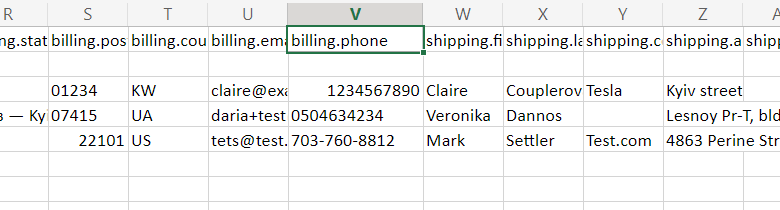
Coupler.io provides way more details about your customers, but it only returns the ones who signed up. In our example, we’ve got only 5 rows (including the title row) and 47 columns:

Which one is best? Hmm…it depends on what data you need. For example, the CSV option displays total orders per customer, which is not available in the data set exported with Coupler.io. At the same time, Coupler.io returns the entire billing information and metadata. Below, you’ll find some differences in the data you can export with both of the options.
How to export customers and phone numbers from WooCommerce?
Well, to get the billing details of your customers, Coupler.io seems to be the best option. It allows you to get all the contact details, including phone numbers.
How to export WooCommerce customers by product?
The CSV option can only give you information about the total orders per customer. But that’s not the customer by product. When you export WooCommerce customers with Coupler.io, you won’t see such breakdowns as well. But hold on!
Coupler.io also allows you to export other types of data, including products, orders, etc. This could be the solver. Check out the next section to learn the details.
Export WooCommerce customers who purchased a certain product
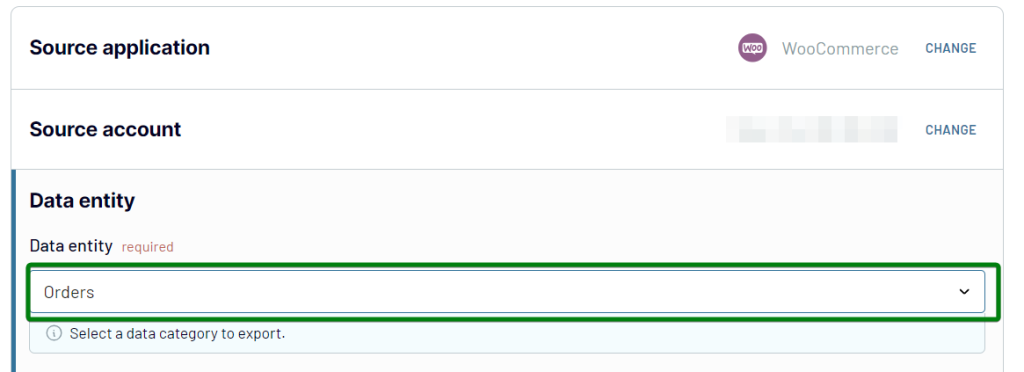
To export customers by product, you’ll need to export orders from WooCommerce. With Coupler.io, you only need to select select Orders as a data entity to export.
You can either export all of your WooCommerce orders and get information about the customers per order and what products they purchased. Or you can filter the orders and customers per product right away.
For example, we want to get information about customers who purchased sunglasses. For this, enter ‘sunglasses’ as a search string to the respective field in the Advanced settings.

Then, finish setting up the importer – preview your data, connect your destination account, and run the importer. Here’s what the exported data looks like:

Can you export customers from WooCommerce to XML?
For some WooCommerce data entities, such as Products or Orders, there is another exporting option available. You can export these as XML if you go to Tools => Export. Unfortunately, you can’t export WooCommerce customers this way.

If you do need to export customers from WooCommerce in this format, the only option you have is a WordPress plugin, for example, WooCommerce Customer / Order / Coupon Export. There are also other alternatives.
Which method to export WooCommerce customers should you choose?
Both the native and automated methods for exporting customers’ data from WooCommerce are quite actionable. However, each of them is a good fit for a specific purpose.
The manual way of getting data in CSV works best for one-time export, for example, to move your customer details to another app.
The WooCommerce integration by Coupler.io is a good choice for different analytical or reporting purposes. For example, you can schedule exports of customers’ data from WooCommerce to Google Sheets, say every day, and share the spreadsheet with the stakeholders. This way, you will know that they have access to the most recent records from your WooCommerce store. So, make a smart choice based on your needs. Good luck with your data!
Automate WooCommerce data export with Coupler.io
Get started for free


