
Wasted spend shows up as money going out with no conversions coming back. With Coupler.io, you can build a report showing which campaigns aren’t performing and what each is costing you, through an AI chat in under ten minutes.
Step 1: Connect your Google Ads data with Coupler.io’s AI Agent
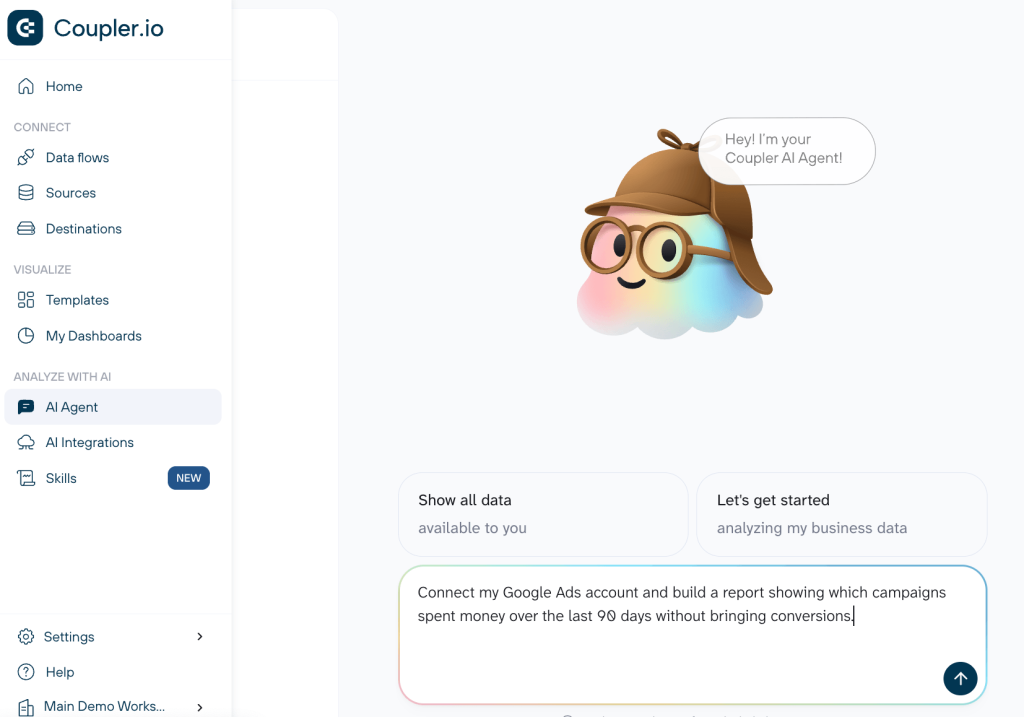
Start by creating a free Coupler.io account (no credit card required), then click AI Agent in the sidebar and say what you want to do:
"Connect my Google Ads account and build a report showing which campaigns spent money over the last 90 days without bringing conversions."
AI Agent asks you to authorize your Google Ads account first; the read-only connection changes nothing there.
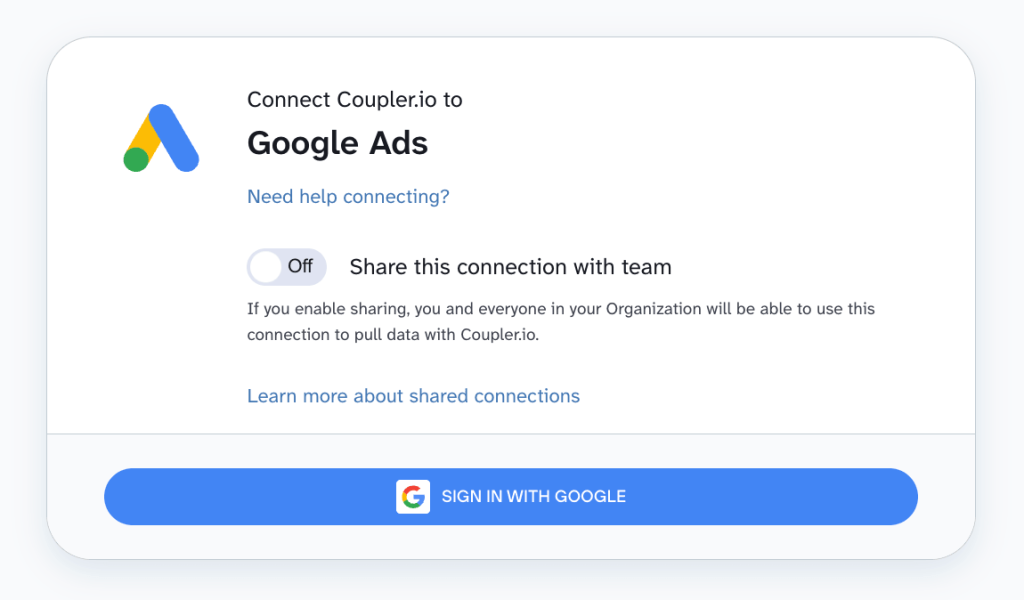
Get your first actionable report
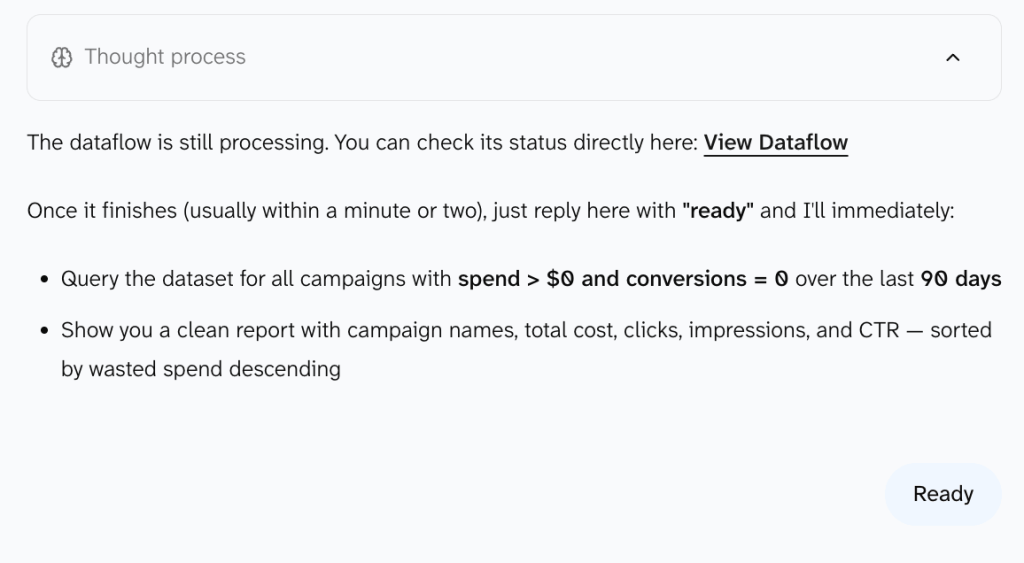
Once your account is connected, type "Done". The agent fetches your Google Ads metrics and builds the data flow behind your report.
Wait for it to load, then write "Ready" to generate the report.
The AI Agent returns a report in table form with key takeaways and next steps.
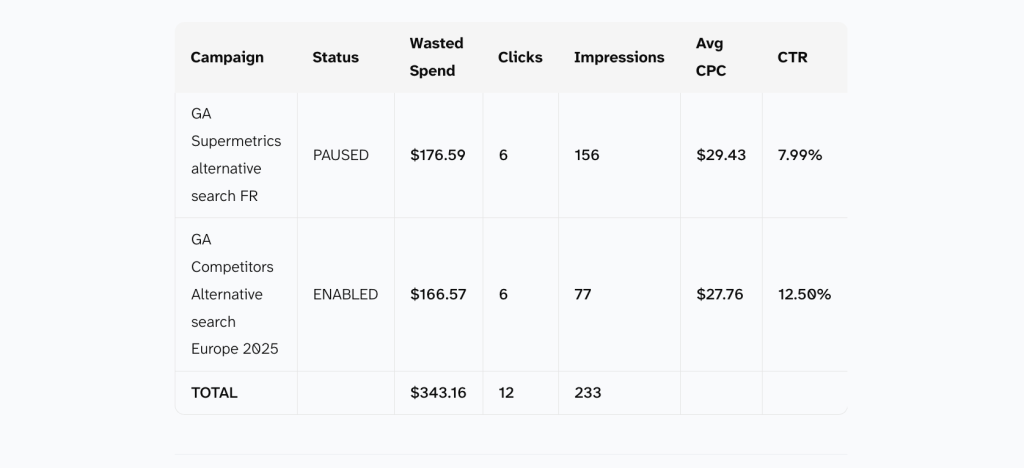
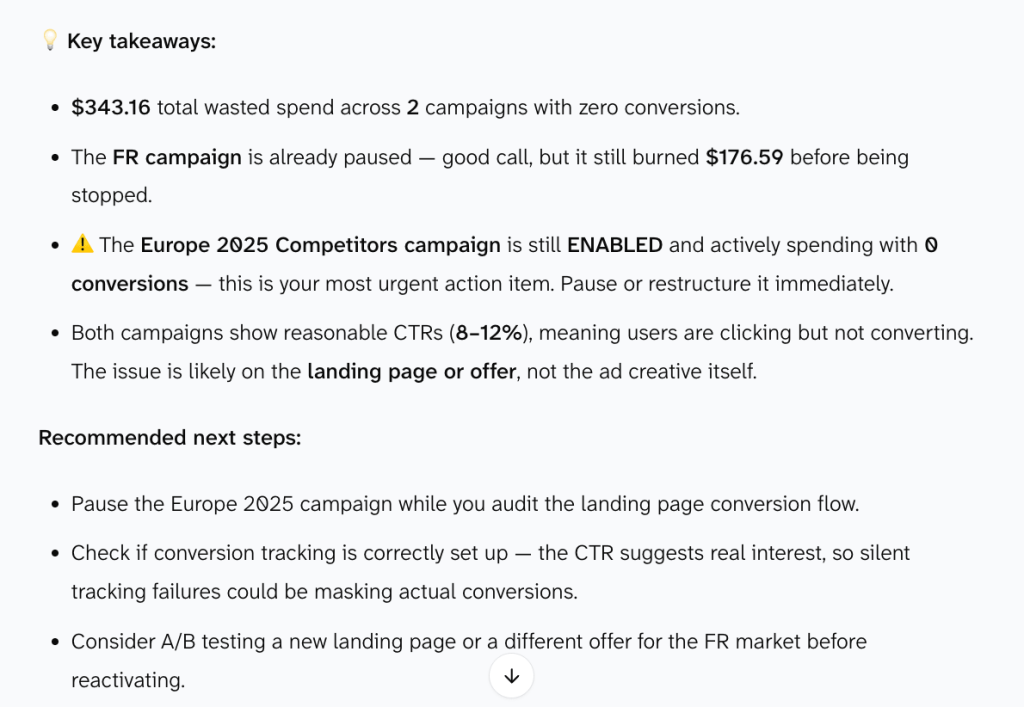
It flags all zero-conversion campaigns regardless of objective (reach, awareness), so double-check before pausing anything.
For sharper suggestions, give the agent business context on your data. For example, tell it your target CPA is $40, and it won’t just flag zero-conversion campaigns.
When to connect your data manually instead of through chat
The chat gives you a quick raw pull; fine for a first look. Use the manual wizard instead when you want to shape your data before it becomes a report:
- Hide/rename columns, filter rows, or add a formula field like CPA (Cost / Conversions) that recalculates automatically.
- Combine it with other sources, like Facebook Ads or additional Google Ads accounts, into one report before analysis.
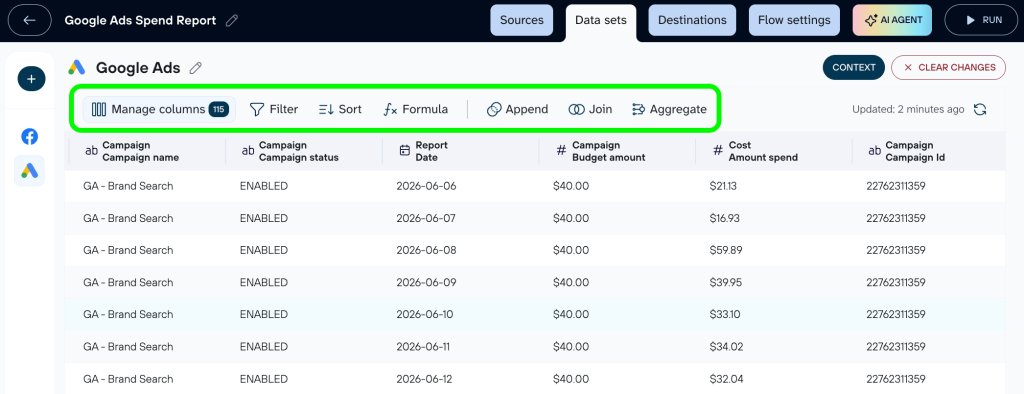
Choose where to send your report and click to proceed:
Step 2: Send the report to tools you already use
A report in a chat window won’t reach decision-makers. Ask AI Agent to send it somewhere your team actually checks:
"Add Google Sheets as a destination for this report."
It’ll prompt you to authorize the connection, then hand off to the manual wizard for some last decisions. For Sheets, pick or create a spreadsheet. Click Save and Run.
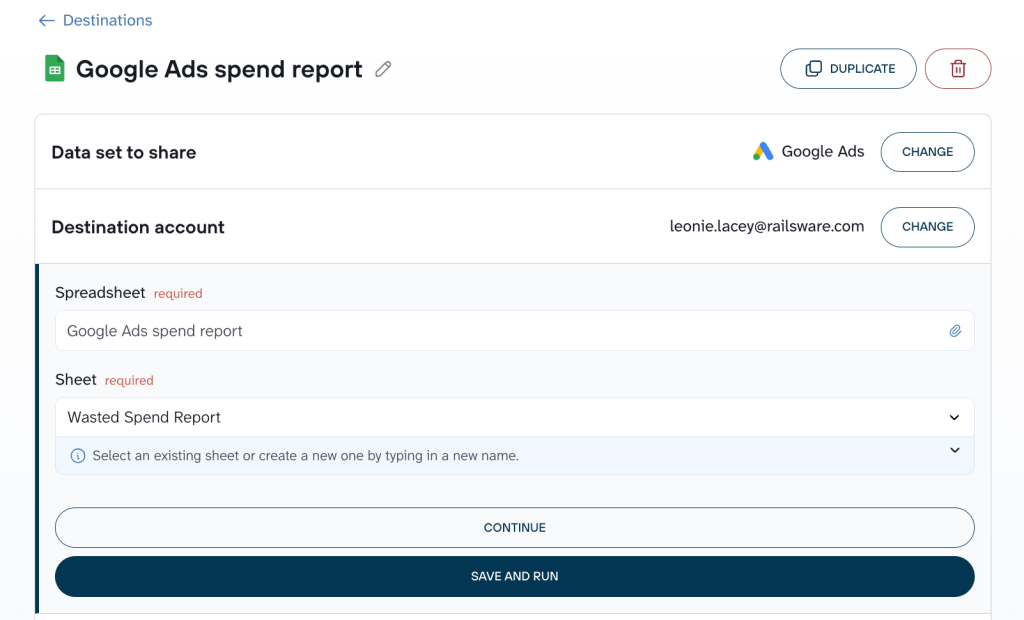
You can connect more destinations too, like an AI tool or a dashboard in Data Studio, and they all update together from the same data.
Step 3: Keep the report up to date automatically
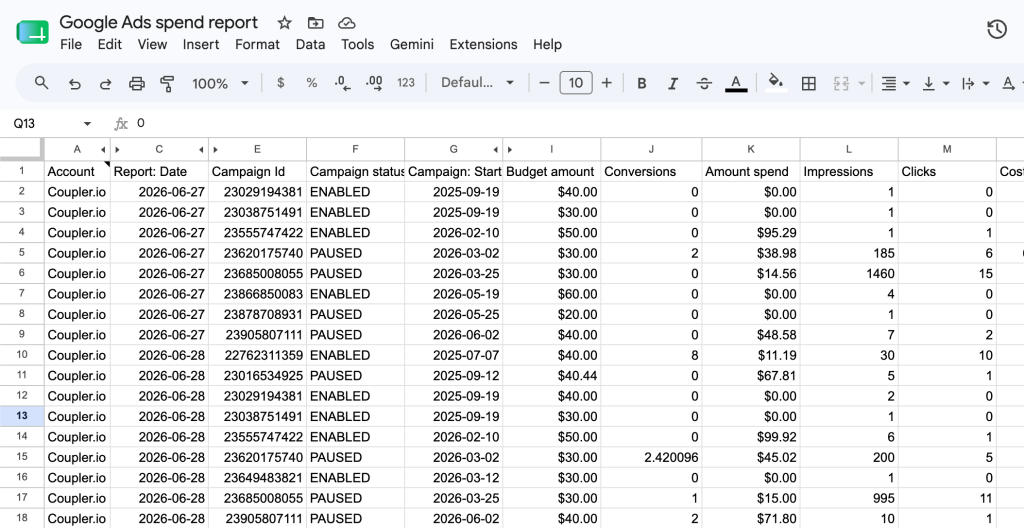
Once the report is ready, the AI Agent will ask if you want it to refresh on a schedule. Say yes and set your preferred frequency, time, etc.
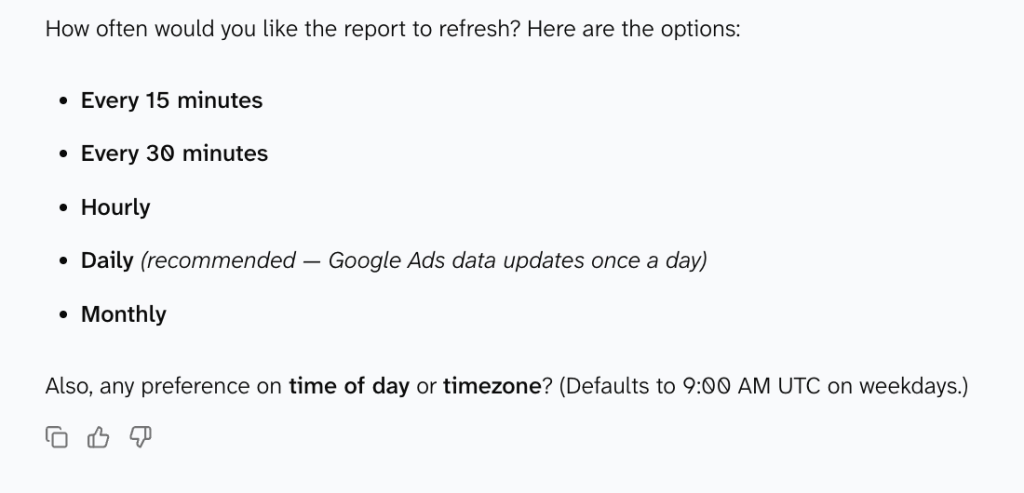
You’ll receive a report you can share with your team or client:
If you’d rather skip building from scratch, start with a Google Ads dashboard template that already covers paid ads performance.
AI Agent in Coupler.io is where you get answers on why your campaigns aren’t performing. Ask questions like:
"Which keywords have the highest cost per click with no conversions?"
"Is the bidding strategy or budget cap limiting how these campaigns spend?"
The report gives you a starting point, and the chat helps you understand what’s happening.

See where your Google Ads budget goes
Try Coupler.io for free