
Yahoo Finance is one of the most popular sources for live market prices and historical stock data. By connecting Yahoo Finance to Excel, you can combine real-time financial data with the powerful analysis capabilities of spreadsheets. In this article, I’m showing you how to automate this with Coupler.io and cover other methods like Power Query and Python.
How to sync Yahoo Finance with Excel using the ETL tool by Coupler.io?
Coupler.io is a no-code data integration and AI analytics platform. It provides an ETL tool to connect over 400 business sources to spreadsheets, dashboards, data warehouses, and even AI tools. For Yahoo Finance, Coupler.io offers two options to integrate your data easily into Excel:
- Yahoo Finance Price connector — a dedicated connector that pulls price data for any tickers you specify. No API setup needed.
- JSON API connector — connects to Yahoo Finance’s unofficial API, giving you access to a broader range of financial data.
Both options support scheduled auto-refresh to keep your Excel file up-to-date. Coupler.io can export data to Excel Online (a file stored in OneDrive or OneDrive for Business) or Excel Desktop (a CSV file that downloads to your device automatically).
Export Yahoo Finance Prices to Excel
The fastest way to get stock prices into your spreadsheet. Here’s how to set it up using Apple stock (AAPL) as an example.
1. Collect data
Sign up for Coupler.io for free and create a data flow by choosing Yahoo Finance Price as a data source. Or, get started right away by clicking Proceed in the form below.
The form is preset for the export to Excel Online – an Excel file stored in your OneDrive or OneDrive for Business account.
At the same time, Coupler.io enables you to export data to an Excel file (CSV), which automatically downloads to your device. For this, change the destination to Excel Desktop using the drop-down list.
Enter the ticker you want to get prices for. In our case, the ticker for Apple stock is AAPL. At the same time, Coupler.io allows you to specify multiple tickers that must be separated with commas.
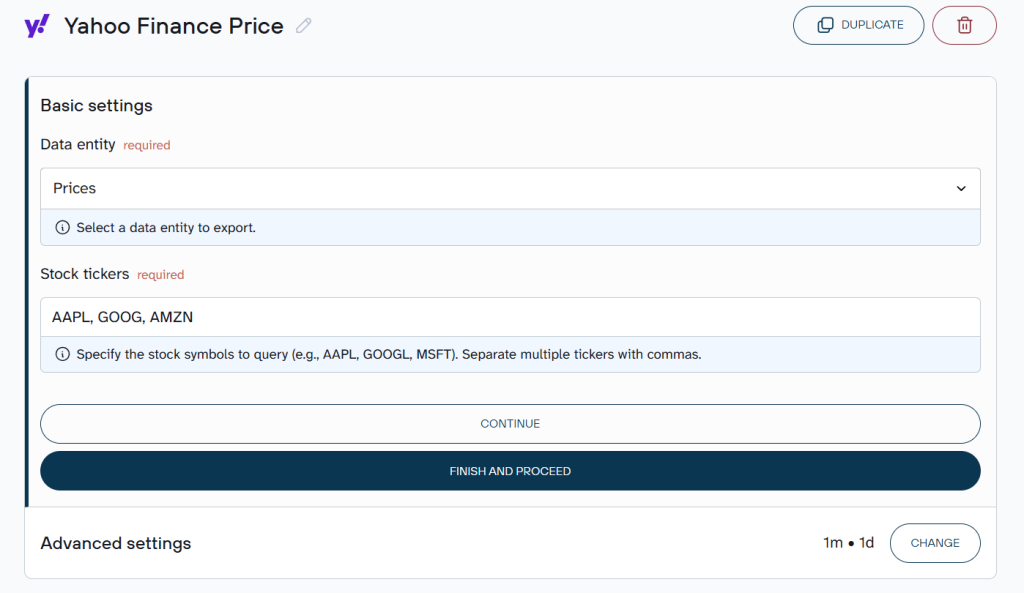
In the Advanced settings, you can also specify the Price interval from 1 minute to 3 months, and the date range. Proceed to the next step.
2. Organize data
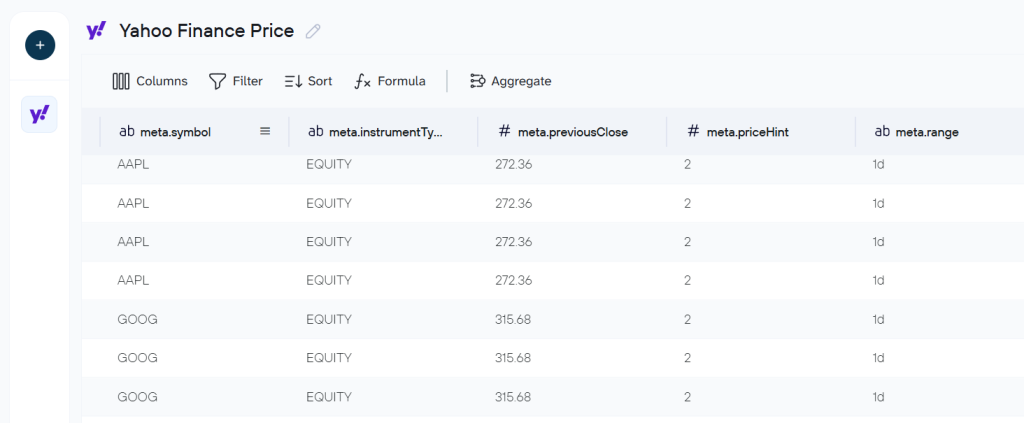
Coupler.io will preload information about the selected tickers, so you can preview the data set and make it analysis-ready. For this, the platform offers filters, column management capabilities, aggregations, and other options.
3. Load data to Excel and automate refresh
The last step is to configure the destination for your data. Coupler.io offers two options for Excel as a data destination:
- Excel Online – export data to an Excel file stored in your OneDrive or OneDrive for Business account
- Excel Desktop – export data to an Excel file (CSV), which automatically downloads to your device.
For Excel Online, connect your Microsoft OneDrive account and select the Workbook and Sheet where you want to export the Yahoo Finance data.
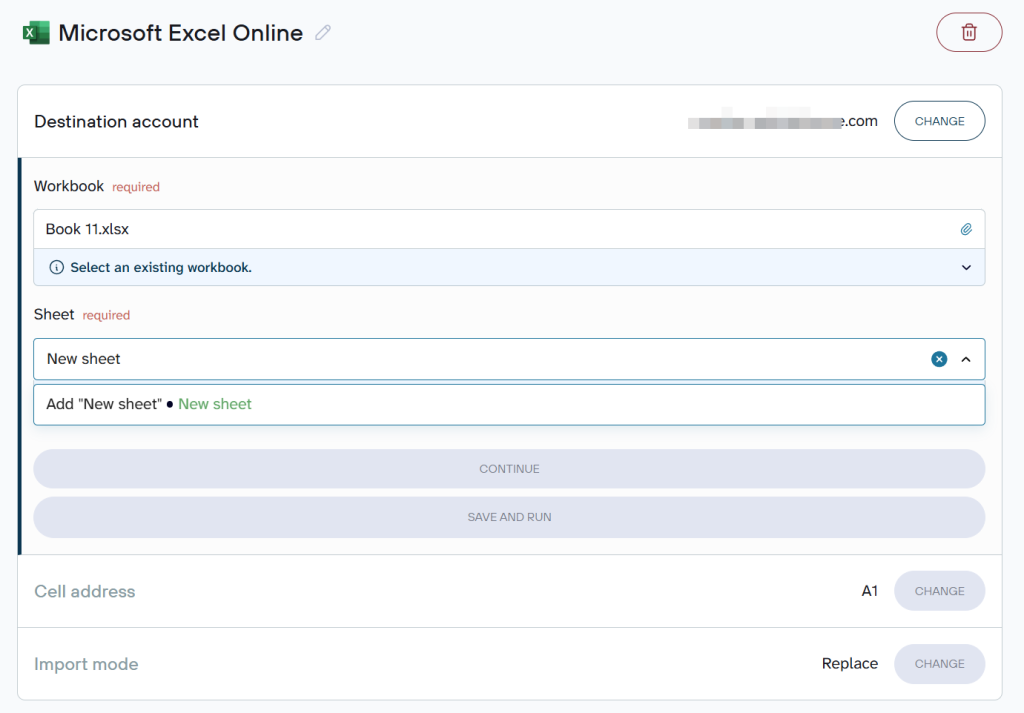
For Excel Desktop, click Generate file and then Download to get your CSV file with Yahoo Finance data to your device and open it in the Excel desktop app.

Enable the schedule feature to auto-refresh the data at regular intervals. Switch on the Automatic data refresh option and configure the data refresh schedule.

Finally, click on the Save and Run to launch the Yahoo Finance export to Excel.
It’s pretty easy, isn’t it? At the same time, Coupler.io allows you to connect directly to Yahoo Finance API without any coding and get information to Excel.
Connect Yahoo Finance to Excel via API
The Price connector handles stock prices, but if you need other financial data, use the JSON API connector. It connects to Yahoo Finance’s unofficial API and gives you access to virtually any data module available.
The official Yahoo Finance API was discontinued in 2017, but an unofficial version appeared in 2019 and remains widely used. The instructions below work with this unofficial API. We’re not responsible for the outcome if the API changes or settings are configured incorrectly. If you need help, book a demo call with our team.
1. Collect data
- To link Yahoo Finance to Excel via the Coupler.io platform, click Proceed in the form below. I’ve already preselected JSON as the source and Microsoft Excel as the destination, so you only need to create a Coupler.io account for free and configure the connection.
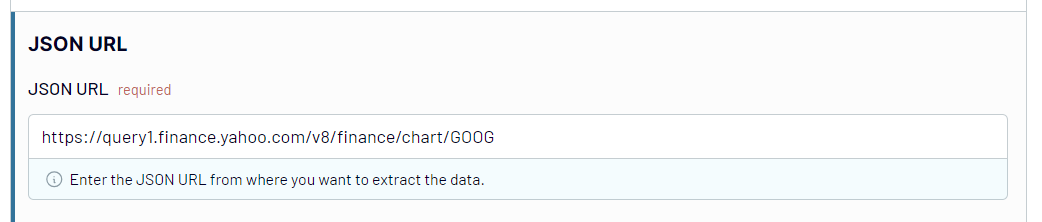
- Enter the Yahoo Finance API endpoint URL in the JSON URL field. For example:
https://query1.finance.yahoo.com/v8/finance/chart/GOOG
- Select GET in the HTTP method.
- In the URL query parameters, enter the parameters related to the data you need. For example, to retrieve the price information:
modules: price
Learn more about the URL parameters to get data from Yahoo Finance to Excel.
The rest of the flow you already know: preview and organize the data set and configure the Yahoo Finance data load to either Excel Online or Excel Desktop.
You can see below, Coupler.io exported the entire JSON response from Yahoo Finance API into Excel.

Furthermore, as we configured, Coupler.io will refresh the stock price automatically as per the schedule!
Other methods to link Yahoo Finance to Excel
Coupler.io stands out because it combines a no-code setup with scheduled auto-refresh. You connect Yahoo Finance to Excel, and the platform keeps your Excel file up-to-date without any ongoing effort.
If you don’t want to use a third-party data integration platform or need more control over how the data is fetched and processed, the methods below are worth considering.
Power Query – it is a built-in ETL tool in Excel (available since Excel 2016 under Get & Transform Data in the Data tab). You can use it to pull data from the unofficial Yahoo Finance API as a web source. The downside is that you may need to keep Excel running for real-time updates.
Python program – You can build a Python script using the yfinance library to retrieve data from Yahoo Finance and export it to a CSV or Excel file. This approach makes sense when you need to run custom calculations or transformations on the data before it hits the spreadsheet. However, it requires coding skills and additional setup to run on a schedule.
Alternative third-party tools – Apart from Coupler.io, other third-party add-ins can pull Yahoo Finance data into Excel, such as Stock Connector, MarketXLS, and Excel Price Feed. They vary in terms of features, pricing, and ease of use.
Now, let’s have a closer look at the Power Query and Python methods to get Yahoo Finance data into Excel.
How to use Yahoo Finance API in Excel Using Power Query?
Power Query is a robust ETL tool that lets you connect external data sources to Excel. You can use it to export Yahoo Finance data to Excel via the API as a web source. Since Excel 2016, Power Query has been fully integrated and can be found as Get & Transform Data in the Data tab.

The stepwise methods to export stock prices and tables from Yahoo Finance to Excel via Power Query are provided below.
How to export a table from Yahoo Finance to Excel?
Let’s say you want to get the historical prices of Apple stock for February with a weekly frequency. You need to make an API call to Yahoo Finance, including the date range and other parameters. Here’s a clever way to do that.
- Go to finance.yahoo.com and search for the required stock.
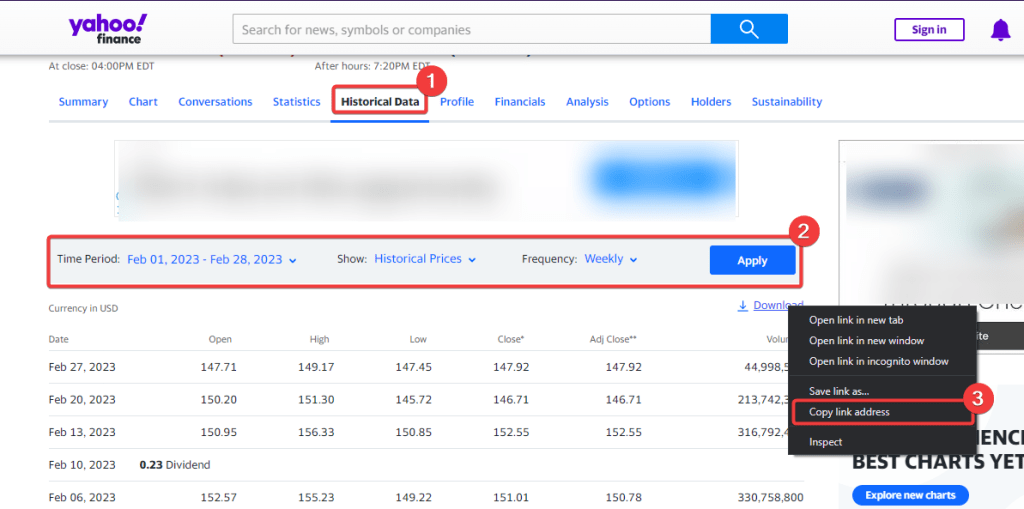
- Click on the Historical Data tab, select the appropriate time period and frequency for the historical prices, and click on Apply.
- Now, right-click on the Download option available in the top-right corner of the table, and click on Copy link address.
Now, we’ll use the copied link as a web source to get the required table from Yahoo Finance to Excel. Just follow these steps to export Yahoo Finance data to Excel:
- Open the Excel file, and select the cell where you want to import the table.
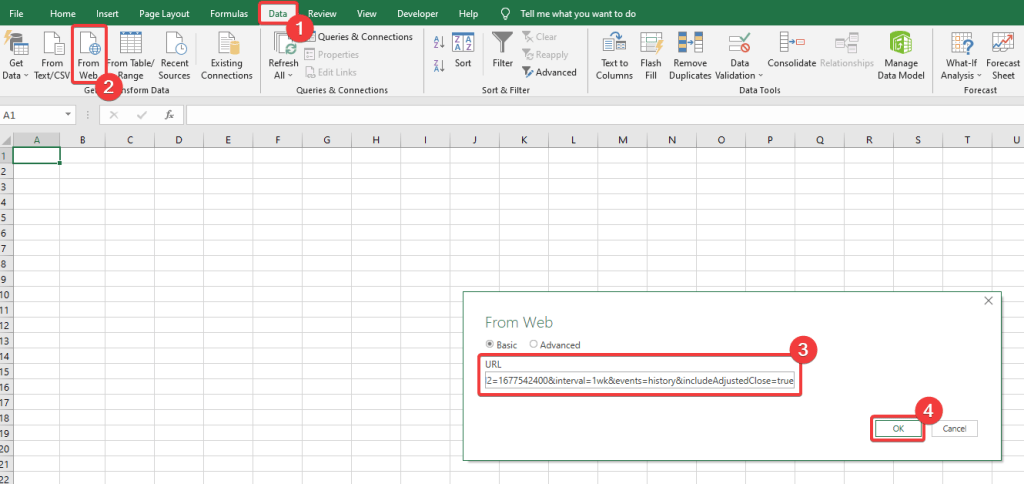
- Go to Data > Get & Transform Data > From Web.
- Now, paste the copied URL into the respective field and click on OK.
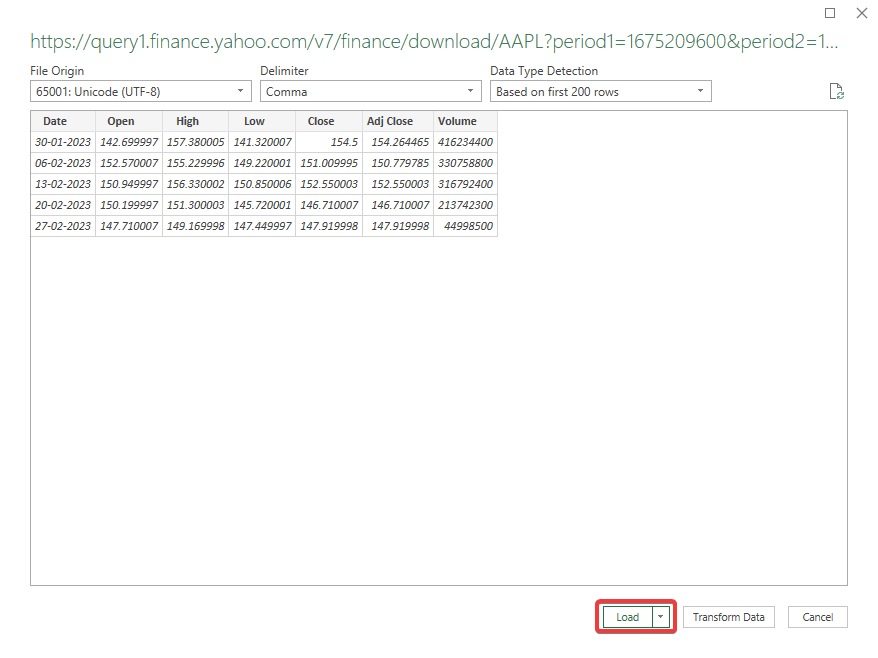
- Now, the popup will show a preview of the table. Review it and click the Load button to run the Yahoo Finance export to Excel.
The required table has been successfully exported from Yahoo Finance to Excel.
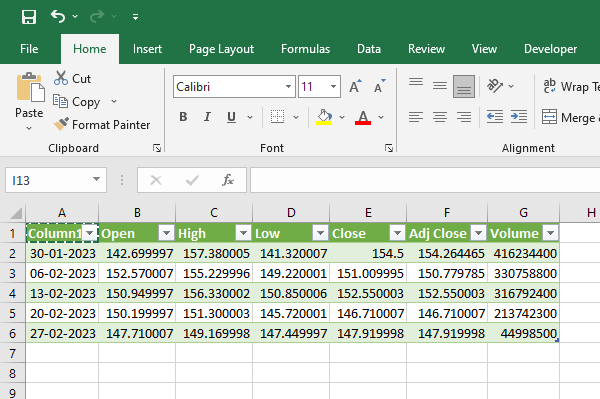
You can use this method to export various tables from Yahoo Finance, such as historical prices, dividends, stock splits, and capital gains.
How to import stock prices into Excel from Yahoo Finance?
You can directly call the Yahoo Finance API in Power Query to import stock prices in Excel. Let’s understand this through an example of Apple stock.
- Open the Excel sheet, and select the cell where you want to get the stock price.
- Go to Data > Get & Transform Data > From Web.
- Enter the following in the URL field:
https://query1.finance.yahoo.com/v10/finance/quoteSummary/AAPL?modules=price
Learn more about the URL parameters to get data from Yahoo Finance to Excel.

The Power Query Editor popup will appear on your screen.
- Now, double-click on the fields and navigate to Quote Summary > Result > Price > regularMarketPrice.
- Now, right-click the raw value and click Add as New Query.
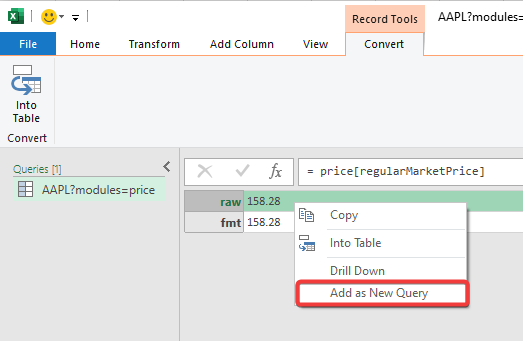
- This will create a new query for the raw value (stock price). Keep the raw query selected and click Into Table.
- Finally, import the stock price into Excel by clicking on the Close & Load button.

The stock price will be successfully imported to Excel from Yahoo Finance.

You can modify the ticker in the above URL to get the price of the desired stock. Furthermore, you can also configure Excel to auto-refresh the connection at regular intervals to keep the stock price updated.
Follow these steps to set up stock price auto-refresh in Excel.
- Keep the stock price column selected, and go to Data > Queries & Connections > Refresh All > Connection Properties.

- In the Query Properties menu, enable the refresh feature, and set the interval in minutes. Finally, click OK to save changes.

Now, Excel will refresh the connection every minute and update the stock price! ?
URL parameters to get data from Yahoo Finance to Excel
The above two methods use the unofficial API to link Yahoo Finance to Excel. A proper understanding of the API endpoints and available features can help you get the most out of the integration.
There are two different API endpoints to fetch data from Yahoo Finance:
- For Major Data Entities:
https://query1.finance.yahoo.com/v10/finance/quoteSummary/{ticker}
- For Historical Data:
https://query1.finance.yahoo.com/v8/finance/chart/{ticker}
The {ticker} is the unique abbreviation of the stock used to identify the stock. For example, AAPL for Apple stock.
JSON URL parameters for major entities
You need to specify the parameters in the Yahoo Finance API to get the required data. Let’s say you want to get price details of Apple stock; then you need to make the following API request:
https://query1.finance.yahoo.com/v10/finance/quoteSummary/AAPL?modules=price
A complete list of supported URL parameters in Yahoo Finance API is provided below.
| Data entity | URL query string |
|---|---|
| Price | modules: price |
| Key statistical data including (YTD Daily Total Return, profit margins, float shares, etc.) | modules: defaultKeyStatistics |
| Expense Ratio | modules: fundProfile |
| Profile Data | modules: assetProfile |
| Income statements history | modules: incomeStatementHistory |
| Quarterly income statements history | modules: incomeStatementHistoryQuarterly |
| Balance Sheet history | modules: balanceSheetHistory |
| Quarterly balance Sheet history | modules: balanceSheetHistoryQuarterly |
| Cash flow statement history | modules: cashflowStatementHistory |
| Quarterly cash flow statement history | modules: cashflowStatementHistoryQuarterly |
| Financial data | modules: financialData |
| Calendar events | modules: calendarEvents |
| Securities filings | modules: secFilings |
| Recommendation trend | modules: recommendationTrend |
| Upgrade & downgrade history | modules: upgradeDowngradeHistory |
| Institution ownership | modules: institutionOwnership |
| Fund ownership | modules: fundOwnership |
| Major direct holders | modules: majorDirectHolders |
| Major holders breakdown | modules: majorHoldersBreakdown |
| Insider transactions | modules: insiderTransactions |
| Insider holders | modules: insiderHolders |
| Net share purchase activity | modules: netSharePurchaseActivity |
| Earnings | modules: earnings |
| Earnings history | modules: earningsHistory |
| Earnings trend | modules: earningsTrend |
| Industry trend | modules: industryTrend |
| Index trend | modules: indexTrend |
| Sector trend | modules: sectorTrend |
JSON URL parameters for historical data
The Yahoo Finance API requires additional parameters to get historical data about stocks, splits, and dividends.
Let’s say you want to get weekly historical data of the Apple stock price for the entire month of February; you need to make the following API request:
https://query1.finance.yahoo.com/v8/finance/chart/AAPL?period1=1643673600&period2=1677542400&interval=1wk&events=history&includeAdjustedClose=true
Explanation of each of the URL parameters is tabulated below:
| URL query string parameter | Description |
|---|---|
| symbol: {ticker} | Provide the ticker symbol. |
| period1: {unix-timestamp} | Start date in the Unix timestamp format. For example, 1617179455 is the unix timestamp for Mar 31 2021 11:30:55t. |
| period2: {unix-timestamp} | End date in the Unix timestamp format. |
| interval: {interval} | Specify the time interval, for example:– 3mo denotes 3 months– 1d denotes one-day |
| includePrePost: true | Add data before and after the market. |
| events: div%7Csplit | Add dividends and splits. |
How to link Yahoo Finance to Excel with Python?
You can also export Yahoo Finance data to Excel using a Python program. It is a highly technical method to access the Yahoo Finance API and export the data to Excel.
Follow these steps to export Yahoo Finance data to Excel with Python.
- First of all, you need to install the yfinance library to use the Yahoo Finance API in Python. Run the following command to install it:
pip install yfinance
- Now, open a notepad or any other text editor, and create script.py file with the following code:
import yfinance as yf
start_date = '2022-01-01'
end_date = '2023-01-01'
ticker = 'GOOGL'
data = yf.download(ticker, start_date, end_date)
print(data.tail()) # the most recent prices

# Export data to a CSV file
data.to_csv(f"{ticker }.csv")
- The above code will generate a CSV file containing the historical data of the Google stock.
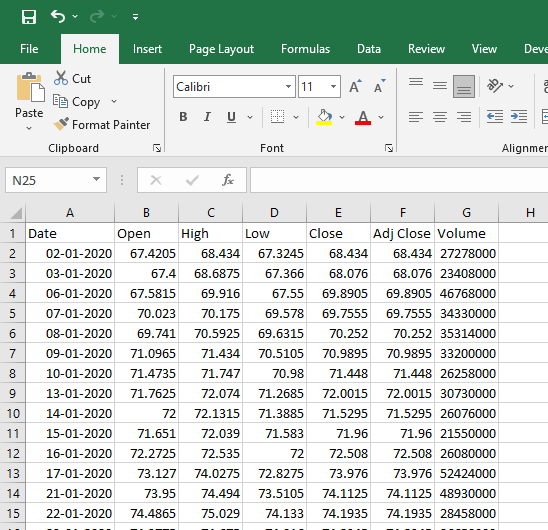
Ta-da!!
Similarly, you can use other functions of the yfinance library to pull data from Yahoo Finance to Excel. You can learn more at yfinance – PyPI.
Which is the best method to link Yahoo Finance to Excel?
Connecting Yahoo Finance to Excel can make your portfolio tracking more powerful. You can leverage the powerful analytics features of the spreadsheet tool and make better decisions for successful investment strategies.
Each method has its strengths. Power Query is a capable built-in option, but you may need to keep Excel running for real-time updates and navigate its interface for API calls. Python offers maximum flexibility for developers, but requires coding skills and extra setup to run on a schedule.
Coupler.io is the most practical choice for users who want reliable, hands-off automation. The Yahoo Finance Price connector gets you up and running in minutes for stock price tracking, while the JSON API connector opens up the full range of financial data modules. Both support scheduled auto-refresh, so your Excel file stays current without manual work. You can also use Coupler.io to transfer data from many other sources — for example, take a look at our article on ClickUp export to Excel to learn how you can analyse project data more efficiently.
Automate data export with Coupler.io
Get started for free