
How to Connect Your App Data to ChatGPT: 6 Methods Ranked by Usability and Efficiency

The options to connect data to ChatGPT range from copying/pasting records into the chat window to connecting datasets via Coupler.io, which handles calculations for you. Below, I’ve ranked six connection methods from most to least practical, with setup steps and honest trade-offs for each. Pick the right one, and you get accurate, live answers in plain language without re-uploading or hallucinated numbers.
Comparison table of methods to connect your business apps with ChatGPT
| Connection method | Setup effort | Who does the math | Best for | Watch out for |
| ChatGPT Apps | Low: connect once, query anytime | Depends on the app — some let ChatGPT approximate, others validate externally | Recurring analysis on live business data | Not all apps handle calculations the same way; check what runs the math |
| → Coupler.io (recommended) | Low: create a data flow from your source to ChatGPT | Coupler.io’s Analytical Engine returns validated results | Accurate, scheduled analysis across 400+ sources | Free plan has query limits; paid plan needed for regular use |
| API Actions | High: requires OpenAPI schema and auth config | ChatGPT — no external validation | Developers building custom data-connected GPTs | Debugging is limited inside ChatGPT |
| Custom GPTs with uploaded data | Moderate: configure a GPT, upload files | ChatGPT — no external validation | Structured Q&A against smaller, static datasets | Data goes stale the moment you upload it |
| Connected cloud files | Low: link Google Drive or OneDrive | ChatGPT — reads docs as-is, no calculations | Referencing business documents, policies, and reports | Not built for structured data analysis |
| File uploads | Minimal: drag and drop into chat | ChatGPT via generated Python code | One-off analysis on a single export | No connection to the source; data is a snapshot |
| Copy paste | None: just paste | ChatGPT — guesses structure from pasted text | Quick lookups with a few rows of data | Formatting breaks, no security controls, nothing reusable |
This table gives you a quick picture, but it’s barely enough to choose the right method for data integration with ChatGPT. I’ll break down each one below, focusing on how it works, how to set it up, and where it falls short.
1. ChatGPT apps
ChatGPT Apps (formerly called Connectors) are third-party integrations listed in OpenAI’s App Directory. They let external platforms connect data to ChatGPT conversations without file uploads, API configuration, or manual exports. You connect an app once, authorize access with appropriate permissions, and ask ChatGPT about your data in natural language.
They act as a bridge between your business tools and ChatGPT. Instead of you pulling data from one platform and pushing it into another, the ChatGPT app handles the pipeline in the background.
How the connection works
The general flow for any ChatGPT App follows the same pattern. In ChatGPT’s workspace, you open the Apps menu, find the app you want, and click Connect.
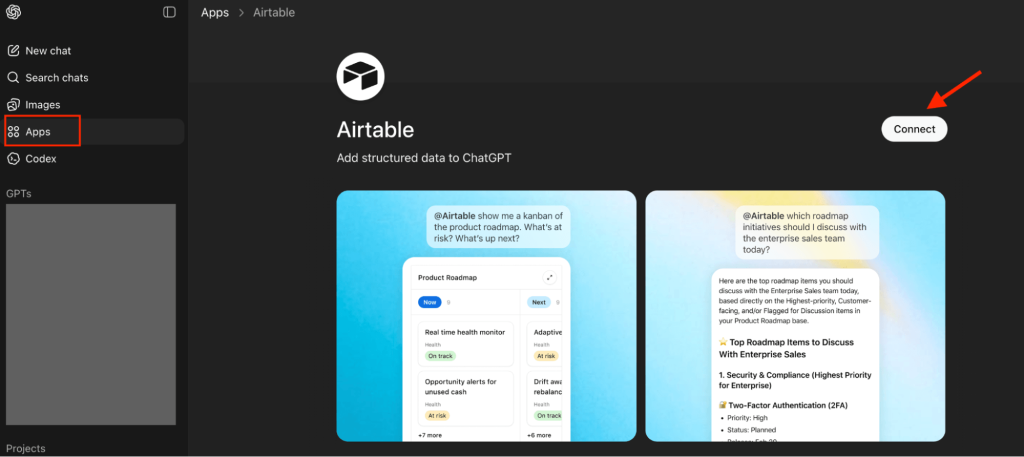
You authorize it to access your account on the source platform. Now, ChatGPT can pull data from that app whenever you ask a question that needs it.
What happens between your question and the answer depends on the specific app. Some pass raw data to ChatGPT and let the model handle everything, including calculations. Others process your data first, run the calculations themselves, and send ChatGPT only the verified results. You won’t notice this difference during setup, but it determines whether the numbers in your answers are actually calculated or just ChatGPT’s approximations.
Coupler.io: A ChatGPT app that handles calculations
Coupler.io is a data integration and AI analytics platform that is also available as a ChatGPT App. It connects 400+ business sources (ad platforms, CRMs, finance tools, spreadsheets, databases, etc) to ChatGPT through a secure integration layer. That one integration lets you connect any data source to AI in one step, and you don’t have to wire up each tool to ChatGPT separately.
Here’s how that works in practice. Say you want to analyze your Facebook Ads performance. Sign up for Coupler.io for free, then connect the Coupler.io app in ChatGPT: open the Apps menu and search for Coupler.io. You only do this once. After that, any ChatGPT conversation can set up and manage your data flows.
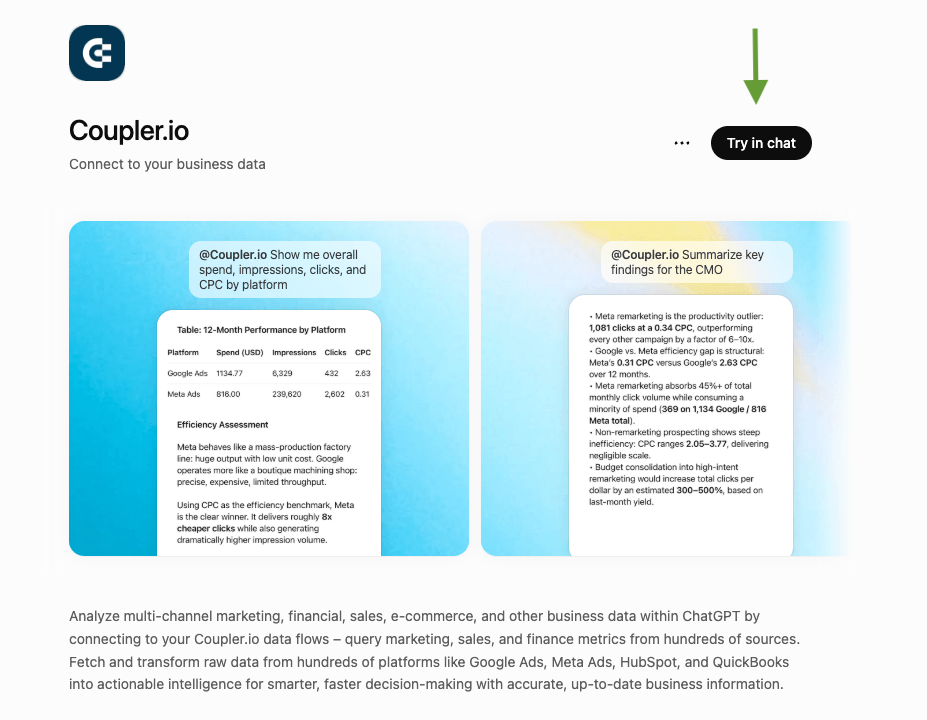
Then describe the data you need, for example:
"Create a daily Facebook Ads report with spend, impressions, clicks, conversions, and
campaign names for the last 90 days."
ChatGPT builds the data flow in Coupler.io. If your Facebook Ads account isn’t connected yet, it asks you to authorize it first, since AI can’t do that step for you. It also confirms the setup with you before anything runs.
You decide which fields reach ChatGPT, so you can leave out sensitive data like customer IDs or email addresses. If something needs adjusting, ask for the change. You can also set a refresh schedule in the same conversation, from monthly to every 15 minutes.
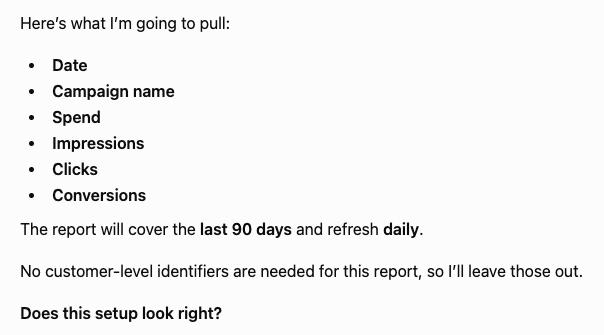
Now you can chat with ChatGPT about your Facebook Ads data.
When you ask a question, Coupler.io shares your data schema and the first 20 sample rows with the ChatGPT LLM, which is enough for the model to understand the structure.
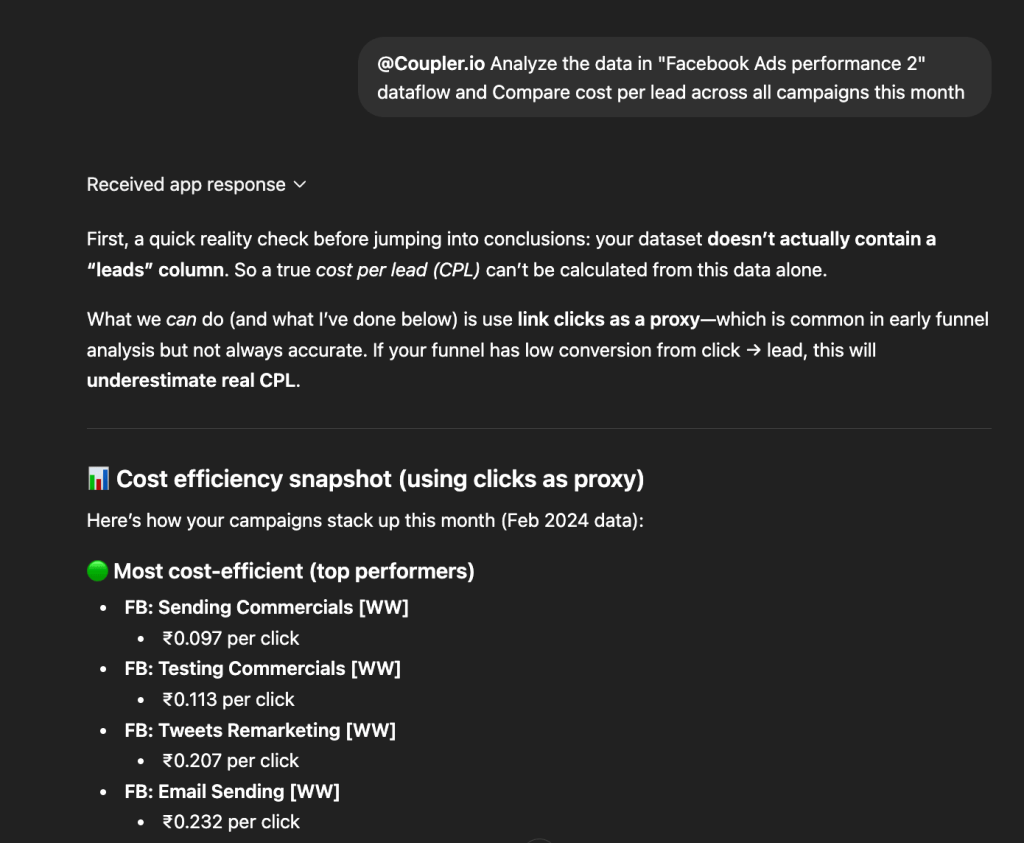
For instance, you type “Compare cost per lead across all campaigns this month,” and ChatGPT translates the question into a structured SQL query. Coupler.io’s Analytical Engine runs that query against your complete dataset, performs the calculations, validates the results, and returns only the processed answer. ChatGPT then explains the verified numbers in plain language.

Connect your data to ChatGPT with Coupler.io
Get started for freeBest use cases
Coupler.io works best when your analysis is recurring, your data changes frequently, and accuracy matters. A few examples across different business functions:
- Marketing teams tracking ad performance: “
Which Facebook Ads ad sets had declining ROAS over the last 30 days?” — this requires trend calculations across time-series data that ChatGPT can’t reliably do on its own. - Sales teams monitoring pipeline: “
Show me HubSpot deals at risk of slipping this quarter and their total pipeline value” — needs fresh CRM data, not a static export from last week. - Finance teams reviewing margins: “
Compare monthly QuickBooks revenue against expenses for the last 12 months and flag any months where margins dropped below 20%” — involves a dataset too large for ChatGPT’s context window and math you don’t want it approximating.
As Coupler.io supports 400+ sources, the same setup works across your entire business tool stack.
Why it ranks first
First, no technical setup. You don’t need to write API schemas, configure authentication, or debug endpoints. Describe the data you need, authorize your account when asked, and you’re querying data in minutes.
Second, your data stays fresh automatically. Set a refresh schedule as frequent as every 15 minutes, and your analysis always reflects recent numbers.
Third, accuracy is built into the pipeline. The Coupler.io Analytical Engine handles every calculation and returns validated results, so you’re not relying on ChatGPT to get the math right. And your data stays under your control. Coupler.io is SOC 2 certified, GDPR and HIPAA compliant. You filter out sensitive fields before ChatGPT ever sees them, you decide exactly which datasets each AI tool can access, and all data is encrypted during processing. ChatGPT never connects directly to your business systems.
For a deeper look at AI tool security across platforms, read our full guide to AI data security.
Limitations to keep in mind
Even though Coupler.io has a free plan, query limits get tight with regular use. You’ll need a paid plan for consistent analytics work.
Get calculated answers in ChatGPT with Coupler.io
Book a demo2. Custom GPTs with uploaded business data to ChatGPT
Custom GPTs are customized versions of ChatGPT that you build for a specific purpose. You give the GPT a set of instructions, upload files as its knowledge base, and it uses that material to answer questions. The entire setup is no-code and happens through a visual builder.
For data analysis, this usually means exporting a report from your business tool (as a CSV, Excel file, or PDF), uploading it to the Custom GPT, and then asking questions about it in natural language.
How the connection works
You start by creating a new GPT in the Configure tab. Write a system prompt that defines the GPT’s role, like what data it works with, how it should respond, dos and don’ts, etc. The more specific your instructions, the more consistent the output.
Then import data to ChatGPT under the Knowledge section. ChatGPT uses the uploaded files as its source of truth when answering questions. You can upload up to 20 files per GPT (PDFs, CSVs, text files, or Excel spreadsheets).
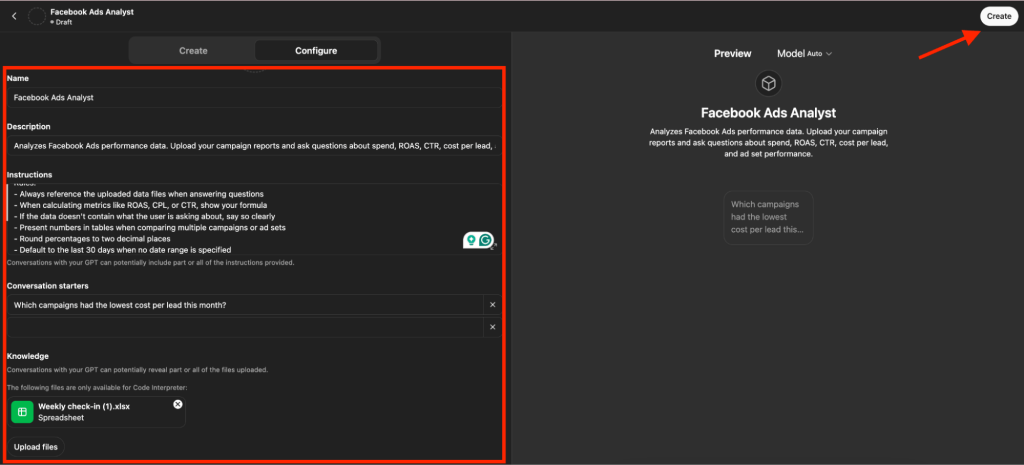
Once saved, test it in the Preview panel, share it via link, or publish it to the GPT Store.
Best use cases
Custom GPTs work well when you want to ask questions against a smaller, static dataset:
- Upload a monthly performance report and interrogate it
- Turn a product catalog into a searchable assistant
- Give your team a way to query an internal FAQ in natural language
They also save time on tasks you repeat often, like formatting reports, analyzing a standard export, or summarizing the same kind of data every week.
Limitations to keep in mind
The biggest limitation is freshness. Your uploaded files are static. Every time the underlying data changes, you need to re-export from the source and re-upload into the GPT. There’s no automatic refresh.
ChatGPT’s context window also limits how much data it can work with at once. Large files get truncated or only partially referenced. And all calculations happen inside ChatGPT. So, there’s no external engine validating the numbers. The more data you push in, the higher the chance of errors or approximations in the results.
Your uploaded files also sit on OpenAI’s servers. There’s no way to filter out sensitive fields before upload. Whatever’s in the file, ChatGPT can see it.
You need a ChatGPT Plus, Pro, Team, or Enterprise account to create Custom GPTs.
Need fresh data and validated calculations instead? Try Coupler.io
Get started for free3. API actions
API Actions are a feature within Custom GPTs that let you connect to external services through REST API calls. Instead of uploading static files, you define an API endpoint, and ChatGPT can call it during a conversation to pull live data or trigger actions.
Think of it as a technical upgrade to the Custom GPT method above. The GPT builder is the same, but instead of giving it a file to reference, you’re giving it access to a live data source.
How the connection works
In the Custom GPT Configure tab, you add an Action by writing or pasting an OpenAPI schema. This schema describes your API endpoints: what data they return, what parameters they accept, how authentication works, etc. ChatGPT reads this schema and decides which API to call based on your natural language question.
Here’s what a schema looks like for a Facebook Ads performance endpoint:
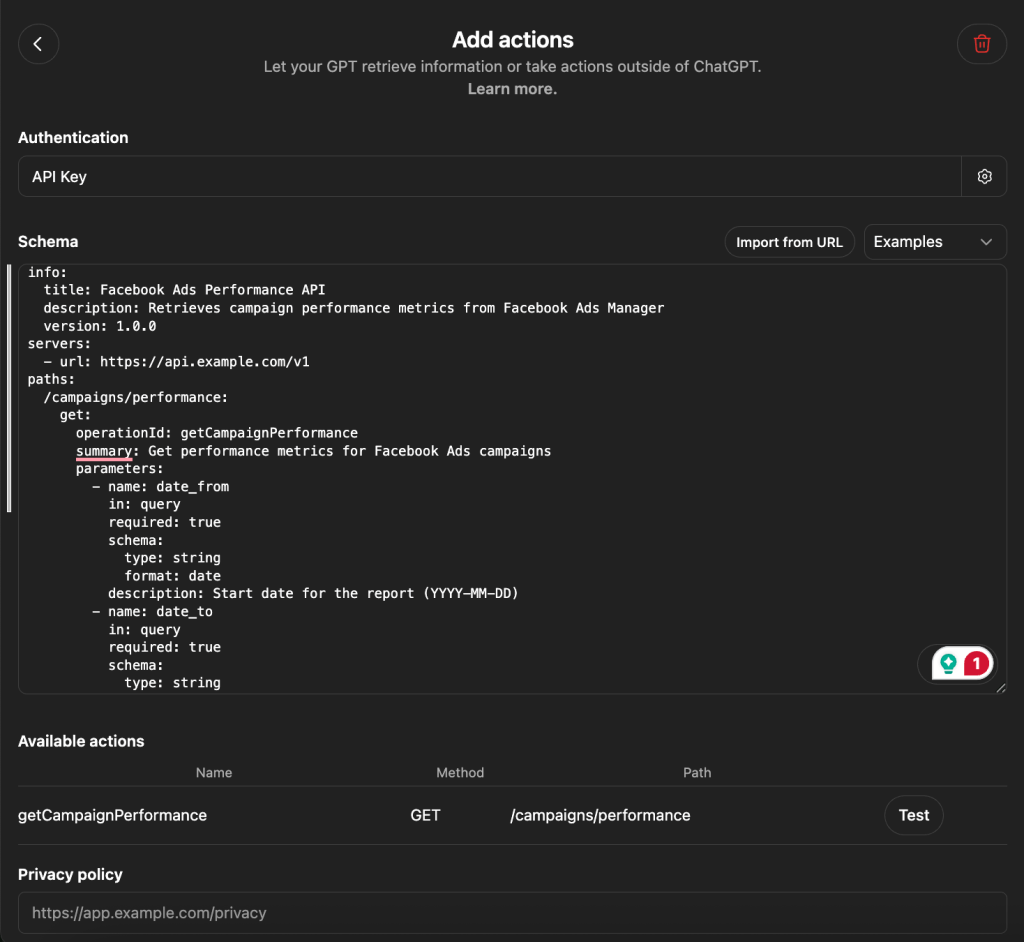
When you ask “What was my ad spend last month?“, ChatGPT maps that to the getCampaignPerformance endpoint, fills in the date parameters, and returns the results.
If something breaks, you’ll likely need an external tool like Postman to debug, as ChatGPT’s built-in error reporting is limited.
Best use cases
API Actions are best suited for developers or technical teams building purpose-specific GPTs that need live data access. A few examples:
- Inventory management: A GPT that queries your warehouse database and answers “
How many units of SKU-4821 do we have in the Dallas warehouse right now?“
If Postgres is that database, see our guide to PostgreSQL AI integration for the setup options beyond API Actions.
- Sales enablement: A GPT connected to your pricing API that lets reps ask “
What's the current enterprise pricing for a 500-seat license with annual billing?” and get a real-time quote. - Project management: A GPT that files Jira tickets directly from a conversation. “
Create a bug ticket for the checkout page timeout issue, assign it to the frontend team, priority high.“ - Customer support: A GPT hooked into your order tracking system that answers “
What's the shipping status for order #78432?“ by calling the API live.
If your use case requires ChatGPT to do something or fetch live data from a specific system, not just analyze a static file, API Actions is worth it.
Limitations to keep in mind
The setup is developer-level work. You need to understand OpenAPI specs, configure authentication correctly, and test endpoints outside of ChatGPT. Debugging can be frustrating. When an action fails, ChatGPT’s error messages don’t always tell you why.
A few other constraints: you’re limited to one action set per Custom GPT, so pulling from multiple disconnected sources requires workarounds. API calls can be unstable with slow or rate-limited endpoints. There’s no external validation layer as ChatGPT still handles all the calculations on the data it receives. You also need a ChatGPT Plus, Pro, Team, or Enterprise account to create Custom GPTs.
4. Connected cloud files or business docs
Instead of uploading files into the chat, ChatGPT can connect to cloud storage services like Google Drive and OneDrive to access documents you’ve already stored there.
This is useful when the answers you need already live in existing documents (reports, strategy decks, policy documents, SOPs), and you want to query them in natural language without digging through folders.
How the connection works
You connect data to ChatGPT from your Google Drive or OneDrive (a Microsoft product) account through ChatGPT’s settings. Once linked, ChatGPT can access files you’ve stored there when you ask a question that requires them. You can reference specific documents or let ChatGPT search across your connected files for relevant information.
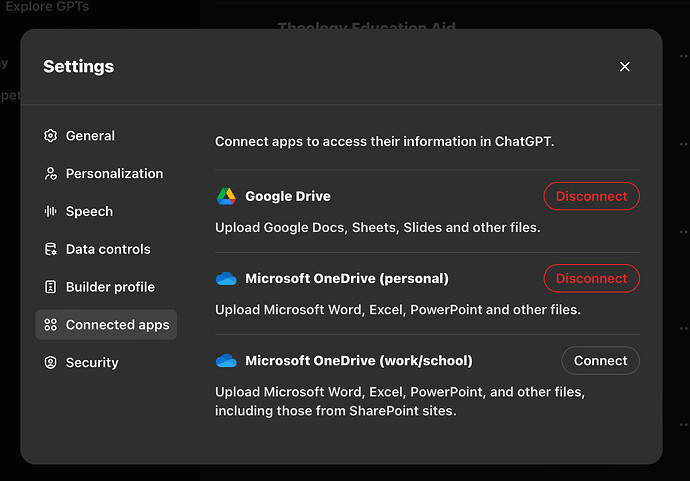
The key thing to understand is that this method works with documents as they are. ChatGPT reads the content of your files (PDFs, spreadsheets, slide decks, text documents) and answers questions based on what it finds. It doesn’t transform, filter, or process the data before working with it.
Best use cases
This works well when your questions are about the content of specific documents rather than structured data analysis. A few examples:
- Compliance: “
What does our data retention policy say about customer records older than three years?“ - Sales: “
Find the pricing breakdown from the Q4 proposal we sent to Acme Corp.“ - Operations: “
Summarize the key action items from last week's leadership meeting notes.“ - Onboarding: “
What's our process for setting up a new vendor account according to the finance SOP?“
If the answer is in a document someone on your team already wrote, this method gets you there without leaving ChatGPT.
Limitations to keep in mind
This isn’t designed for structured data analysis. If you connect a spreadsheet with thousands of rows of campaign performance data, ChatGPT will try to read it as a document. It won’t run calculations, aggregate values, or query specific subsets the way a database or an integration platform would.
There’s no filtering step. ChatGPT can view everything in the files. You can’t exclude sensitive fields or limit access to specific columns. And the data is only as fresh as the document itself. If someone hasn’t updated the Google Sheet or replaced the PDF, ChatGPT is working with old information.
5. File uploads to ChatGPT
This is the most common way people first try to load data into ChatGPT. You export a file (CSV, Excel, PDF) from your business tool and upload it directly into a ChatGPT conversation. ChatGPT’s built-in Data Analysis tool (formerly Code Interpreter) processes the file and lets you ask questions about it.
There is no setup, configuration, or third-party accounts. Just drag, drop, and ask.
How it works
You start a new conversation in ChatGPT, click the attachment icon, and upload your file. ChatGPT reads the file, recognizes its structure, and you can immediately start asking questions: “What's the total spend by campaign?” or “Which rows have a CTR above 3%?“
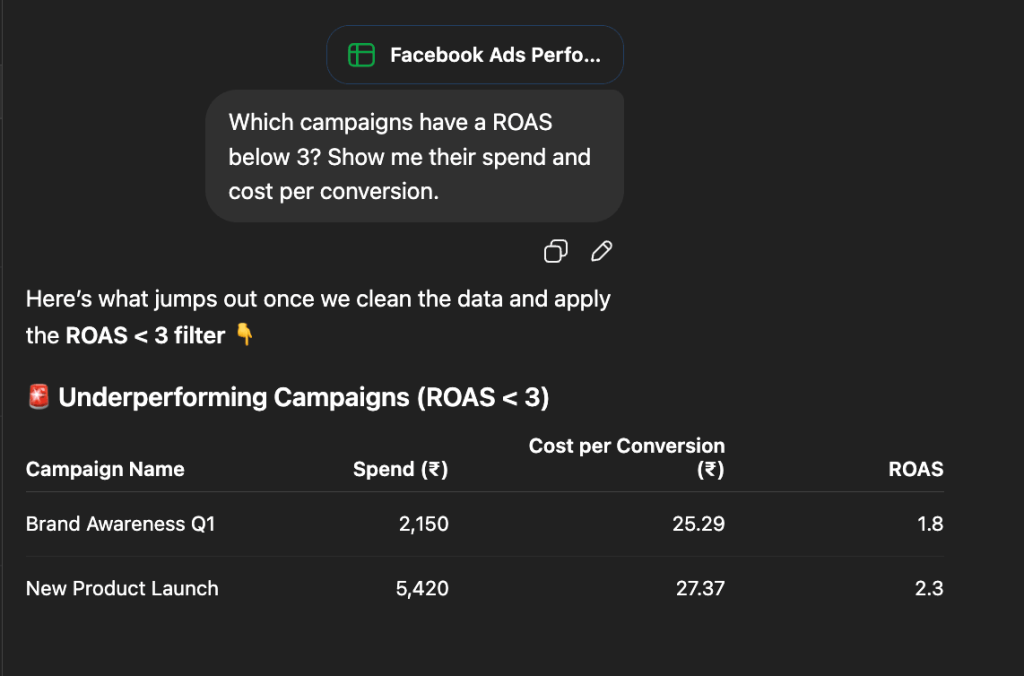
Behind the scenes, ChatGPT writes and runs Python code to process your file. This means it can handle basic calculations, filtering, sorting, and even generate charts. For a single file with a manageable number of rows, it works surprisingly well.
Best use cases
File uploads make sense for one-off analysis when you need a quick answer from a specific export. A few examples:
- You pulled a monthly Facebook Ads report and want to know which campaigns overspent relative to conversions.
- A colleague sent you a spreadsheet, and you need a quick summary before a meeting.
- You have a single CSV and want to spot-check a few numbers without opening a BI tool.
If you need the answer once and the file is already on your desktop, this is the fastest path.
Limitations to keep in mind
The moment you upload a file, it’s already out of date. There’s no connection to the source. If your Facebook Ads data changes an hour later, your analysis is still based on the old export. For fresh numbers, export again, and upload again.
File size limits apply. Large datasets with tens of thousands of rows or multiple tabs can cause ChatGPT to slow down, truncate data silently, or throw errors. And ChatGPT handles all calculations itself using generated Python code. For simple math on small files, this is fine. For complex aggregations across large datasets, errors are common, and you have no external validation to catch them.
6. Copy-paste method to load data to ChatGPT
The simplest method on this list. You copy data from a spreadsheet, dashboard, or report and paste it directly into the ChatGPT chat window.
How it works
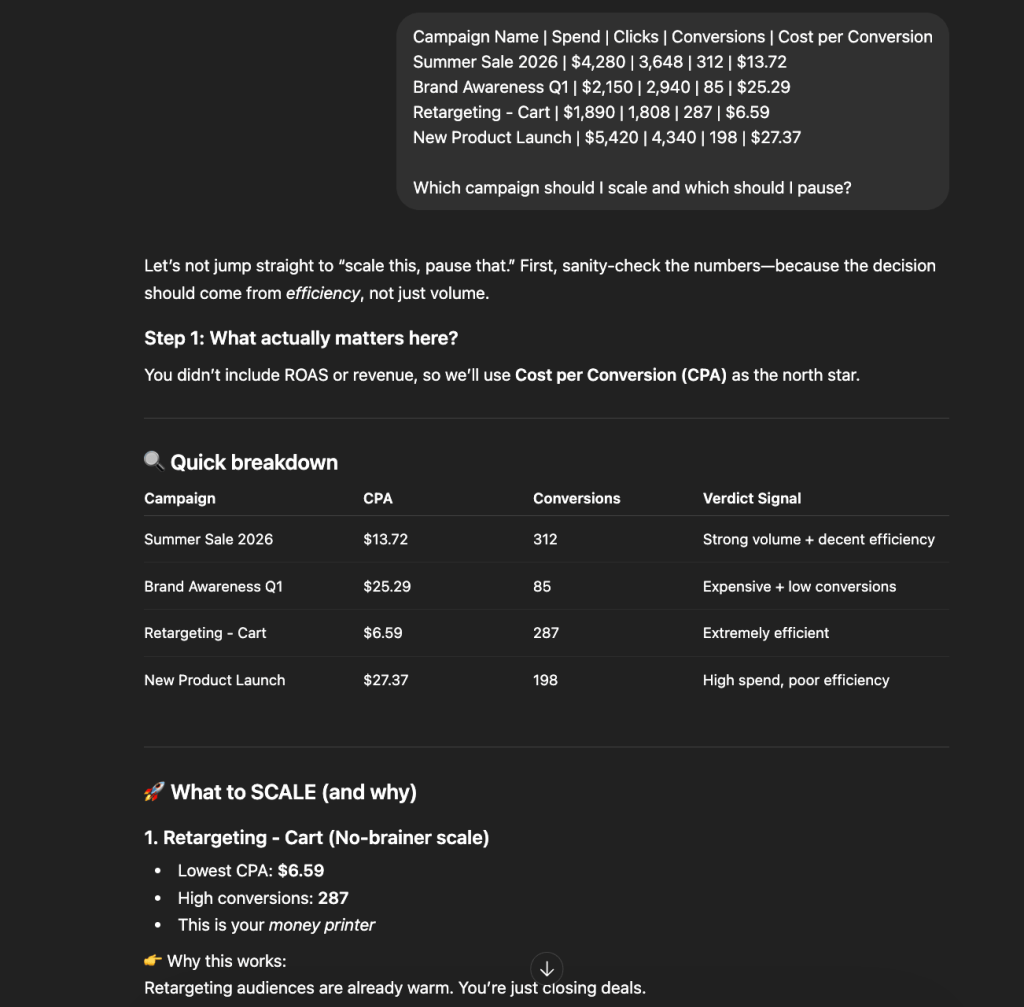
Copy a range of cells from a spreadsheet or a table from a report, paste it into the message box, and ask your question. ChatGPT reads the pasted text and responds based on what it can parse. In the example below, I copied and pasted some campaign metrics data. Here’s how ChatGPT responded.
Best use cases
Copy-paste works for small, quick lookups where the data fits in a few rows:
- You have five rows of campaign data and want to know which one had the best CTR
- You copied a short table from an email and need it reformatted
- You want ChatGPT to explain what a specific set of numbers means
If the data fits on your screen and the question is simple, this gets you an answer in seconds.
Why it ranks last
Every other method on this list does at least one thing to make your data more usable inside ChatGPT. Copy-paste does nothing.
Formatting breaks during the paste. Columns misalign, numbers lose context, and ChatGPT has to guess at the structure.
The context window limits how much data you can paste. Anything beyond a few dozen rows risks getting cut off.
There’s no calculation validation. ChatGPT does all the math on whatever text it received, with no way to verify accuracy. And zero security control: whatever you paste goes straight into the conversation. And nothing is reusable. Tomorrow you’ll copy, paste, and ask the same question all over again.
Which method should you choose to import data to ChatGPT?
Six methods, six different strengths. The right one depends on what you’re trying to do.
Best for one-off questions: File upload or copy-paste will get you there. Export the file, drag it in, and ask your question. There is zero setup to load data to ChatGPT for a quick one-time answer. Just don’t rely on it for anything recurring or anything where accuracy matters at scale.
Best for static reference materials: Custom GPTs or connected cloud files. Build a Custom GPT with your product catalog or policy documents uploaded, or connect your Google Drive so ChatGPT can search across what you already have. The data won’t refresh on its own, but if it doesn’t change often, that’s fine.
Best for developers who need live data access: API Actions offer the most flexibility, at the cost of requiring OpenAPI specs and authentication configuration.
Best for ongoing analysis of live business data: Coupler.io ChatGPT App. This dedicated data integration platform for AI analytics connects data sets from your business sources and controls what ChatGPT can see and query. The Analytical Engine handles the math, so the numbers in your answers are calculated, not approximated. That’s what puts it at the top of this ranking.