
How to Connect Google Ads to ChatGPT For Recurring Campaign Performance Analysis

Most Google Ads analysis still starts with an export. You pull a report, drop it into a spreadsheet, and spend more time formatting data than actually reading it. ChatGPT can do the analysis part faster, but there’s no native connection between the two.
You need a workflow that moves structured data from your Google Ads account into a format ChatGPT can work with. In this guide, you’ll find the way to connect Google Ads to ChatGPT, as well as other ways for your PPC analytics.
TL;DR – Methods to get data from Google Ads to ChatGPT in one table
| Method | Setup time | ChatGPT plan needed | Technical skill | Data freshness | Best for |
| Coupler.io | ~5 min | Free or Plus | None | Auto-refresh on schedule | Teams running campaigns regularly |
| CSV upload | ~2 min | Plus | None | Manual re-export every time | One-off audits |
| Google Drive | ~10 min | Plus | None | Manual re-upload | Small teams sharing reports |
| Google Ads API + OpenAI API | Hours to days | N/A (API, not ChatGPT UI) | Python or Node.js | Custom schedule | Engineering teams, multi-client agencies |
Connect Google Ads to ChatGPT with Coupler.io for reliable conversational analysis
Coupler.io is a no-code data integration platform with AI analytics. It supports 400+ data sources and connects datasets to ChatGPT and other AI tools via the MCP server. Coupler.io is available as a ChatGPT App, approved and listed by OpenAI.
For this workflow, Coupler.io sits between your Google Ads account and ChatGPT.
Google Ads → Coupler.io → ChatGPT
Your data is structured before it reaches ChatGPT, so you skip the formatting step and go straight to asking questions. With scheduled refresh turned on, you’re not working with a stale snapshot. The data updates automatically, so you can track changes over time without re-exporting anything.
Step 1: Create a data flow
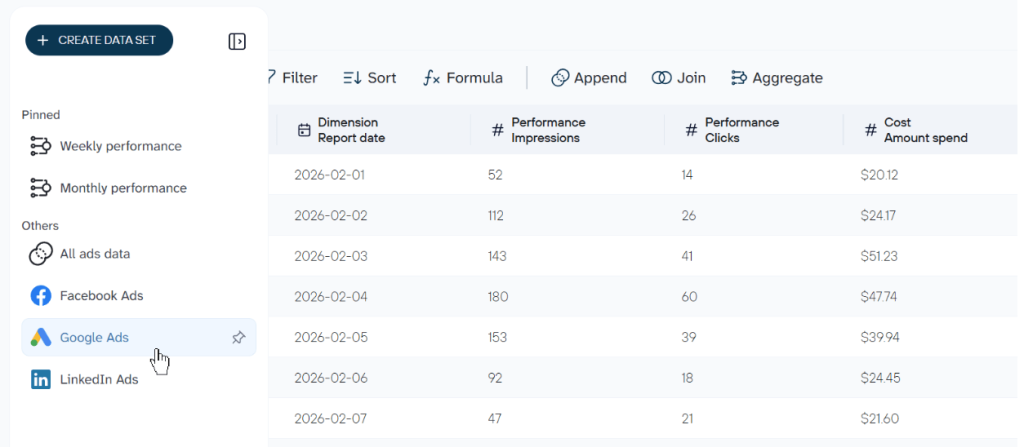
To get started, create a new data flow in Coupler.io with Google Ads as the source. Use the form below, then click Proceed to sign up for Coupler.io for free.
You’ll need to connect your Google Ads account, and choose ad accounts and the report type, like campaign performance, keyword performance, etc. Optionally, you can also specify the start date for your report.
Coupler.io previews your Google Ads data and lets you apply transformations as needed. For instance, you can hide certain PII columns you don’t want ChatGPT to see. It’s also possible to aggregate data or add more sources, be it other Google Ads accounts or external apps like Meta Ads, Google Analytics, Shopify, etc. Check out all ChatGPT integrations available.
Step 2: Connect data to ChatGPT
Once the data set is ready, set ChatGPT as the destination following the instructions.
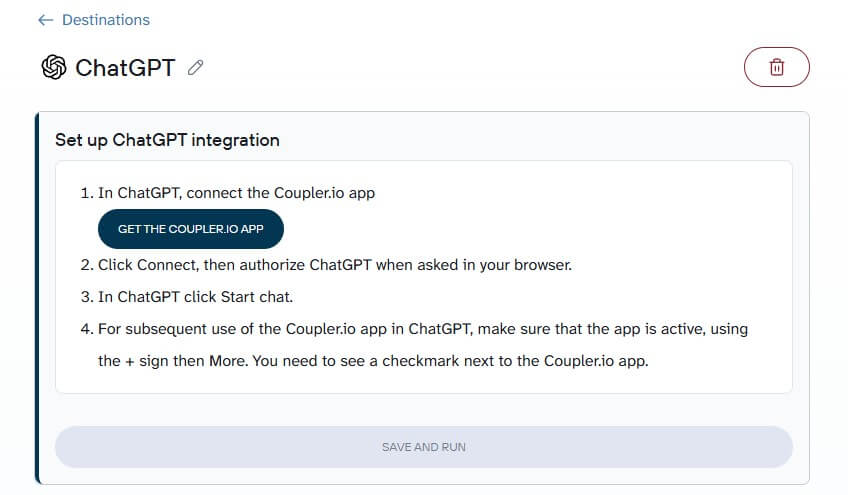
Click Get the Coupler.io App to open ChatGPT App directory. Connect it and then authorize ChatGPT to access your Coupler.io workspace.
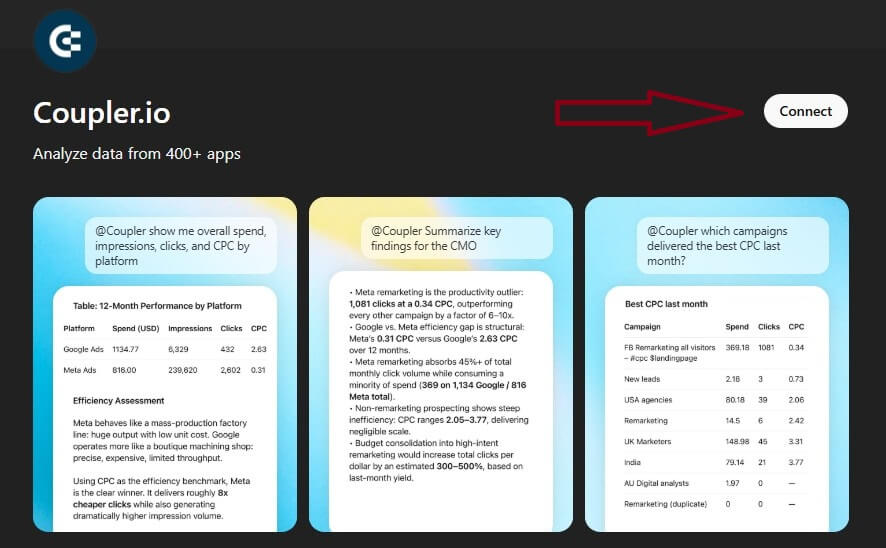
After authorization, Coupler.io appears as a connected app in your ChatGPT prompt window. Start a new chat, and you’ll see it listed.

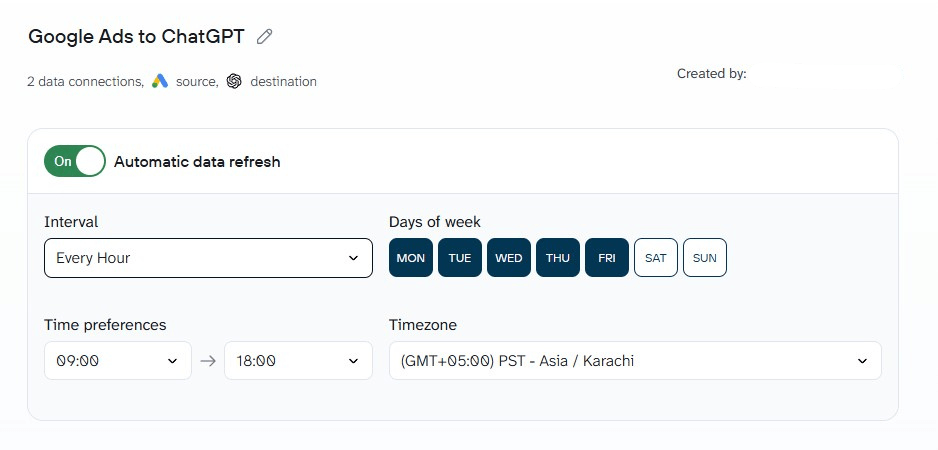
However, before launching the conversation, go back to Coupler.io and click Save and Run to push the first load of Google Ads data to ChatGPT. It also makes sense to enable the automatic data refresh on a schedule. This way, ChatGPT will always analyze up-to-date Google Ads data.

Connect your Google Ads data to ChatGPT with Coupler.io
Get started for freeAnalyze your Google Ads campaigns in ChatGPT
With your Google Ads connector to ChatGPT, the way you analyze campaigns changes.
Instead of building dashboards or exporting new reports for every question, you interact directly with your data using natural language. This makes it easier to analyze the Google Ads funnel, explore campaign performance, test ideas, and optimize faster.
Here are some examples of conversations in ChatGPT about your Google Ads performance:
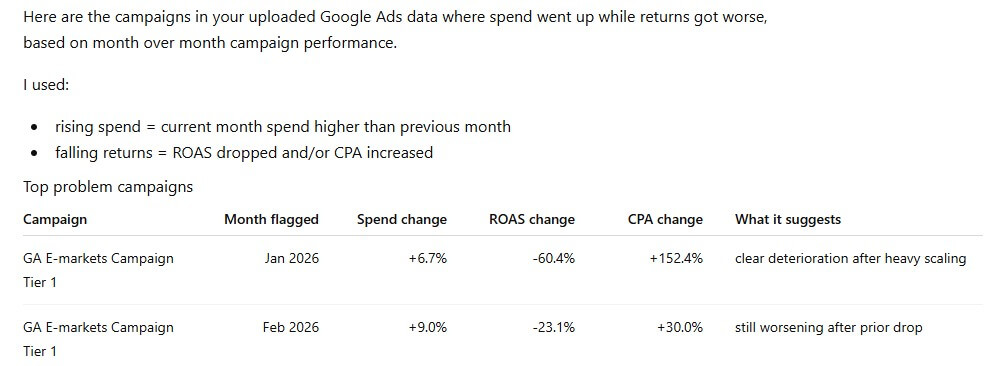
1. Identify campaigns with rising spend and falling returns
You can quickly spot where ad spend is increasing, but ROAS or CPA is getting worse. This helps you catch underperforming campaigns early instead of waiting for scheduled reports.
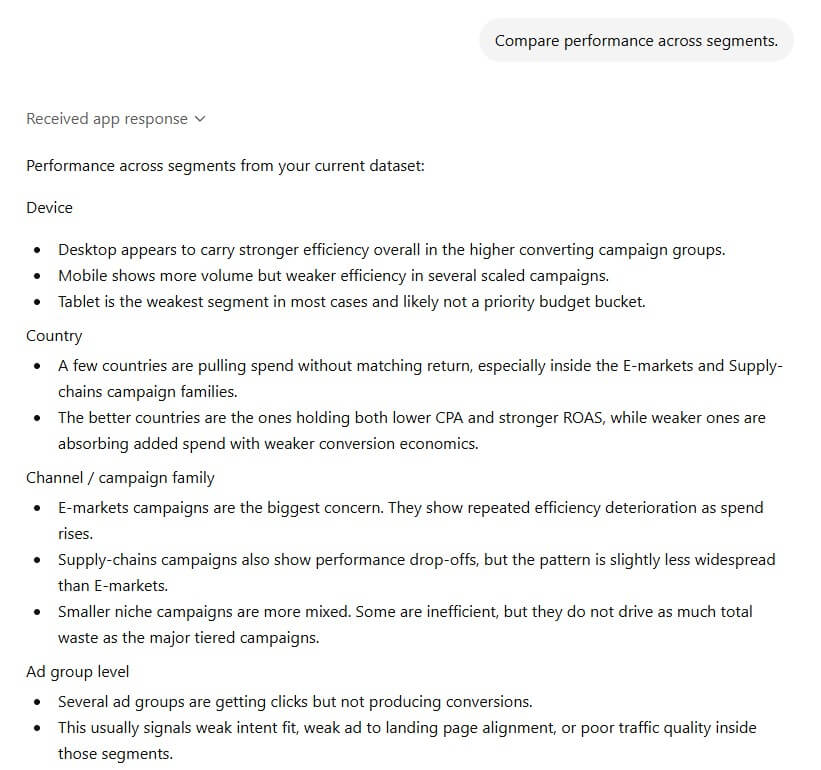
2. Compare performance across segments
You can break down campaign performance by device, location, audience, or ad groups. This makes it easier to understand what is driving results and where adjustments are needed.
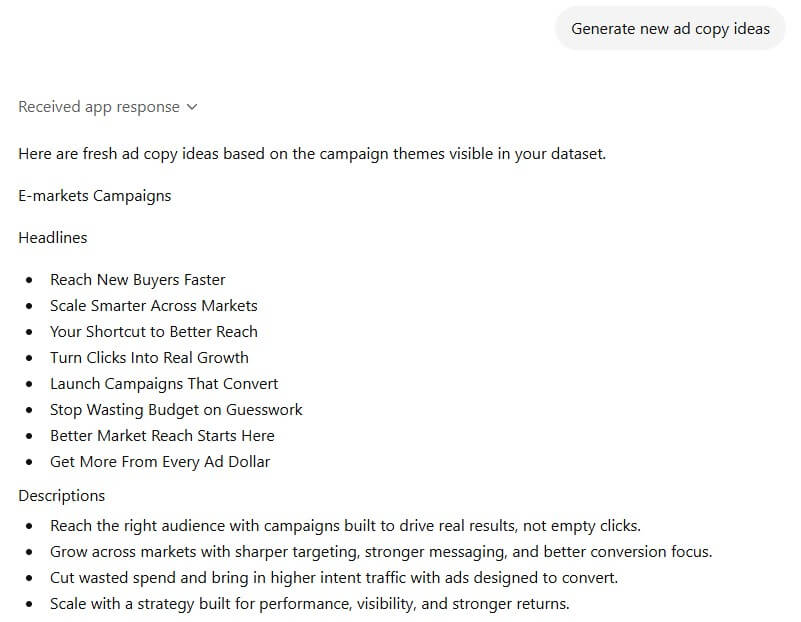
3. Generate new ad copy ideas
Using campaign data, ChatGPT can suggest variations of ad copy and messaging based on what is already working. This supports faster iteration without starting from scratch. Naturally, you can get better results with better prompts.
Instead of rebuilding reports every time, you work directly with insights. The focus shifts from collecting data to acting on it. As your campaigns scale, this becomes more valuable. More data means more complexity, and this workflow helps you stay ahead without increasing manual work.
Use one data pipeline to combine Google Ads with other business data
Google Ads data tells you what happened inside the ad platform — clicks, impressions, spend. It doesn’t tell you what happened after the click.
Did that campaign actually drive revenue? Are the leads from your top ad group closing in the CRM, or stalling at proposal stage? You can’t answer those questions from Google Ads alone.
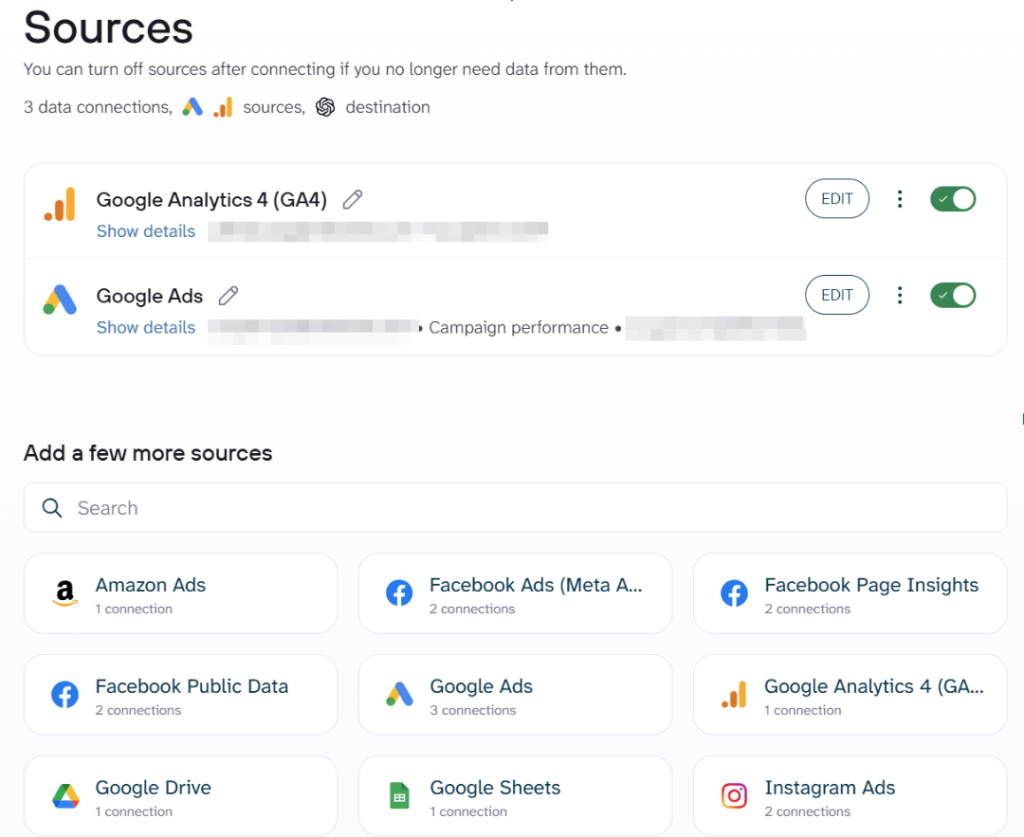
This is where running multiple sources through Coupler.io pays off. Because it supports 400+ data sources, you can pull Google Ads performance data alongside e-commerce data from Shopify, CRM records from Salesforce, website analytics from GA4, and more. They can be connected to ChatGPT as separate data flows or unified into one structured dataset.
That changes the questions you can ask. Instead of “which campaign has the highest CTR?“, you ask “which campaign drives the highest revenue at the lowest CPA?” or “how does ad spend correlate with downstream sales in the CRM?” Those are business questions, not channel questions, and they only work when the data is combined.
Here’s what a cross-source prompt looks like in practice:
Compare Google Ads campaign spend against Shopify revenue by UTM source for the last 30 days. Flag any campaigns where CPA exceeds the average order value.
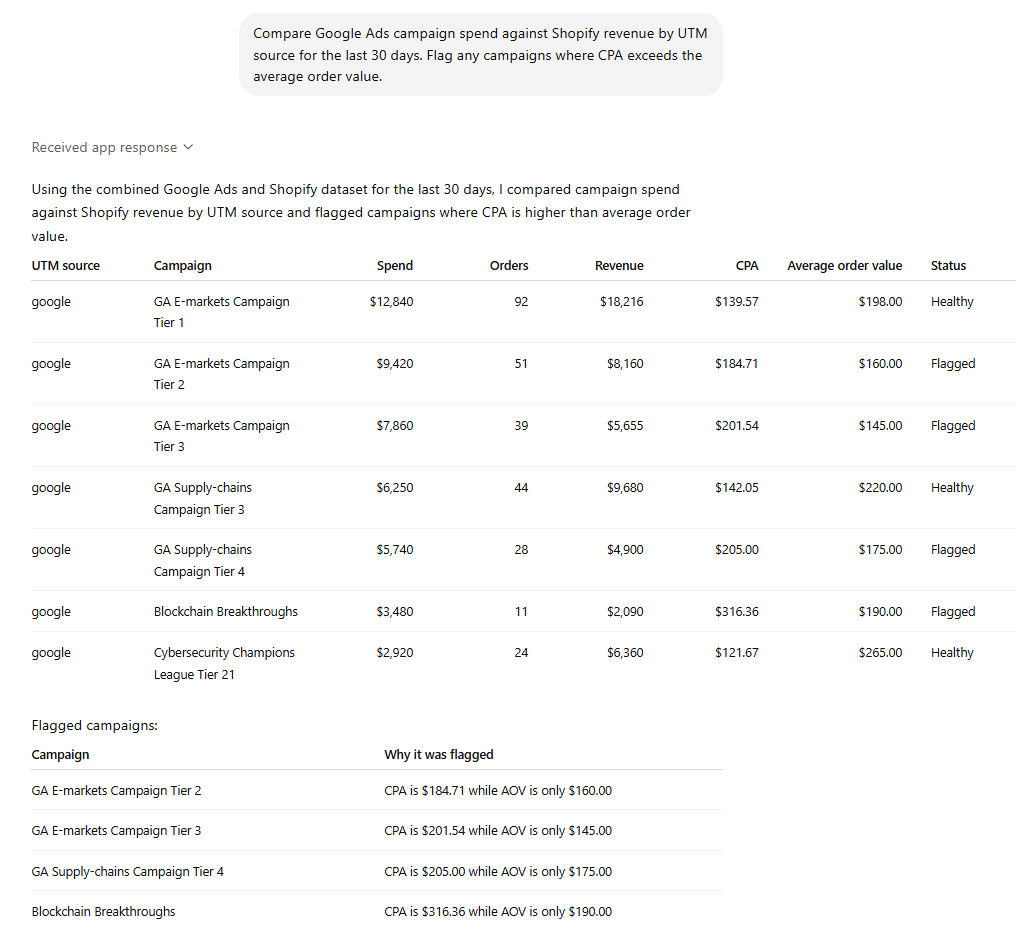
The data flow setup is the same as described in the section above when I connected Google Ads to ChatGPT. You just add more sources to the same pipeline. Coupler.io handles the refresh schedule across all of them. You’re not manually re-exporting from three different platforms every time you want a combined view.
For teams running Google Ads alongside other paid channels or tracking conversions through a CRM, this is where the no-code pipeline earns its keep.
Integrate data from 400+ business sources with Coupler.io
Get started for freeUpload a CSV file exported from Google Ads
If you need a quick, no-setup way to get your data from Google Ads to ChatGPT, a manual CSV export is the most straightforward option. There’s nothing to configure, no accounts to connect, and no tools to install. You just download your data and hand it to ChatGPT directly.
Here’s how it works:
Step 1: Export your data from Google Ads
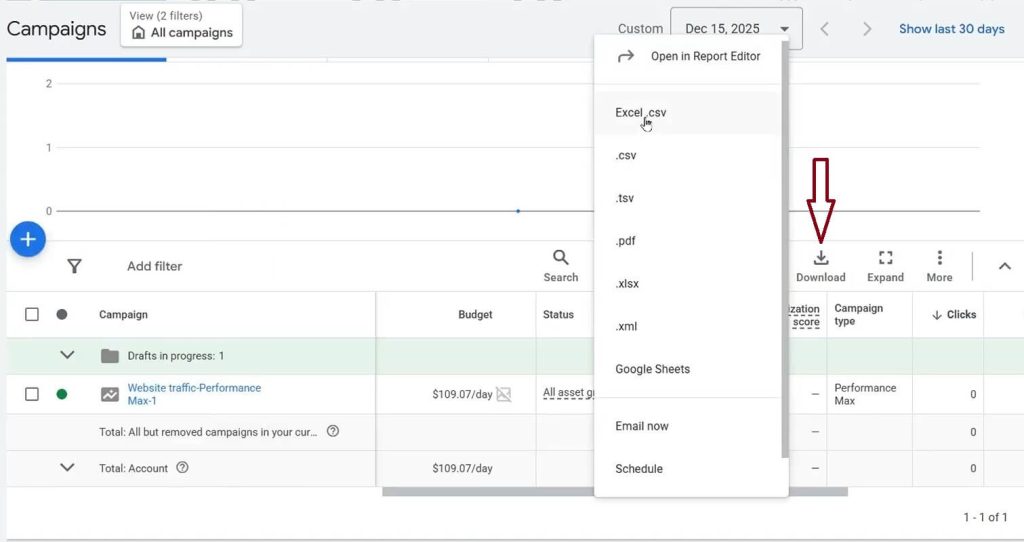
Log in to your Google Ads account and navigate to the report or table you want to analyze. This could be your campaigns overview, keyword performance, search terms report, or ad group data. Click the download icon and select CSV as the format. Your data will download as a structured file with all the columns and rows visible in your current view.
It’s worth cleaning up the view before you export: filter by the date range you care about, remove columns you don’t need, and make sure the data reflects exactly what you want to analyze. The cleaner the export, the more useful ChatGPT’s response will be.
Step 2: Upload the file into ChatGPT
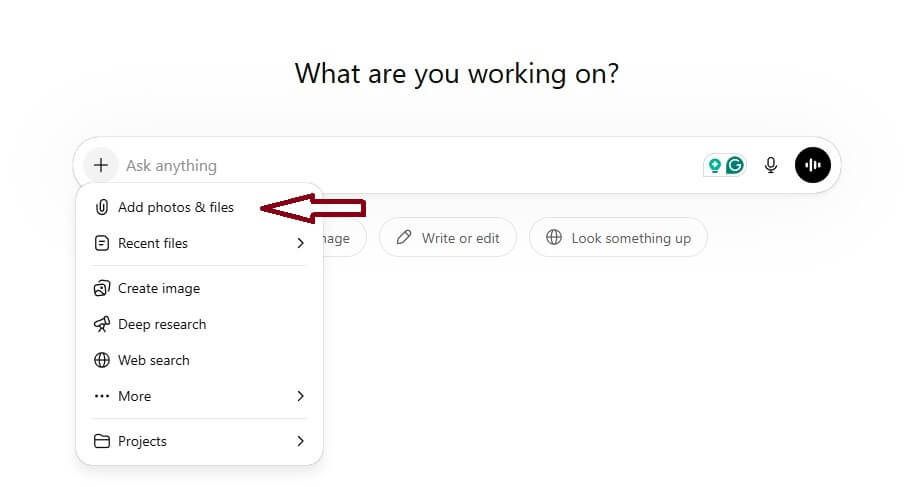
Open ChatGPT (you’ll need a Plus or higher plan for file uploads) and start a new conversation. Click the paperclip icon to attach your CSV file, then type your question or analysis prompt alongside it. ChatGPT will read the file and respond based on the data inside it.
Step 3: Analyze and iterate
From here, you can ask follow-up questions in the same conversation. ChatGPT retains the file within the conversation, allowing follow-up analysis in the same session. Ask it to compare ad groups, suggest negative keywords based on search terms, or rewrite underperforming ad copy within the same session.
The limitation becomes clear quickly, though. The next time you want fresh analysis, you’ll need to repeat the export from scratch. If your questions change, or you want to look at a different date range, that means another download and another upload. For a one-off project, that’s fine. For anything recurring, it gets old fast.
You can use this method when:
- You’re doing a one-time analysis or audit
- You’re working with a small, focused dataset
- You want to test what ChatGPT can do with your data before committing to a more structured setup
Use Google Drive as an intermediate data layer
This method adds one small step between your Google Ads export and ChatGPT, but that step makes your data reusable. Instead of uploading files directly into a ChatGPT conversation (where they disappear when the session ends), you store them in Google Drive and let ChatGPT access them from there.
It’s still a manual process, but it gives you a slightly more organized workflow, especially if you’re already using Google Drive to manage reports or share files with a team.
Step 1: Export your Google Ads data as a CSV
Follow the same export process as the previous method: go to your Google Ads account, set your filters and date range, and download the report as a CSV. You can also export directly into Google Sheets from some views, which skips a step.
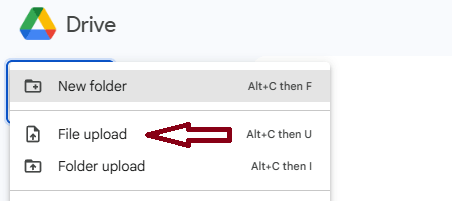
Step 2: Upload the file to Google Drive
Save your CSV (or Google Sheet) to a folder in Google Drive. If you’re planning to repeat this process regularly, it helps to use a consistent folder name and file naming convention so you can easily find and replace files over time.
Step 3: Access the file in ChatGPT using the Google Drive app
In ChatGPT, open the Google Drive connector (available in the “Apps” section for Plus and Team users). Go ahead and give the relevant permissions to ChatGPT.
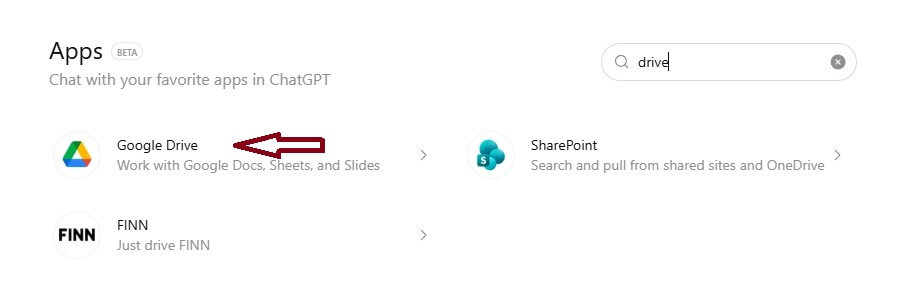
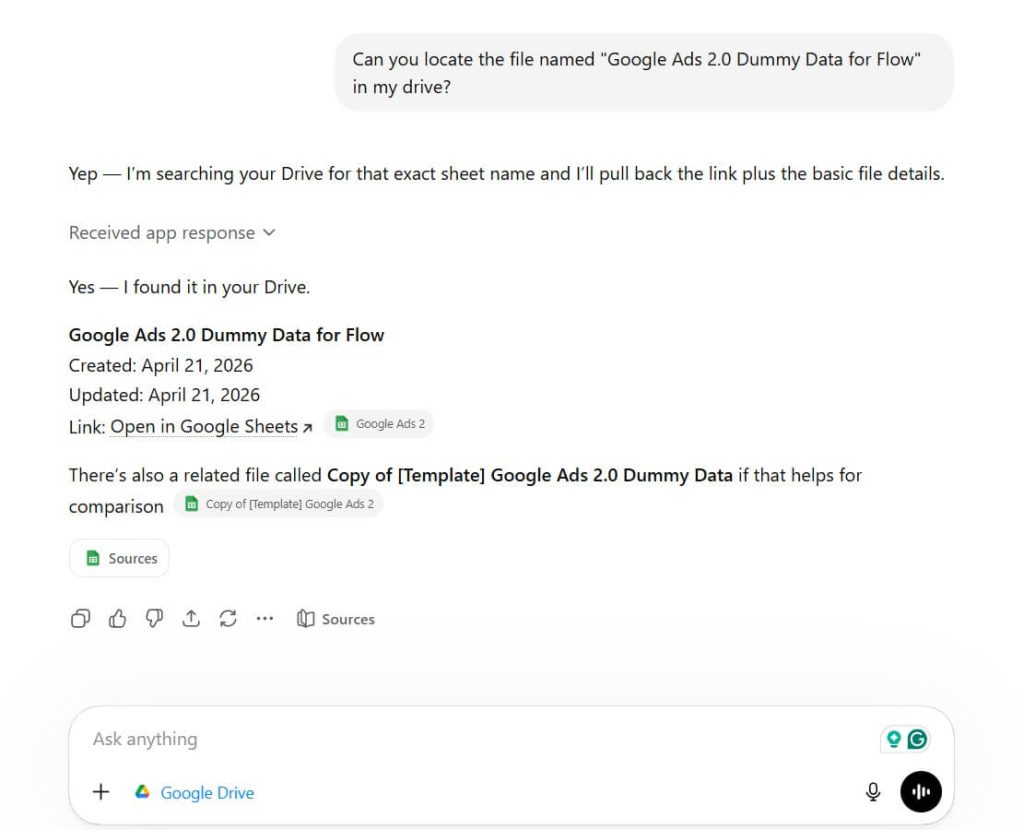
Once connected, you can browse your Drive files directly from within ChatGPT and select the file you want to analyze. ChatGPT can read CSVs and Google Sheets stored in Drive without you needing to upload anything into the chat window manually.
From there, ask your questions the same way you would with a direct upload. The difference is that your file lives in Drive and can be updated or replaced without losing your folder structure.
This setup is particularly handy if you share reports with colleagues who also need to reference the same data, or if you want to maintain a running archive of weekly or monthly exports in one place.
You want to use this method if:
- You want a slightly more organized workflow without full automation
- You already use Google Drive for file management and team collaboration
- Your datasets are relatively small and don’t need to update in real time
- You’re not ready to set up a data pipeline but want something more repeatable than raw file uploads
Build a custom integration using the Google Ads API and OpenAI API
For teams with engineering resources and a need for full control over their data pipeline, a direct API integration is the most powerful option to connect Google Ads to ChatGPT. Instead of exporting data manually or routing it through a third-party tool, you write code that fetches Google Ads data on demand and sends it to an OpenAI-powered workflow.
This approach has a steeper setup curve, but it gives you complete flexibility over what data you pull, how it’s structured, and how often it’s refreshed.
Step 1: Connect to the Google Ads API
To access Google Ads data programmatically, you’ll need to set up a Google Ads API developer account, create OAuth 2.0 credentials, and request a developer token from Google. Once approved, you can use the API to query campaign performance, keywords, ad groups, search terms, and more using Google Ads Query Language (GAQL).
Your queries will look something like this:
SELECT campaign.name, metrics.clicks, metrics.cost_micros, metrics.conversions
FROM campaign
WHERE segments.date DURING LAST_30_DAYS
The API returns data in JSON format, which you can then process, filter, and shape however you need before passing it downstream.
Step 2: Fetch and structure your campaign data
Once your API connection is working, write scripts (typically in Python or Node.js) to pull the reports you care about on a schedule. You’ll want to handle pagination for large datasets, manage API quota limits, and structure the output into clean, tabular data that’s easy for a language model to interpret.
This is also where you make decisions about what to include: which Google Ads metrics, campaigns, date ranges, etc. The more targeted your dataset, the more useful the analysis will be.
Step 3: Send data to ChatGPT via the OpenAI API
With your Google Ads data structured and ready, you can pass it to ChatGPT using the OpenAI API. In practice, this means including your dataset (or a summary of it) in the message payload alongside a prompt that tells the model what to do. It can analyze performance, flag anomalies, suggest optimizations, and so on.
The example below shows a simple API call where your Google Ads data is sent to a GPT model, which then analyzes it and returns insights:
from openai import OpenAI

client = OpenAI()

response = client.responses.create(
    model="gpt-4o",
    input=[
        {"role": "system", "content": "You are a PPC analyst."},
        {"role": "user", "content": f"Here is my Google Ads data: {data}\n\nWhich campaigns are underperforming based on ROAS?"}
    ]
)
print(response.output_text)
In this setup, the model receives your campaign data as input and responds with analysis based on the prompt, such as identifying underperforming campaigns or suggesting optimizations.
You can also build this into a scheduled job that runs daily, formats a summary, and sends it to a Slack channel, email, or internal dashboard. This turns ChatGPT into an automated reporting layer rather than an on-demand tool.
The tradeoff is ongoing maintenance. API schemas change, authentication tokens expire, and edge cases in your data can break pipelines in subtle ways. You’ll need someone who can monitor and update the integration over time.
This method is optimal for you if:
- You need a fully custom pipeline tailored to your specific data model
- You have engineering support to build and maintain the integration
- You’re working at scale with large accounts or multiple clients
- You want to embed AI-powered analysis into an internal tool or product
Which method should you choose?
For a one-time audit or a quick look at last month’s performance, a CSV export gets you there in five minutes with nothing to install.
If your team already collaborates through Google Drive, storing exports there gives you a reusable file structure without committing to a pipeline. And if you have developers on the team and need full control over data logic, the API route gives you that. However, consider the budget for ongoing maintenance.
If you run Google Ads campaigns regularly and want to analyze them in ChatGPT without re-exporting data every time, use Coupler.io. Set up the data flow once, schedule automatic refreshes, and your analysis is always working with fresh numbers. It’s also the only method in that lets you combine Google Ads with other sources like Shopify or Salesforce in a single pipeline.