
You can export deals and other data from HubSpot manually as CSV or Excel files. It’s a simple, one-time process that works best if you need quick access to data. However, manual export is not a good option for regular reporting since you need to repeat the process every time you need to refresh data in your report.
An alternative option is Coupler.io. This data integration platform allows you to turn raw data from HubSpot into analysis-ready reports and load them to spreadsheets (Excel, Google Sheets), data warehouses (BigQuery, PostgreSQL), BI solutions (Power BI, Looker Studio), and even AI tools through HubSpot MCP.
How to automate HubSpot data export with Coupler.io
Getting started with Coupler.io to export your HubSpot data on a recurring basis only takes a few steps. You can try it right away for free with no credit card required. Select the destination app to export HubSpot data from the form below and click Proceed.
Then complete three simple steps:
1. Collect your HubSpot data
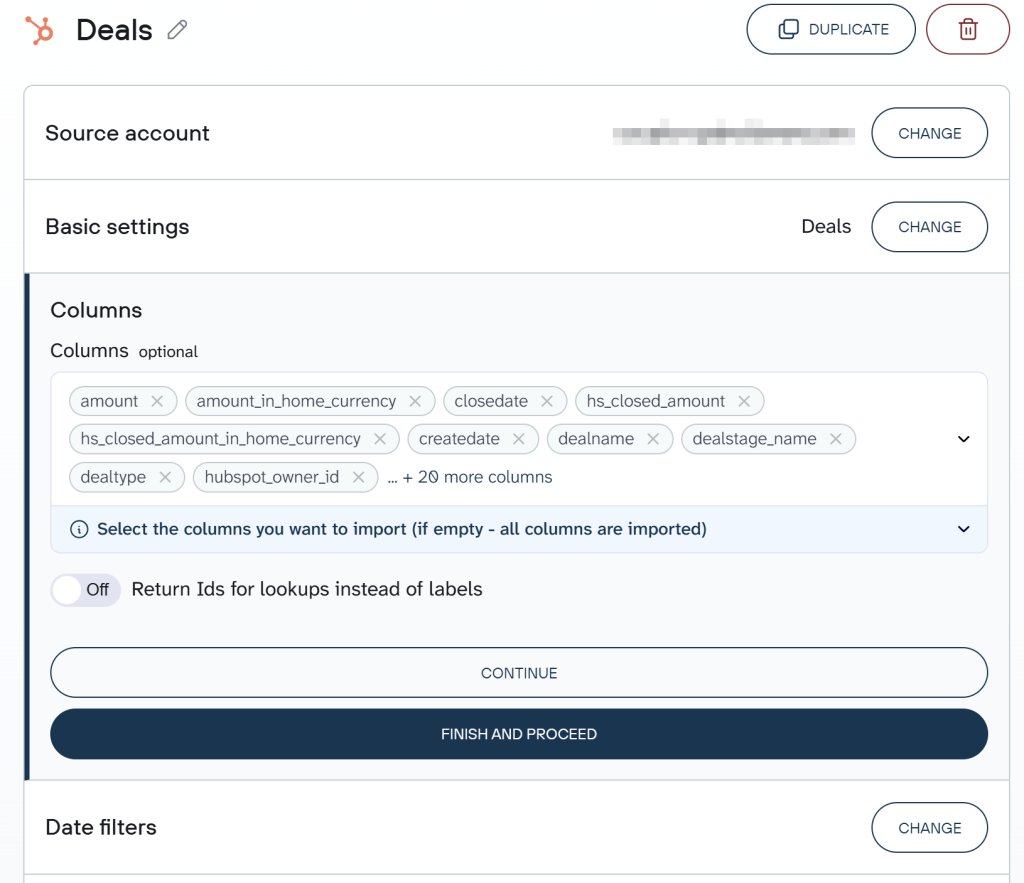
Connect your HubSpot account to Coupler.io and select the data entity you want to export: Deals, Contacts, Companies, Products, Line items, Tickets, or 20+ other options.
During this step, you can optionally customize the data to collect using filters:
- Date range: Export only deals created or updated after a certain date.
- Advanced filters: Choose specific properties (like deal stage or deal owner) to refine your dataset.
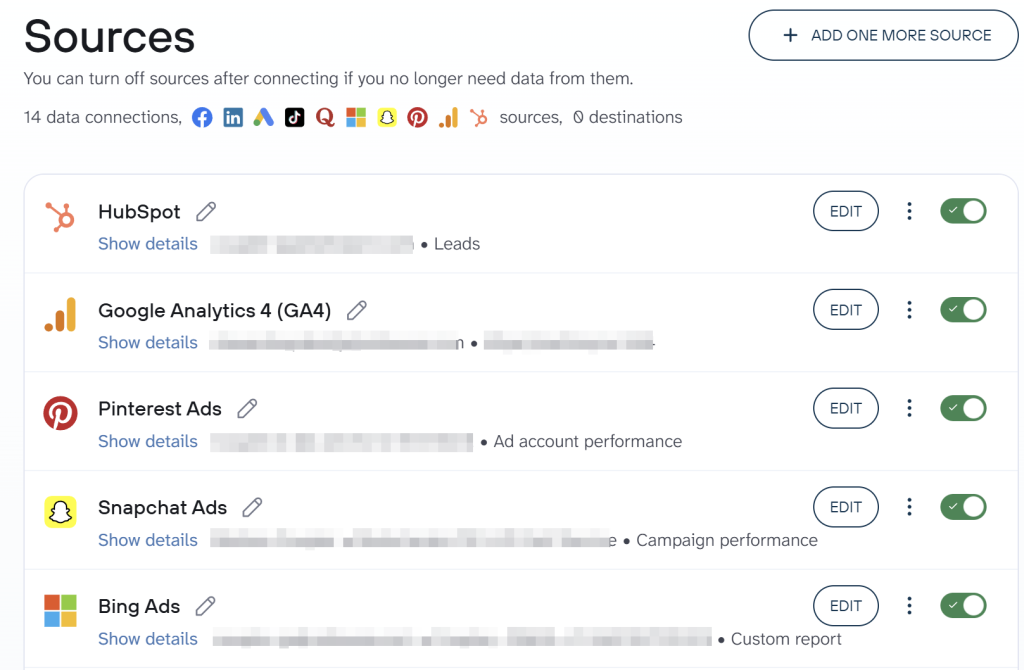
Before moving to the next step, you can add more sources to the same data flow. This is useful for creating advanced reports that combine multiple data sets — for example, adding a second HubSpot entity like contacts alongside deals, or blending HubSpot data with Google Ads or Google Analytics to build a full customer acquisition view.
2. Transform and organize data
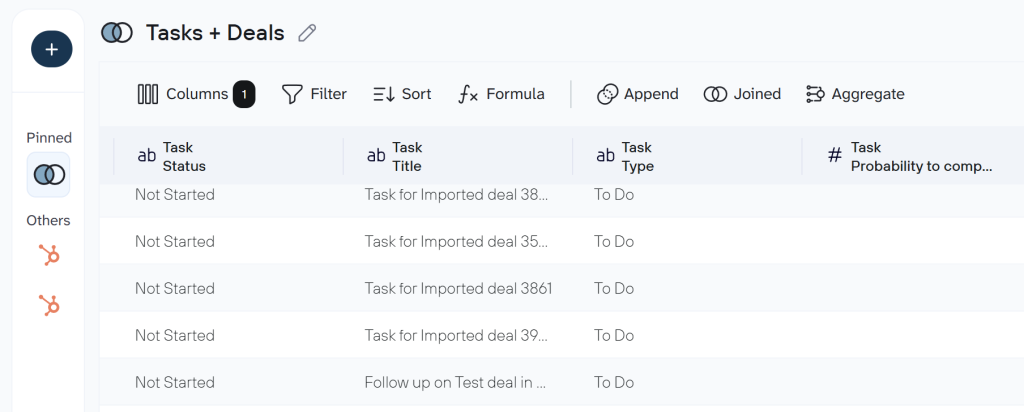
Raw HubSpot data often includes extra properties you don’t need for reporting, or requires reformatting to match your analysis workflow. Of course, you can export HubSpot data as is and this step is optional. At the same time, Coupler.io lets you organize the HubSpot data set and make it analysis ready:
- Hide or remove unwanted columns — drop internal fields like
hs_object_id,hs_lastmodifieddate, or tracking properties you don’t need, so your report only contains relevant data. - Rename or rearrange columns — rename
dealnameto “Deal Name” andamountto “Deal Value,” or move “Close Date” and “Deal Stage” to the front for better readability. - Filter rows or sort the data — filter to show only deals in “Contract Sent” or “Closed Won” stages, exclude deals with $0 value, or sort by “Amount” descending to prioritize high-value opportunities.
- Aggregate data — count deals per owner to track team workload, or sum deal amounts by pipeline stage to see where your revenue sits.
- Add calculated columns — create “Days in Stage” to identify stalled deals, or calculate “Win Rate” as Closed Won / (Closed Won + Closed Lost).
- Combine data from multiple sources — if you’ve connected multiple sources, choose how to combine your data: append (stack rows) or join (match on a shared field like email or company name).
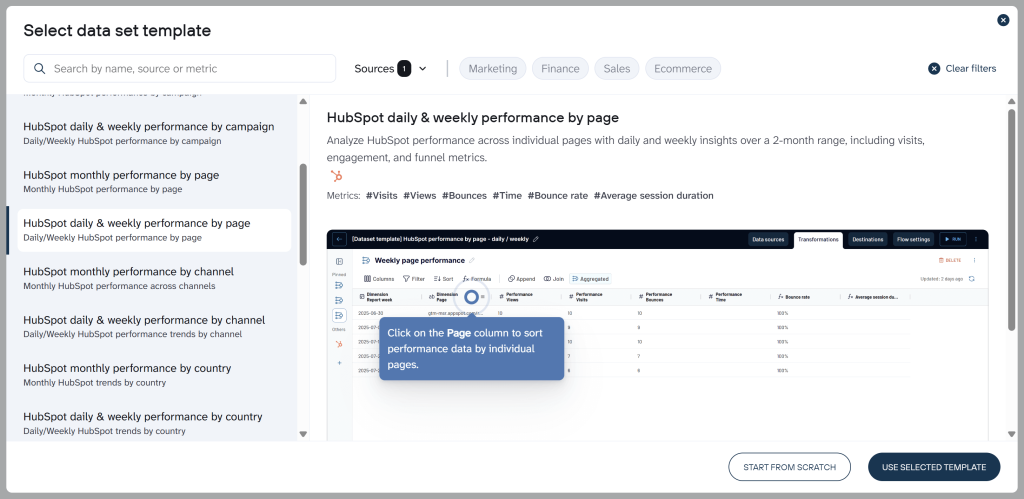
To help you get started faster, Coupler.io provides pre-built data set templates for HubSpot. They come with your HubSpot data already structured, combined where relevant (e.g., joining deals with contact details or company information), and organized for immediate analysis in tools like Google Sheets, Looker Studio, or Power BI.
Step 3. Load data and schedule refresh
When you’ve organized your data, follow the in-app instructions to load it to your destination. For instance, to export HubSpot to Google Sheets, you need to connect your Google account and specify the file and sheet for the data.
To automate exports on a schedule, toggle on the Automatic data refresh and specify your schedule preferences. Save and run the importer.
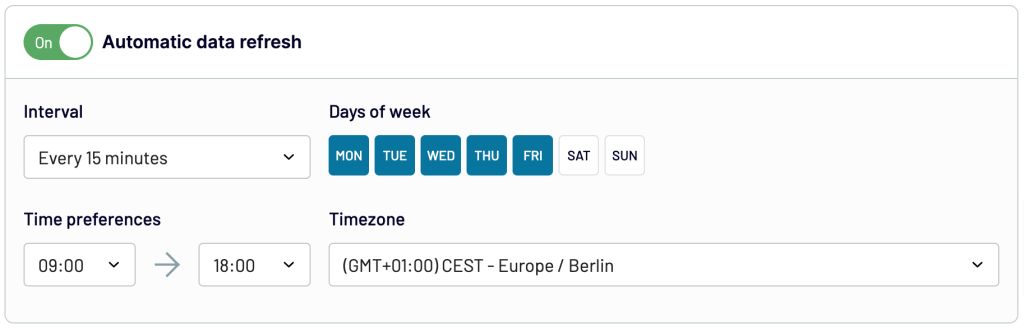
With Coupler.io, you no longer have to deal with manual exports or outdated data. By automating deal exports, you’ll have access to fresh, real-time insights. You can focus on analyzing sales data and not collecting it.
Where you can export HubSpot data
Coupler.io supports 11 destinations for your HubSpot data:
- Spreadsheets: You can export HubSpot to Google Sheets, or connect HubSpot to Excel
- BI tools: Connect HubSpot to Looker Studio, Power BI, Tableau, and Qlik
- Data warehouses: Export data from HubSpot to BigQuery, PostgreSQL, Amazon Redshift, Snowflake
- AI tools: Connect HubSpot to ChatGPT, Claude, Gemini, Perplexity, and Cursor for conversational data analysis
What data can you export from HubSpot with Coupler.io?
HubSpot integrations by Coupler.io let you automate exports of the following data:
Blend HubSpot data with other sources
One of the biggest advantages of automating HubSpot exports through Coupler.io is the ability to combine CRM data with information from other apps in the same data flow. Coupler.io connects to over 400 sources, so you can build reports that go beyond what HubSpot shows on its own.
Here’s how teams are already using this in practice:
- HubSpot + Google Analytics — the most popular combination. Connect HubSpot deal and contact data with GA4 sessions, traffic sources, and conversion events to understand which website activity drives actual pipeline. Teams use this to build ROAS reports and attribute revenue to marketing channels.
- HubSpot + Google Ads + Facebook Ads — combine CRM deal outcomes with ad spend data to calculate true cost per lead, cost per SQL, and cost per customer across paid channels. This is the foundation for customer acquisition dashboards that connect marketing investment to sales results.
- HubSpot + QuickBooks — merge CRM deal data with financial records for payment reconciliation, revenue recognition, and tracking which closed deals have actually been invoiced and paid.
- HubSpot + Google Ads + Facebook Ads + Microsoft Advertising — build a complete cross-channel paid media report tied to CRM outcomes. Teams use this to compare CPL across platforms and allocate budget to the channels that produce the best leads.
- HubSpot + LinkedIn Ads + Google Ads + Google Analytics — a common setup for B2B customer acquisition dashboards. Track the full funnel from ad impression through website visit to HubSpot lead creation and deal close.
- HubSpot + Airtable — combine CRM data with project management or property tracking data for account-level reporting that spans sales and operations.
These aren’t hypothetical — they reflect the actual data flows Coupler.io users have built. You can add any combination of sources to a single data flow and join or append the data as needed.
Automate HubSpot data export with Coupler.io
Get started for freeReady-to-use Hubspot report templates
Exporting your HubSpot deals is just the beginning. Turning that data into actionable reports can take time and effort. With ready-to-use HubSpot report templates, you can skip the manual work and get instant access to dashboards with your data. These templates allow you to track sales performance and analyze customer acquisition trends in minutes. Let’s explore these HubSpot dashboards you can start using today for free!
HubSpot sales KPI dashboard
This dashboard is perfect for sales teams and managers who need a comprehensive overview of their sales performance, pipeline progression, and team productivity in real time. It consolidates HubSpot data into actionable reports across multiple pages for sales overview, pipeline health, and team performance.
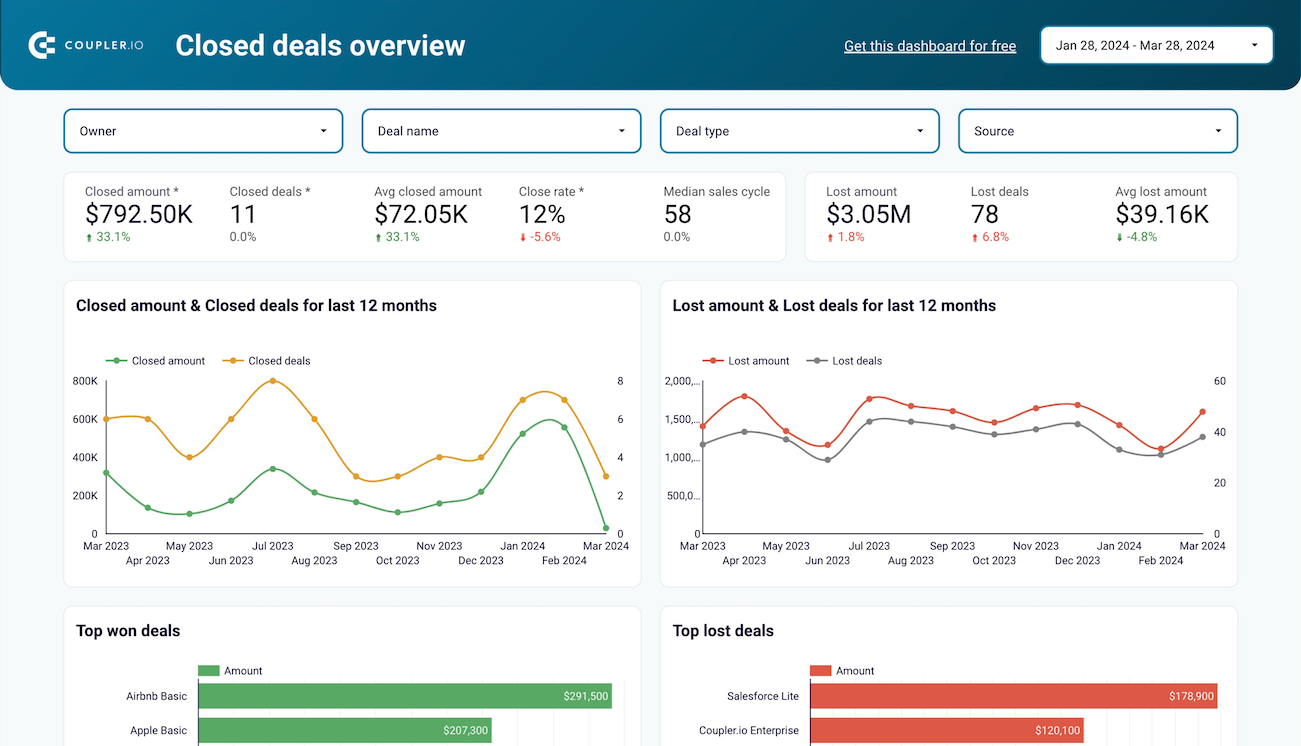
Metrics used:
- Closed deal amount
- Average deal value Close rate
- Lost deals
- Open deals
- Sales pipeline by stages
- Deal age
- Stalled deals
- Team comparisons based on closed and open deals
Key insights you can derive:
- Track closed vs. lost deals over time to identify revenue trends and drop-offs.
- Analyze the sales pipeline to monitor deal progression across stages like appointment scheduled, qualified to buy, and contract sent, helping identify where deals tend to stall.
- Compare team performance using metrics like closed amounts, median sales cycle length, and open deal age to recognize top performers.
- Prioritize high-value opportunities by spotting top open deals and addressing stalled deals to reduce revenue leakage.
The Looker Studio dashboard template is equipped with Coupler.io, so you can seamlessly integrate your HubSpot data and automate data refresh. This eliminates the need for manual exports, ensuring your reports are always up-to-date. Follow the instructions in the Readme tab to get the KPI dashboard with your data.
HubSpot CRM dashboard template
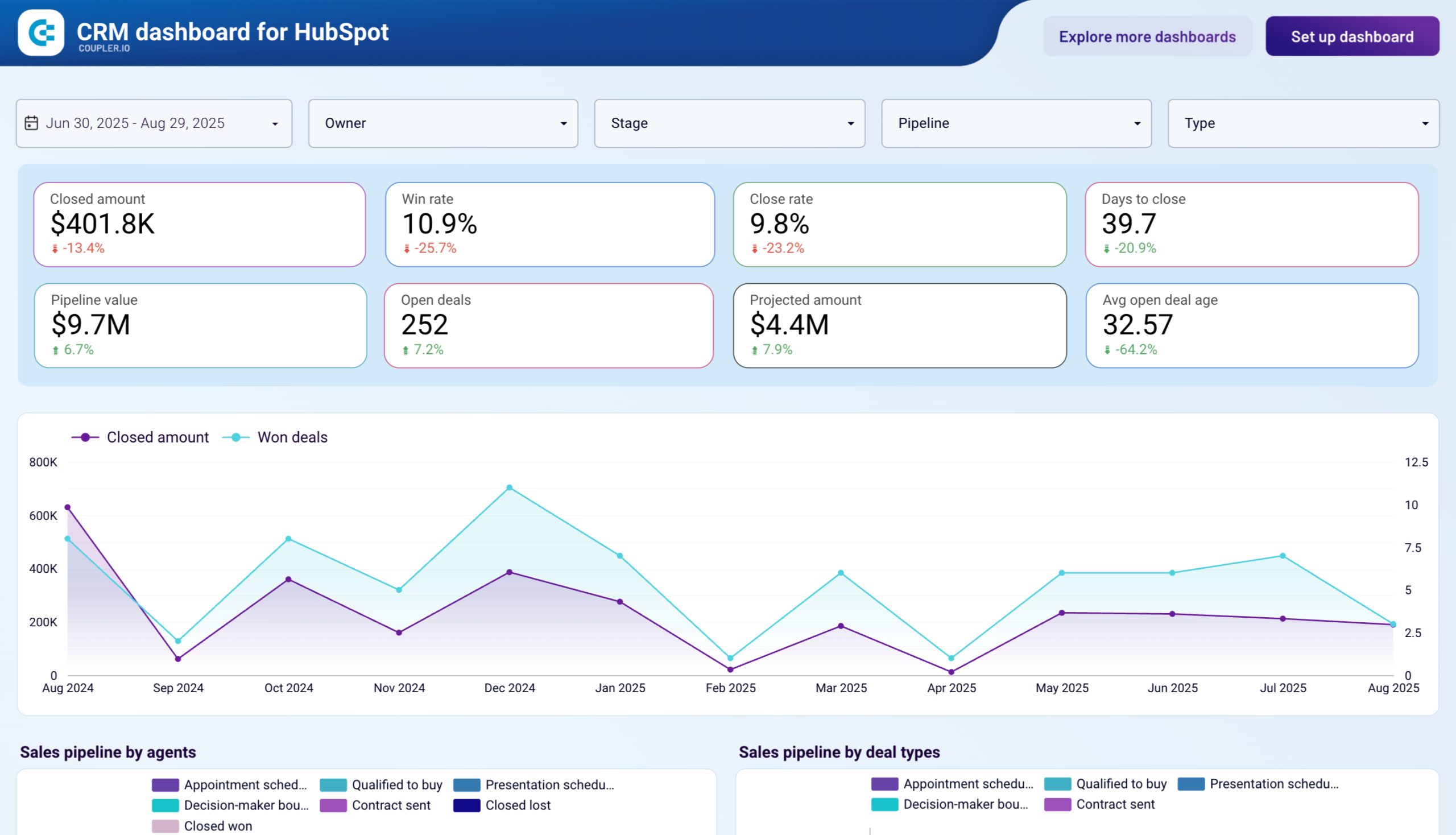
This dashboard gives a detailed view of your CRM data, helping you monitor deal performance, sales pipeline progression, and agent activities. It brings clarity to your sales operations, enabling you to analyze trends, prioritize opportunities, and improve team efficiency.
Metrics used
- Total sales
- Win rate
- Close rate
- Average days to close
- Pipeline value
- Open deals
- Projected sales
- Deal stages
- Deal sources
- Agent performance
Key insights to derive:
- Monitor sales performance trends with metrics like total sales, win rate, and close rate to identify areas for improvement.
- Track the progression of deals through pipeline stages and analyze deal types to find where opportunities advance or stall.
- Break down deal amounts by source to identify the most profitable lead channels.
- Evaluate team productivity by comparing agent performance on closed amounts, win rates, and average days to close.
- Identify top deals and opportunities with the open deals list, including deal owners, current stages, and probability of closing.
The HubSpot reporting dashboard is available as a template in Looker Studio and Power BI. It’s powered by Coupler.io, so you can easily integrate the dashboard with your HubSpot account using the built-in HubSpot connector. Follow the instructions to set up the dashboard with your data.
CRM dashboard for HubSpot in Looker Studio
Use our CRM dashboard for HubSpot to track key metrics, check how your sales team performs, and understand what drives your revenues.


CRM dashboard for HubSpot in Power BI
Evaluate sales team effectiveness and pipeline health with detailed HubSpot CRM analytics. Track closed amounts, monitor deal stages, analyze win and loss reasons, and compare agent performance to identify best practices and bottlenecks in your sales funnel.

HubSpot customer acquisition dashboard template
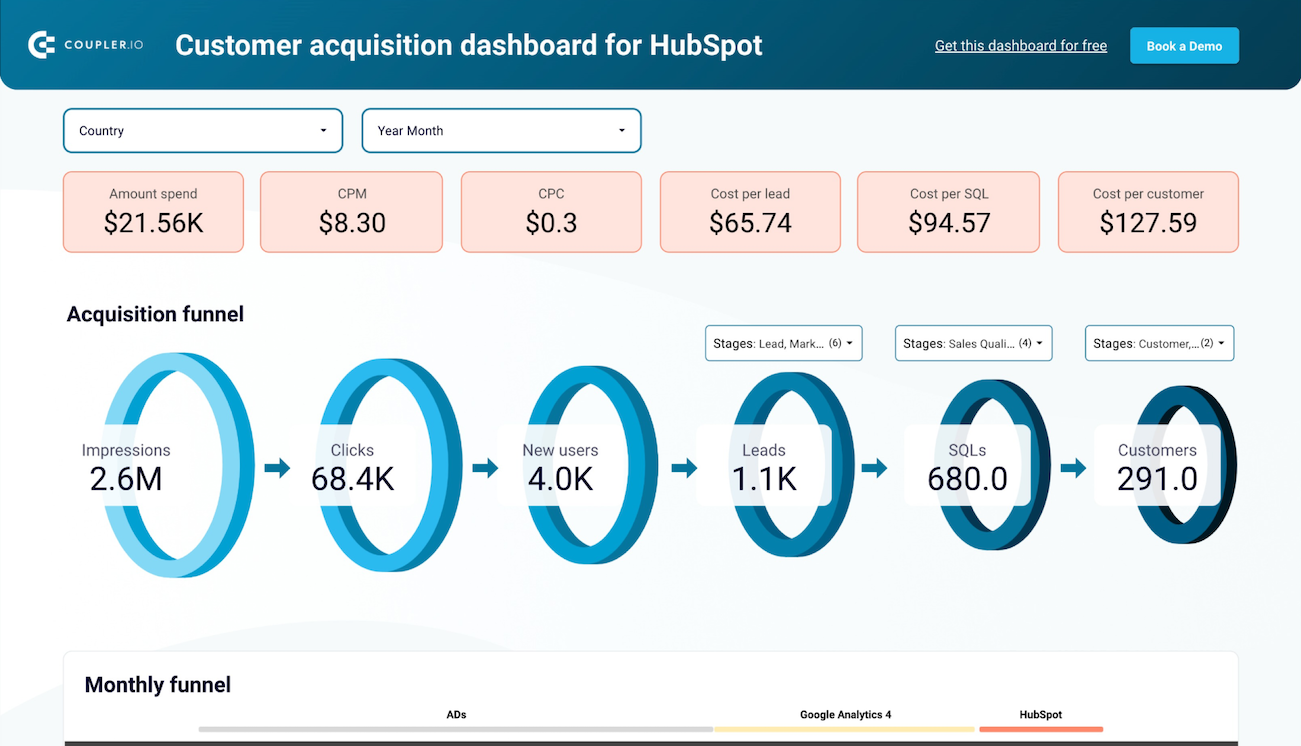
This dashboard gives a clear view of your customer acquisition efforts. It tracks ad performance, funnel stages, and conversion metrics. By combining data from marketing campaigns and HubSpot, it helps you measure ROI, identify drop-offs, and optimize ad spend.
Customer acquisition dashboard for HubSpot
 Preview dashboard
Customer acquisition dashboard for HubSpot
Preview dashboardMetrics used
- Total ad spend
- CPM
- CPC
- Cost per lead (CPL)
- Cost per SQL
- Cost per customer
- Impressions
- Clicks
- New users Leads
- SQLs
- Customers
Key insights to derive:
- Visualize how leads progress through each funnel stage and spot where drop-offs occur.
- Track metrics like CPC, CPL, and cost per customer to improve budget efficiency.
- Compare campaign performance across regions to identify top-performing markets.
- Monitor how contacts move through Leads, SQLs, and Customers to refine lead nurturing.
- Analyze ad spend by platform and measure which channels drive the best results.
- Identify trends in CPM, CTR, and CPL to improve campaign performance.
This HubSpot report template in Looker Studio requires you to connect your HubSpot account, ad platforms, and GA4 using the built-in Coupler.io connector. It will load data into the report and refresh it automatically according to the set schedule. Follow the instructions in the Readme tab to set it up.
How to export data from HubSpot in a manual way
The logic of the manual HubSpot data export can be the following:
- Choose the data entity, for example, Deals.
- Find the magic Export button and click on it.
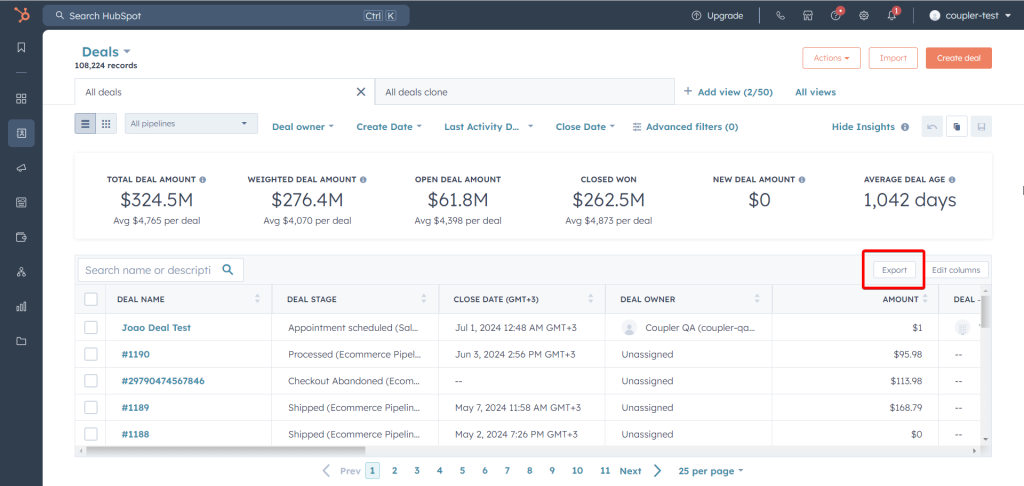
- Prepare the export file by selecting format, properties to include, language for the column headers, and other available options. Click Export and wait until HubSpot prepares the exporting file. You’ll receive an email and notification when it’s ready.
- Download the file from the provided link.

This looks easy, but in practice, you may face hardships during the workflow. For example, you can’t export HubSpot tasks this way. Instead, you need to create a report of tasks and export it. Other properties also have differences in terms of HubSpot data export. We’re going to cover the most common cases later in the text.
What data can you export from HubSpot manually?
Here is a list of data entities and their formats that you can export from HubSpot:
| Data | Entity type |
|---|---|
| Website content | |
| Analytics | |
| CRM content | |
| Sales data | |
| Marketing content | |
| Customer feedback | |
| Account data |
What formats are available for you to export HubSpot data?
Most of the data, including CRM content, analytics, sales data, and others, can be exported in CSV or Excel (XLS or XLSX). However, certain data entities are exportable in other formats:
- Quotes in PDF only
- Workflows in CSV or PNG
- Website pages in HTML
- Blog posts in HTML or CSV
- Sitemap in XML
You can also export files from your file manager as an archive (.zip file). If you plan to bring your HubSpot data export into a spreadsheet or data warehouse for further processing, an automated option is worth considering. It lets you pull data to Google Sheets, Microsoft Excel on OneDrive, or even Google BigQuery. However, not all data entities can be exported this way.
Export HubSpot data: contacts, products, and other data entities
As we promised, below we’re diving deeper into how you can export data from HubSpot. You will learn how to get different exportable HubSpot data entities manually using the native HubSpot export data functionality.
Can you export all data from HubSpot at once?
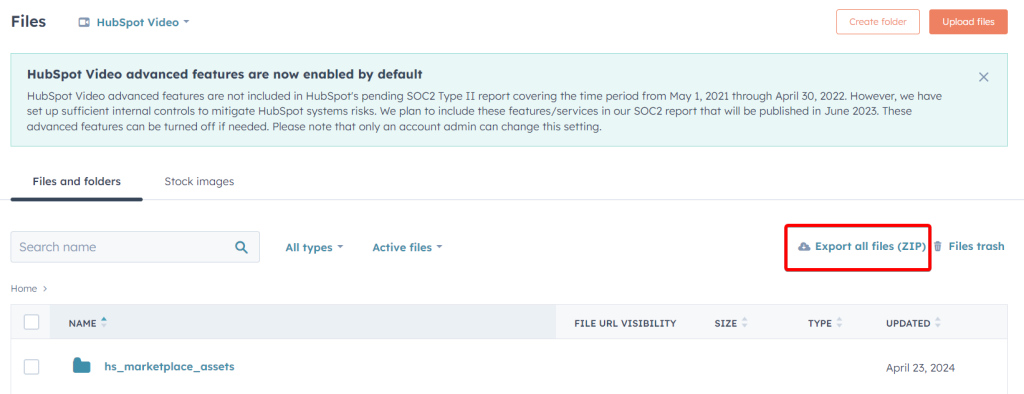
There is no button to export all data, including deals, reports, etc. However, you can export HubSpot data of your files. To do this, go to Library => Files.

Now click Export all files (ZIP) – you’ll need to select an email address to receive a link to download them. Click Export to confirm your action.
How to export contacts and companies from HubSpot
Pro tip: Use Coupler.io to automate export of contacts from HubSpot.
HubSpot allows you to export contacts either as CSV or Excel. Go to CRM => Contacts

Click the Export button in the table’s top right corner and configure the export settings.
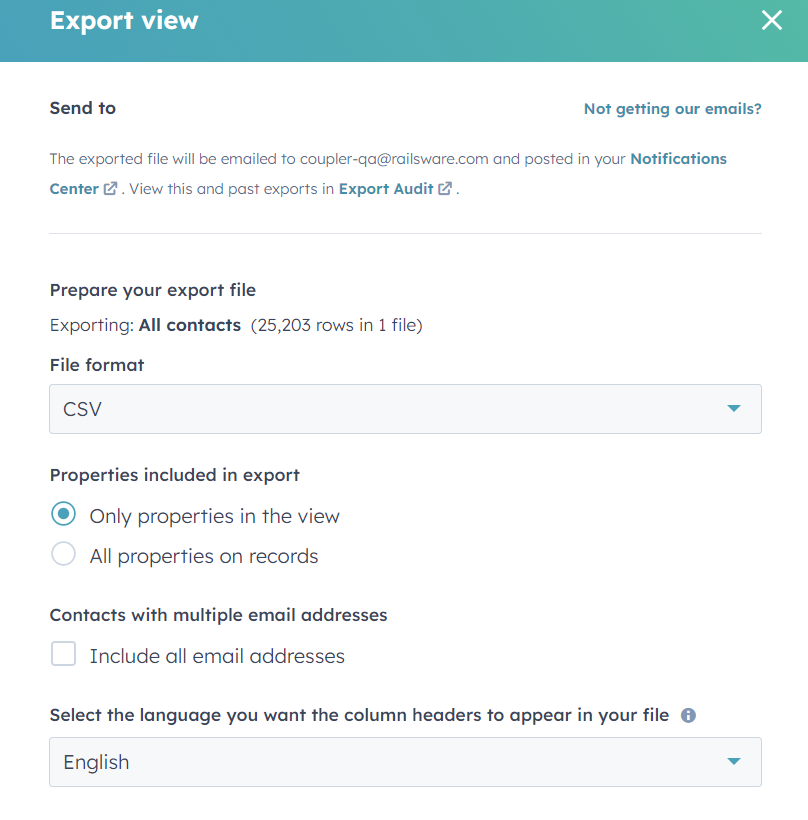
Click Export and wait for a link to download the export file. In a similar fashion, you can export data from HubSpot about companies.
If you want to export a list of contacts and their property values, the workflow is a bit different.
Export list of contacts data from HubSpot
Go to CRM => Lists. Select the list of contacts you want to export, and click Actions => Export lists.
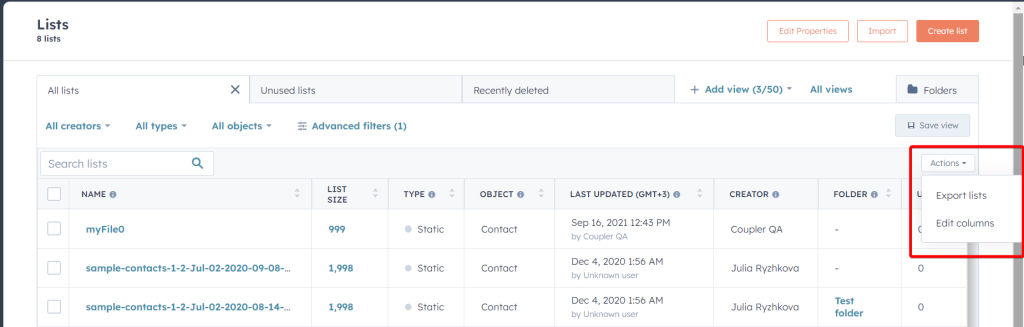
On the next page, select properties (columns) that will be exported and click Next.
Then select the export file format and click Export.
Once your HubSpot export data file is available, you can download it to your device.
How to export a HubSpot list using filters
There are three categories of filters that can be used to get more accurate reports:
- Creators: This filter is used when a lot of contacts have been created by different users. If you wish to see all lists, select All creators from the dropdown menu.
- Types: There are two types of lists: Static and Active lists. Use this when you want to filter based on the type of contact list you have. Active and static lists are created based on set criteria and they are different for both lists.
- Objects: One can use this when you want to filter based on which company or contact list your contact was created under. If you select All objects, you can see the company and contacts list.
Now, let’s have a look at how these filters are used to export a list from HubSpot:
- Once you’re on the Lists Home page, you’ll see three filter categories just above the lists.

- Let’s assume you are looking for a list created by a particular user of your team. Click on All Creators and then search for the user. You will now see lists created by only that user.

- Next, you need to select the type of list that you are looking for. It could be either Static or Active. Select the one you want out of these.

- Lastly, you need to select the objects. When you click on All objects, you will see two options in the dropdown menu – Company List or Contact. Select one.
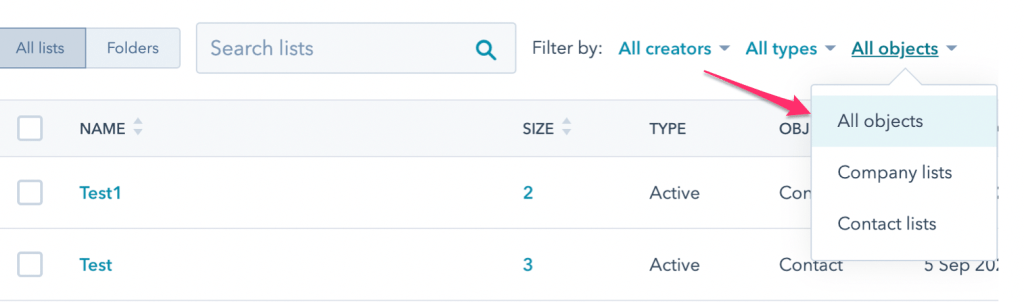
After applying all three filters, what we have is an Active or Static list of either Company or Contacts created by a particular user of your team.
To further filter out your lists while exporting, you can make use of selecting/deselecting properties once you click on the Export button.
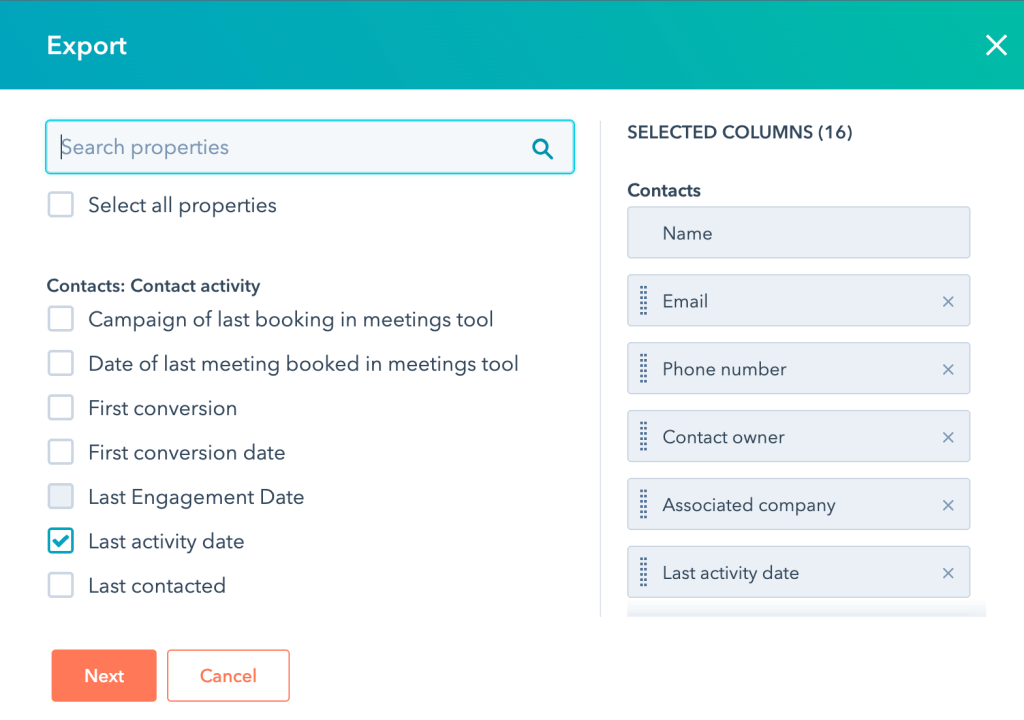
From here, you can select Last activity date as a property if you want to see the last activity dates of your Contacts or Company list. Similarly, other properties can be selected/deselected to get the required list. The rest of the Export List HubSpot flow, you already know.
How to export a list from HubSpot based on date?
Here’s another use case of using filters. Let’s say you have a list in HubSpot that you want to export based on a particular date (e.g., Date Added to List). It could be used for analyzing leads as to when they were created and what the progress is until now. Exporting such a list might seem like a daunting task, but it’s simple if we use the right filters.
While exporting any list, you’ll see there’s an advanced property called Added to list date.

If you choose the option Added to list date, in the exported CSV file – you will find a column titled Added To List On with dates.

Now, you have a list with a column Added To List On – which can be used for more in-depth analysis.
How to export deals from HubSpot
Pro tip: Use Coupler.io to automate export of deals from HubSpot.
To export HubSpot deals manually, go to CRM => Deals, then click Export.
Then configure the export file and wait till HubSpot generates it. After that, you can download the export file using the provided link.
HubSpot products data export
Pro tip: Use Coupler.io to automate export of products data from HubSpot.
Go to Commerce => Products

Then select the products you want to export data about and click the Export button in the table’s top right corner.
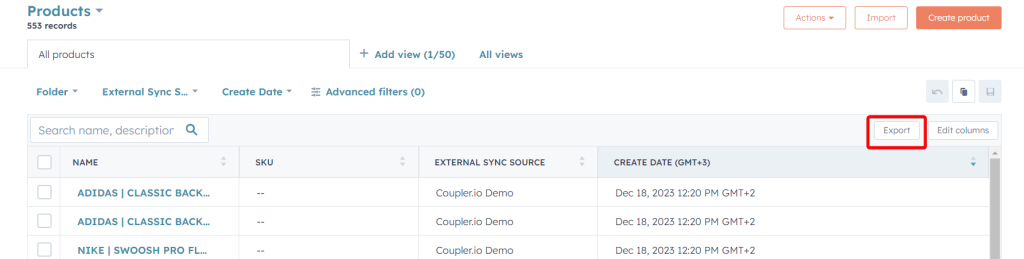
Configure the export file and wait till HubSpot generates it. After that, you can download the export file using the provided link.
Export custom reports from HubSpot
Reports are another valuable data entity that you can export from HubSpot. All you need to do is:
- Go to Reporting & Data => Reports

- Select the desired report you want to export, click Actions => Export

- Add a name to your report and select the export format. Click Export and download the export file when the link is available.
Export HubSpot workflows and their images
If you go to Automations => Workflows, you’ll be able to export a list of your workflows. Click Actions => Export workflows.
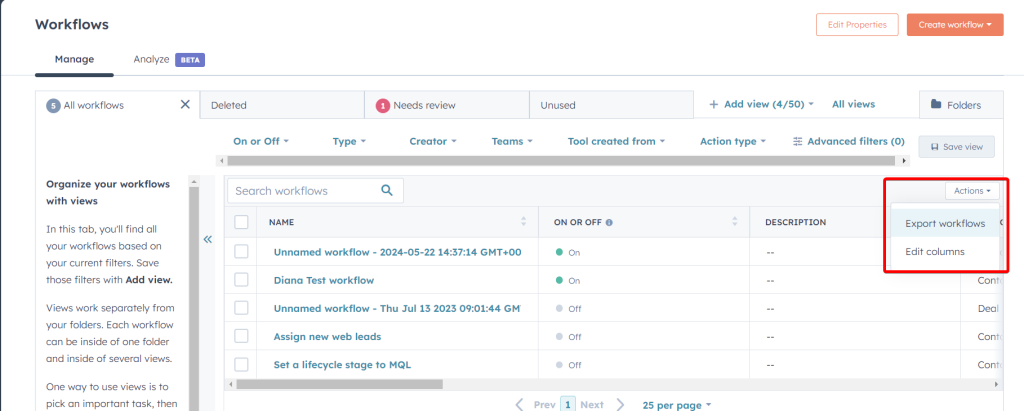
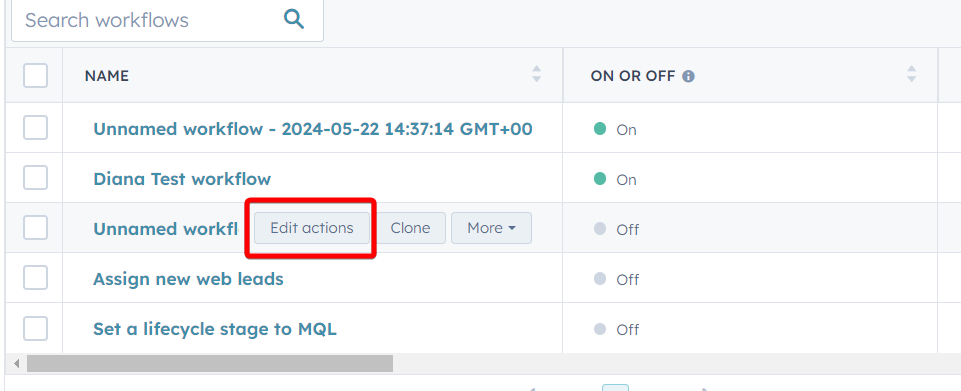
Configure the export file and wait till HubSpot generates it. After that, you can download the export file using the provided link.If you need an image of a particular workflow, you need to select a workflow and click Edit actions.
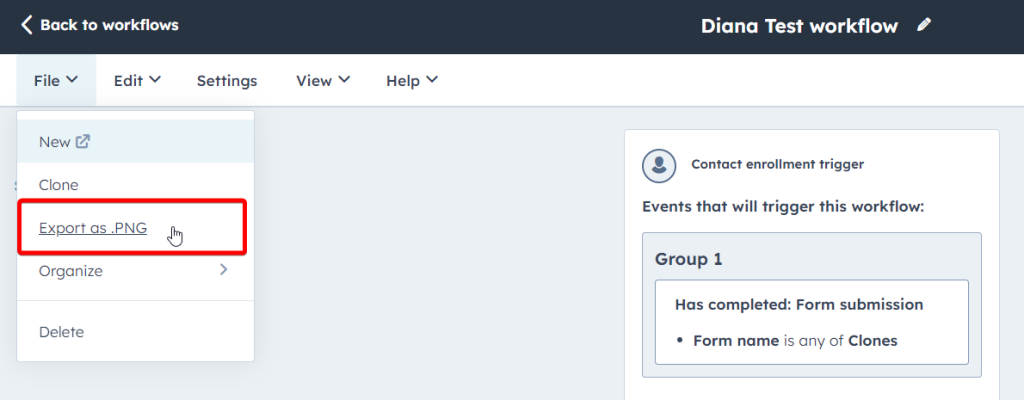
On the next page, click File => Export as .PNG
Confirm your action by clicking Export to download an image to your computer.
How to export property history from HubSpot
- Go to Settings on the top right corner of the main page.
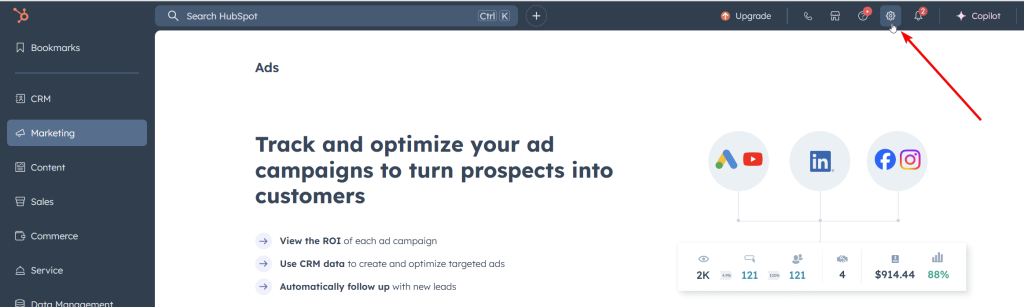
- On the left-hand side menu, find and click on Properties listed under Data Management.

- On the Properties page, select an object from the dropdown at the top. So, if you wish to export, for example, Contact Properties – select it.

- Use filters to filter out categories by Groups, Field Types, and Users. These filters are provided to ensure you get the most accurate information as per your specific requirements. To fully understand and comprehend how these field types work, you can head over to HubSpot’s Knowledge Base on Property field types in HubSpot.

- Next to it, there’s an option for Search Properties from where you can look up specific properties. In this case, we are going to export the history of the property Create Date, so just simply type it in the Search Properties section.

- When you hover over Create Date, you will find the More menu. Click on the Export Property History from the More dropdown menu.

- You can now choose the File Format among CSV, XLS, and XLSX options. Finally, click on Export.
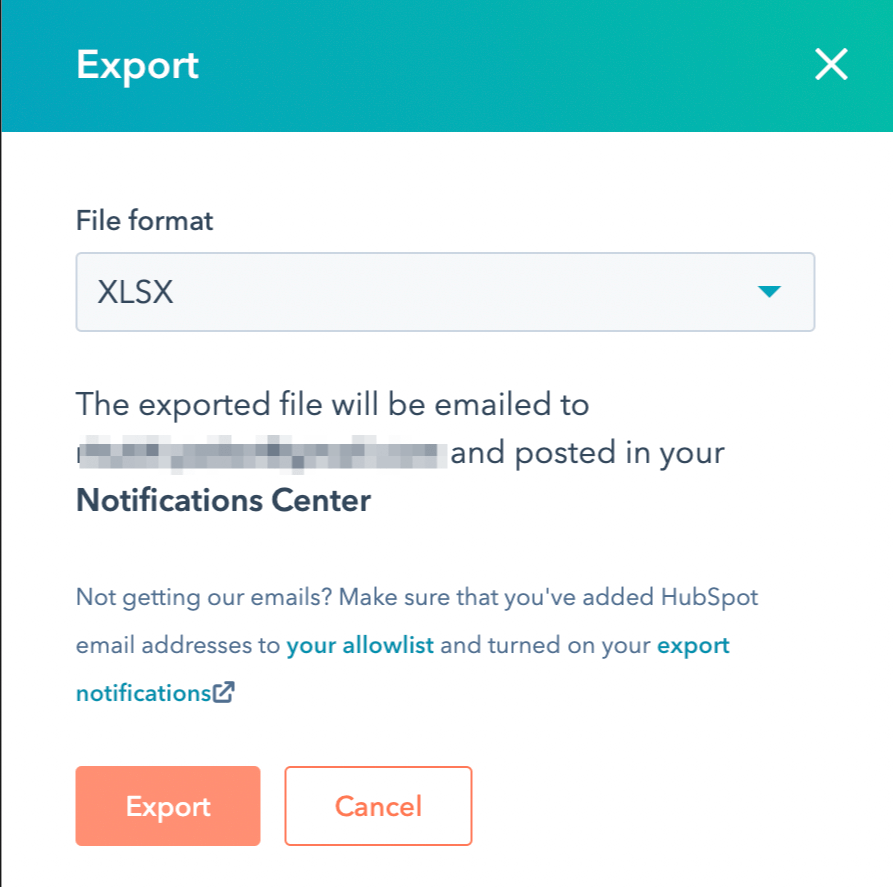
- The HubSpot export property history file will be sent to your email and will be posted in your notifications center in HubSpot. The received email will have a Download link at the bottom. All you have to do is click on it. In the notifications center, it says – Click here to download.
The value of manual vs. automated HubSpot export data
As we discussed, HubSpot export data can be done in two ways: manual and automated. The first one is a good option for one-time exports, for example, to transfer data to another CRM or import specific records to another software. The supported CSV format is perfect for doing this job.
The automated export of data from HubSpot is designed mostly for reporting and analytical tasks, which allows you to streamline HubSpot data analytics. At the same time, you can also consider it as a backup solution since you can automate data exports from HubSpot to BigQuery at a custom schedule.
Whichever way you choose, make sure to do this wisely, considering all the requirements of your HubSpot data export purpose. Good luck with your data!
Automate HubSpot data export with Coupler.io
Get started for free