
Getting data from HubSpot to Power BI used to rely on CSV export, manual refresh, and no way to blend CRM data with ad spend or web analytics. With Coupler.io, you can connect HubSpot to Power BI and automate data exports on a schedule. Check out the setup flow below and explore alternative methods to get the job done.
Connect Power BI to HubSpot using Coupler.io
Coupler.io is a data integration platform that provides a HubSpot data connector for spreadsheets, BI tools, data warehouses, and AI assistants. You can set up an automated HubSpot to Power BI connection that refreshes on a schedule in a few minutes.
Click on Proceed in the form below, where we’ve preselected HubSpot as a source and Power BI as a destination. You’ll be offered to create a Coupler.io account for free.
Then complete three simple steps
Step 1: Collect your HubSpot data
Connect your HubSpot account, then select the needed Data entity — Deals, Contacts, Companies, Products, Line Items, Tickets, or any of 20+ other options. For example, if you want to build a deal conversion report in Power BI, leave the preselected Deals entity.
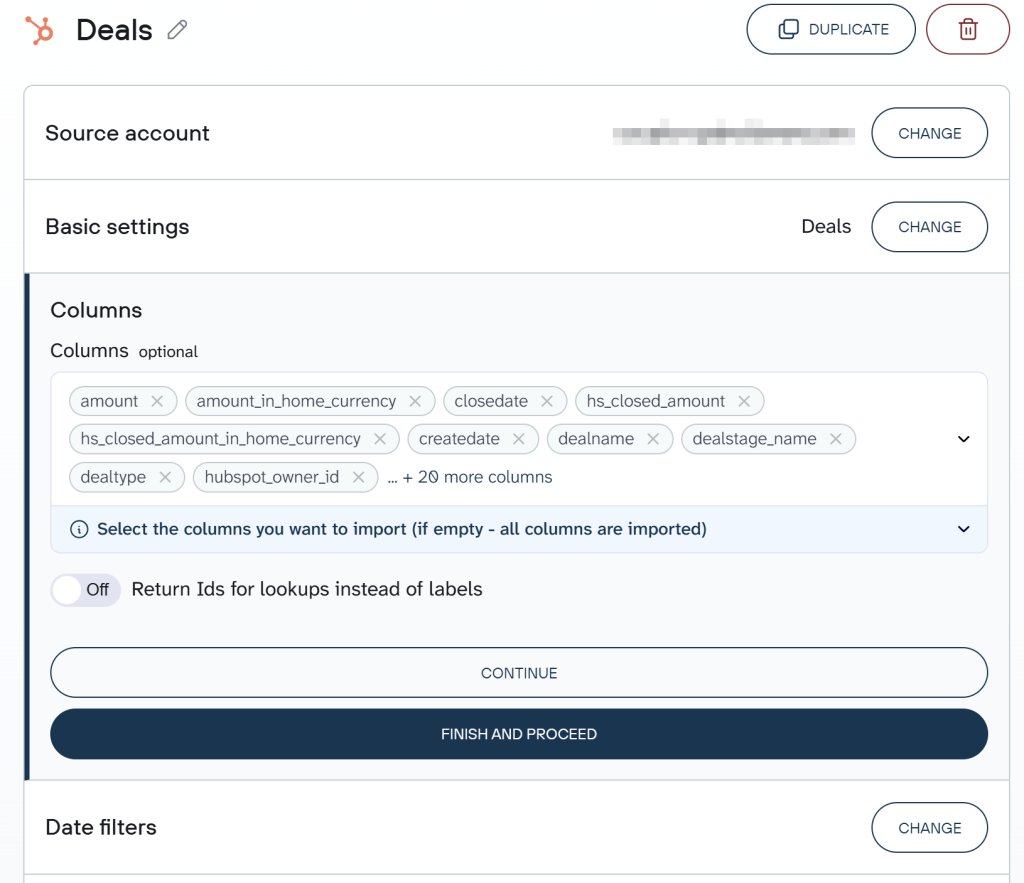
Optionally, refine what you collect:
- Advanced filters — narrow by deal stage (e.g., Closed Won), deal owner, or other properties. See our guide on how to use HubSpot advanced filters.
- Date filters — export only deals created or updated after a specific date.
Before moving forward, you can add more sources to the same data flow. This is where Coupler.io goes beyond a simple connector. Add another HubSpot entity (like contacts alongside deals), or bring in data from Google Ads, Facebook Ads, GA4, or any of 400+ other sources to build a cross-platform Power BI report.
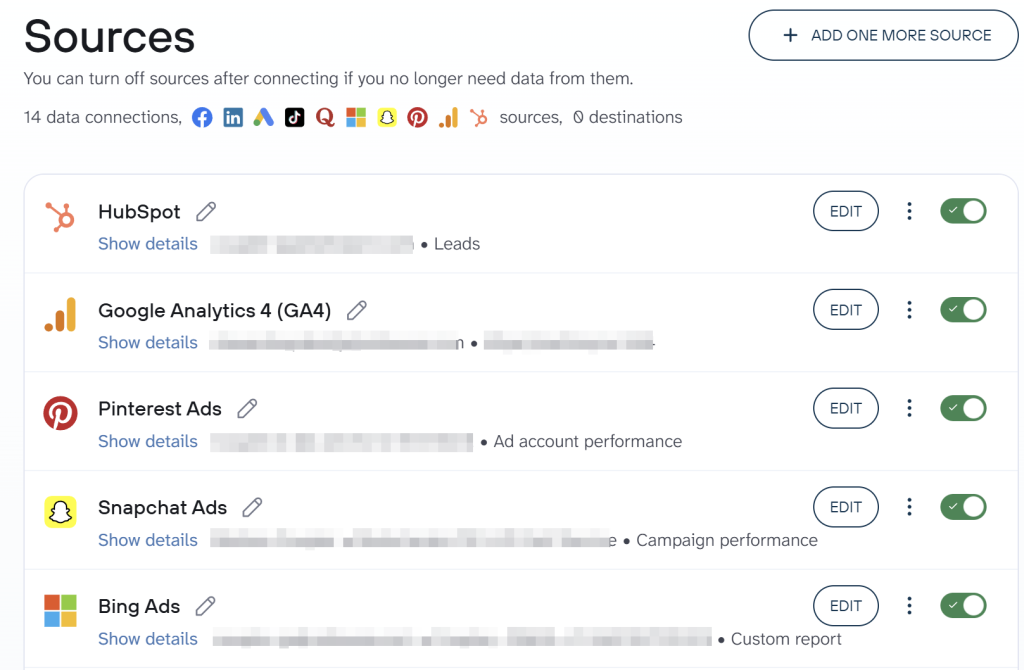
Step 2: Transform and organize data
Preview your data and adjust it before loading into Power BI. This step is optional, yet Coupler.io allows you to:
- Hide, rename, or rearrange columns — drop internal fields like
hs_object_id, renamedealnameto “Deal Name,” and move key columns to the front. - Filter rows — show only deals in specific stages, exclude $0 deals, or narrow by date range.
- Sort data — order by deal amount descending to prioritize high-value opportunities.
- Add calculated columns — create formulas like “Win Rate” (Closed Won / Total Closed) or “Average Deal Size” (Sum of amounts / Count of deals).
- Aggregate data — sum deal amounts, count deals per owner, or calculate averages to get summary-level metrics ready for Power BI.
- Blend data from multiple sources — if you’ve added more than one source.
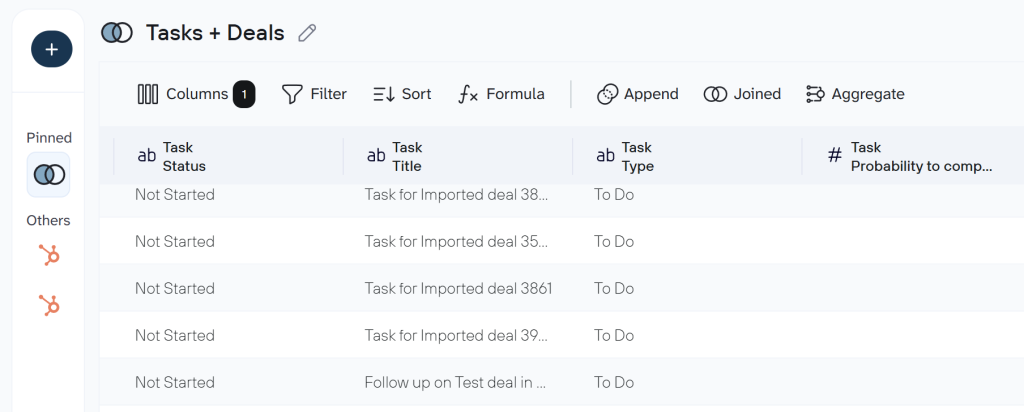
The opportunity to preview and manage your data at this step is very useful for the HubSpot analytics process.
If you’d rather skip manual transformation, Coupler.io offers pre-built data set templates for HubSpot analytics. They have data already structured, joined, and organized for any data destination, including Power BI. For example, the “HubSpot Deals with Contacts and Companies” template delivers a ready-made pipeline view.
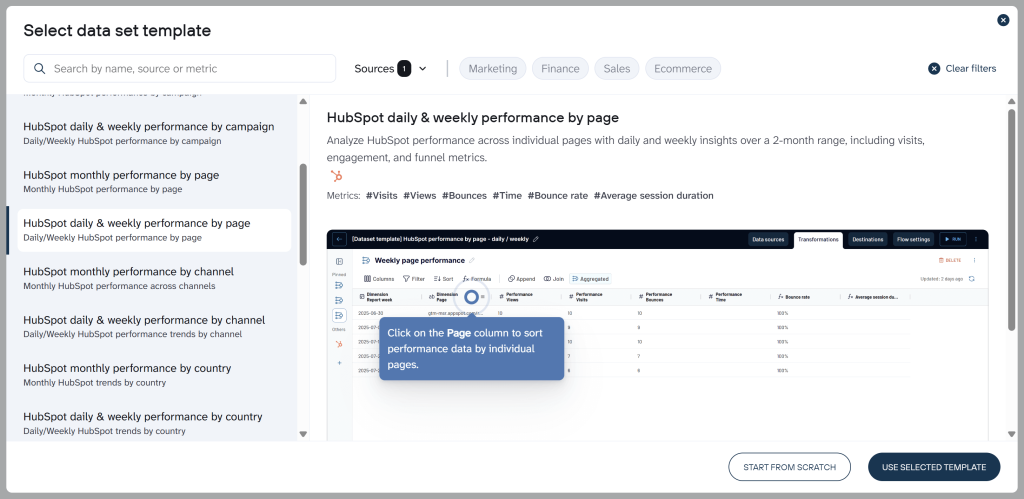
Step 3: Load data to Power BI and schedule refresh
Follow the in-app instructions to load your data to Power BI. In short, you’ll need to generate an integration URL and insert it into the Power BI desktop.

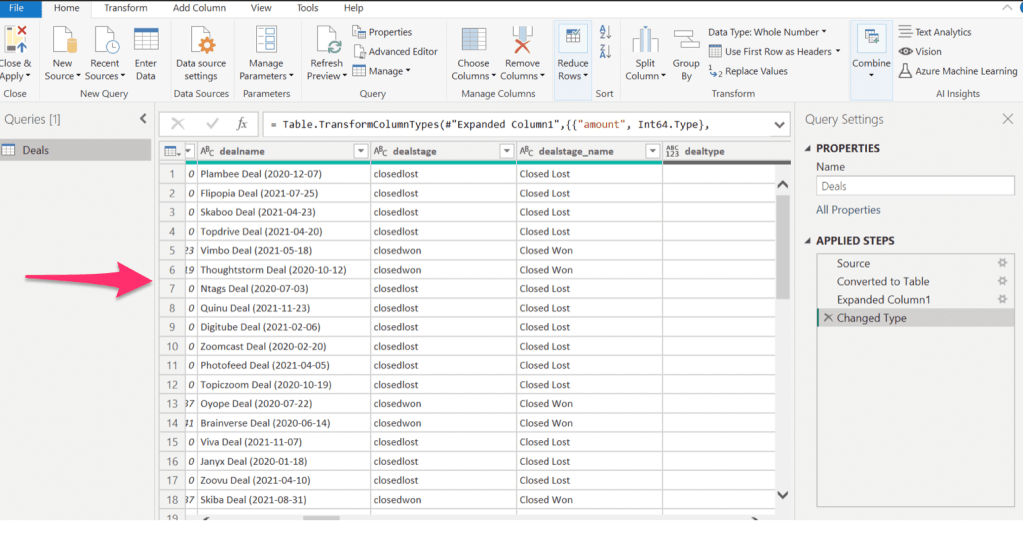
Power BI will establish a connection with Coupler.io, and your HubSpot data will be loaded into the Power Query Editor.
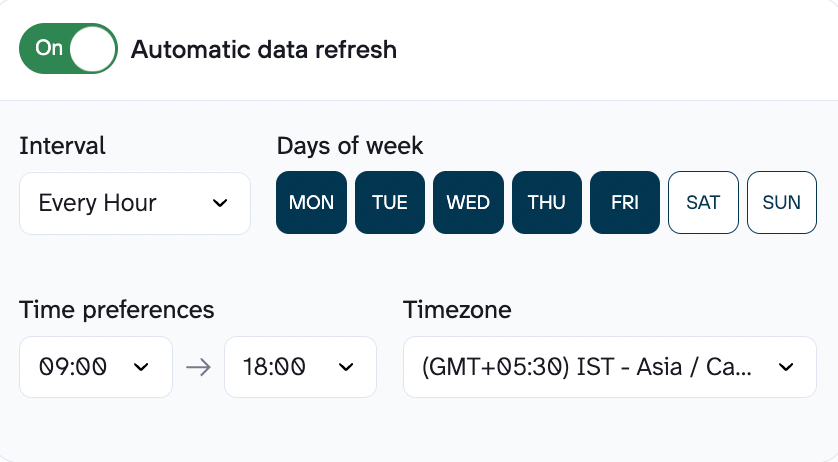
When you have your data flow from HubSpot to Power BI ready, Coupler.io allows you to automate data refresh. To do this, go back to Coupler.io, toggle the Automatic data refresh button, and set a time interval as to when you would like your data import to run automatically. This ensures you always work with the most up-to-date data in Power BI.
Your data connection between HubSpot and Power BI is all set now!
Coupler.io supports many destinations to fit different use cases. For instance, you can connect HubSpot to BigQuery for scalable data warehousing, or connect HubSpot to ChatGPT for conversational data analysis.
What data can you export from HubSpot to Power BI?
The following HubSpot data types are available through Coupler.io [click to expand]:
- Contacts — all contact records with email, lifecycle stage, lead status, and custom fields
- Companies — company records with industry, size, revenue, and associated contacts
- Deals — full pipeline data with stages, amounts, close dates, and owners
- Products — product catalog with names, prices, and SKUs
- Line Items — product entries tied to deals with quantity and pricing
- Tickets — support tickets with status, priority, and resolution details
- Quotes — quote records linked to deals
- Communications — logged communications across CRM
- Feedback Submissions — customer feedback and survey responses
- Taxes — tax configuration data
- Goals — sales goals and targets
- Owners — HubSpot users and ownership assignments
- Calls — call activities with duration and outcomes
- Emails — email activity records
- Meetings — meeting records
- Notes — CRM notes on contacts, deals, or companies
- Tasks — tasks with status, due dates, and assignees
- Marketing Emails — campaign data
- Workflows — automation workflow records
- Broadcast Messages — social media broadcast data
- Report: Email Statistics by Period — aggregated email metrics
- Performance Report — performance by channel, country, page, or campaign
- Custom Data Entities — any custom objects in HubSpot
Get analysis-ready HubSpot reports for Power BI in a few clicks
Instead of building Power BI reports from scratch, start with pre-built data set templates from Coupler.io. These templates come with HubSpot data already structured and combined — ready to load into Power BI and visualize.
Examples from the available templates:
- HubSpot Deals with Contacts and Companies — deals joined with linked contacts and companies for a complete pipeline view. Includes amount, stage probability, sales cycle length, and contacts with buying roles.
- HubSpot Deals with Line Items — deal data paired with product-level line items, including unit price, quantity, and total contract value.
- HubSpot Tasks with Deals — tasks surfaced alongside deal details. Includes probability to complete, missed due dates, and deal amounts.
- HubSpot Deals Performance by Channel — deal performance across channels over 12 months, with closed amount, win rate, and close rate.
- Customer Acquisition for HubSpot — cross-platform template combining ad data (Google Ads, Facebook Ads, LinkedIn Ads, etc.), GA4, and HubSpot to track the full acquisition funnel in Power BI.
To use a template, create a new data flow in Coupler.io and select Start with template, then search for “HubSpot.”
Blend HubSpot data with other sources in Power BI
One of the biggest advantages of using Coupler.io for HubSpot-to-Power BI is the ability to combine CRM data with information from other platforms in the same data flow. Before it even reaches Power BI.
Here’s how teams are using this:
- HubSpot + Google Analytics — the most common pairing. Join deal and contact data with GA4 sessions and traffic sources to attribute revenue to marketing channels directly in Power BI.
- HubSpot + Google Ads + Facebook Ads — combine CRM outcomes with ad spend to calculate true cost per lead, cost per SQL, and cost per customer. Build customer acquisition dashboards that connect marketing investment to pipeline.
- HubSpot + QuickBooks — merge deals with financial records for payment reconciliation and revenue tracking in Power BI.
- HubSpot + LinkedIn Ads + Google Ads + Google Analytics — a common B2B setup for full-funnel Power BI dashboards, from ad impression to closed deal.
- HubSpot + Google Ads + Facebook Ads + Microsoft Advertising — cross-channel paid media reporting tied to CRM outcomes. Compare CPL across platforms and optimize budget allocation.
These reflect actual data flows Coupler.io users have built. You can add any combination of 400+ sources to a single data flow.
Connect HubSpot to Power BI with Coupler.io
Get started for freeStreamline your HubSpot reporting with a ready-made Power BI dashboard
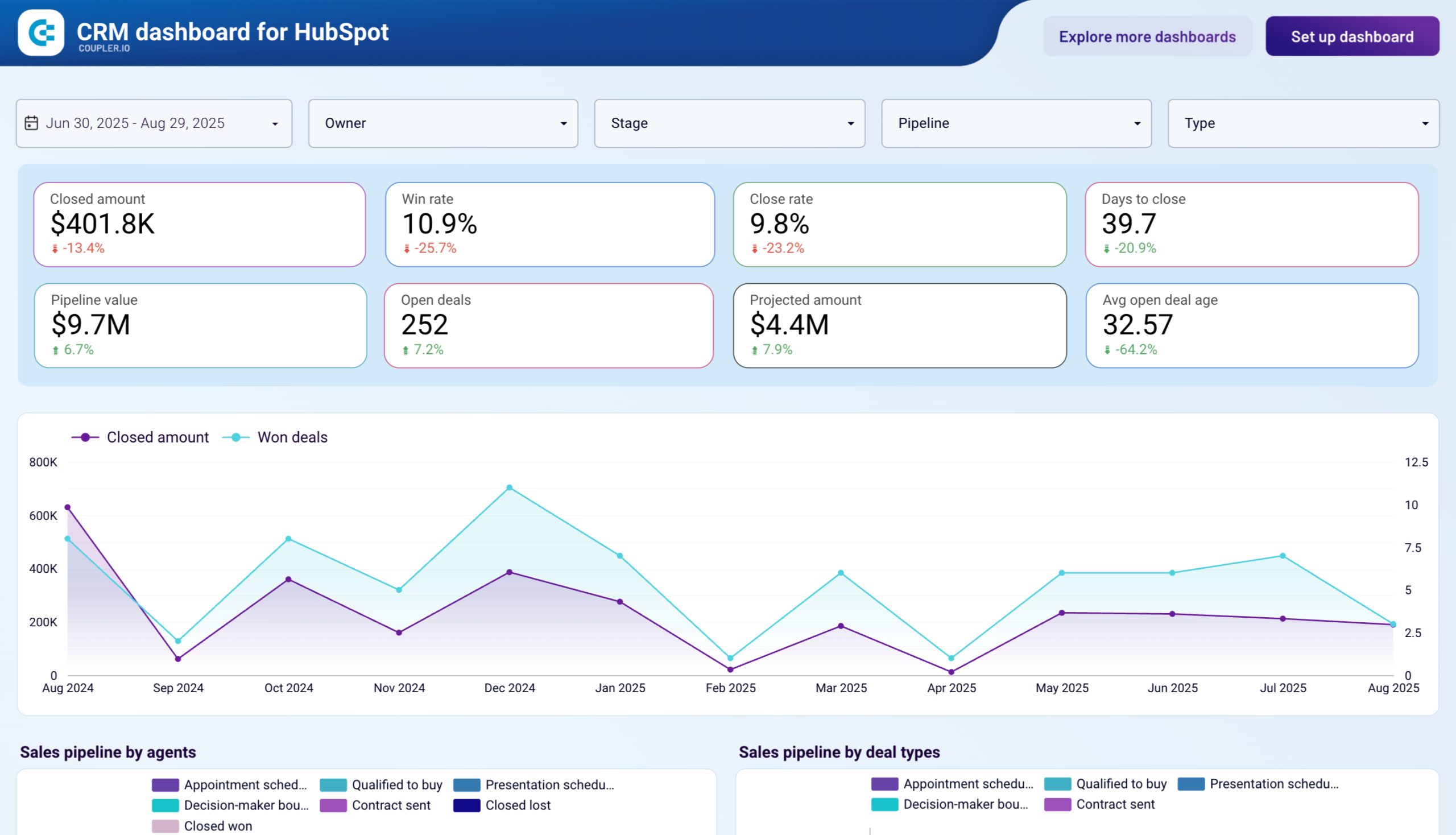
The HubSpot CRM dashboard for Power BI consolidates your sales pipeline data to track performance, analyze deal progress, and identify growth opportunities. Instead of building reports from scratch, this template provides immediate visibility into won, lost, and unclosed deals, helping you refine strategies and maximize revenue potential.
CRM dashboard for HubSpot in Power BI
 Preview dashboard
CRM dashboard for HubSpot in Power BI
Preview dashboardKey insights available with this dashboard:
- Unclosed deals analysis – Identify bottlenecks by analyzing deals by owner, type, revenue, stage, and win probability to recover potential revenue
- Best-won deals breakdown – Discover which company types, decision-makers, and industries contribute the most revenue to refine lead qualification
- Critical timing thresholds – Determine how many days of inactivity lead to lost deals and establish optimal follow-up timelines
- Lost and blocked deals – Gain insights into pipeline inefficiencies to prevent future losses
How to use this dashboard
The HubSpot dashboard is equipped with the Coupler.io connector to automate data loading from HubSpot to Power BI. Simply connect your HubSpot account through Coupler.io, configure your data refresh schedule, and the dashboard will automatically update with your latest sales pipeline data. This eliminates manual data exports and ensures your reports always reflect current performance. You can also use this dashboard as a template in Looker Studio.
CRM dashboard for HubSpot in Looker Studio
Use our CRM dashboard for HubSpot to track key metrics, check how your sales team performs, and understand what drives your revenues.


CRM dashboard for HubSpot in Power BI
Evaluate sales team effectiveness and pipeline health with detailed HubSpot CRM analytics. Track closed amounts, monitor deal stages, analyze win and loss reasons, and compare agent performance to identify best practices and bottlenecks in your sales funnel.

Coupler.io provides HubSpot dashboards in other BI platforms as well, so check them out!
Other options to export data from HubSpot to Power BI?
Coupler.io is the most flexible option for connecting HubSpot to Power BI, but alternatives exist depending on your needs. Here’s an overview, followed by detailed steps for each.
- Datawarehouse.io: A HubSpot-certified middleware that syncs HubSpot data to an Azure SQL database, which Power BI connects to natively. No pre-load transformation, but certified and straightforward if you don’t need multi-source blending.
- Manual CSV export: Export data from HubSpot as a CSV file and import it into Power BI. Works for one-time pulls but isn’t scalable for regular reporting.
- ODBC Driver: Connects live HubSpot data directly to Power BI. We won’t cover this method here — see our Mailchimp to Power BI tutorial for the ODBC setup flow.
Can you connect HubSpot to Power BI using the API?
Recently, HubSpot has sunsetted API keys on grounds of security. It’s believed that Private Apps are more secure rather than API keys. Hence, the latest HubSpot rollout will not allow you to integrate HubSpot to Power BI using the HubSpot API key.
However, as we’ve already discussed, other ways to connect Power BI to HubSpot, another way is to use certified apps by HubSpot. Datawarehouse.io is a middleware solution that allows users to integrate HubSpot databases into other BI tools such as Power BI, Tableau, Excel, Looker Studio, and many more.
Connect HubSpot to Power BI using Datawarehouse.io
For this integration, you’ll need to first create an account with Datawarehouse.io. Let’s have a look at the steps to do this below:
- Open Datawarehouse.io, and go to the Integration store.

- In the Integration store, you’ll find the HubSpot to Power BI Connector. There’s a 14-day trial period, but just a heads up – they will need your credit card details. Click on Select Options.

- Click on Get started. Another page to authorize HubSpot connection for authentication will be displayed. Click on Authorize.
- You’ll be prompted to choose your HubSpot account to establish a connection.
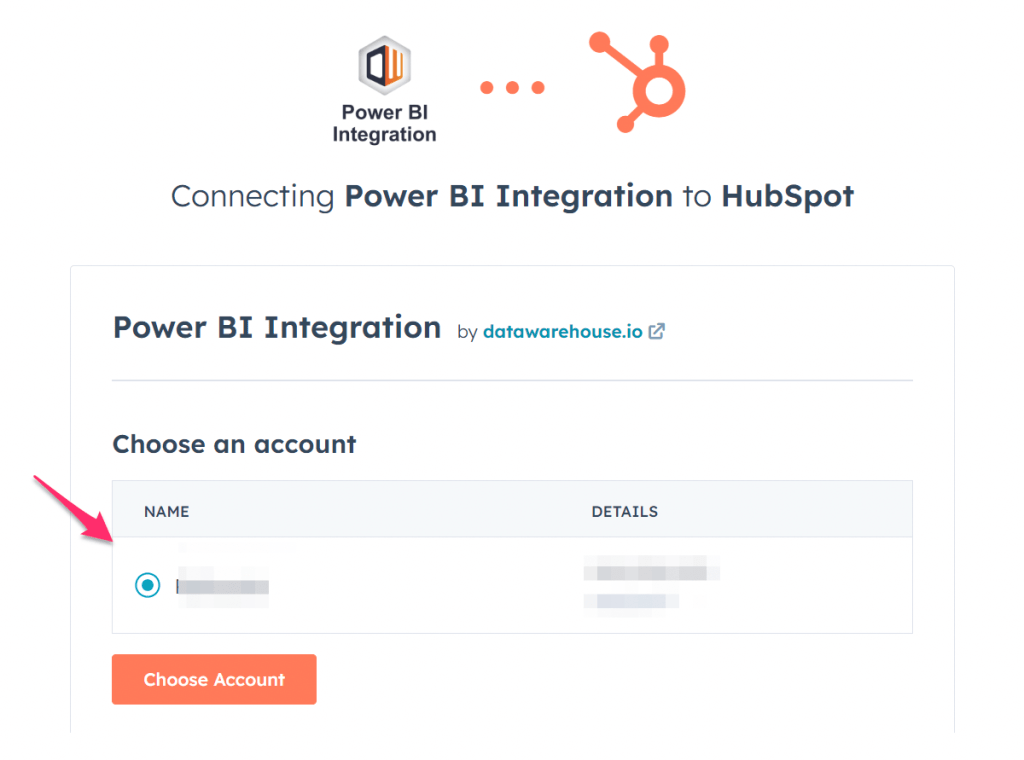
- The Datawarehouse.io app will request you to provide access to your HubSpot account. Select the checkbox to agree, and click on the Connect app button.

- Next is the Checkout Form, which includes all your personal information and billing details such as your credit card. Go ahead, fill this out, and click on Get Started.

- Once completed, you will receive account activation details in your email.
Note: It may take up to 24 hours to start using the connector.
And now, let’s look at the steps to import data from HubSpot to Power BI using Datawarehouse.io:
- Select the Get Data button in Power BI and then click on More.

- From the left-hand pane, click on Azure, and then click on Azure SQL database in the right-hand pane. Click on Connect.

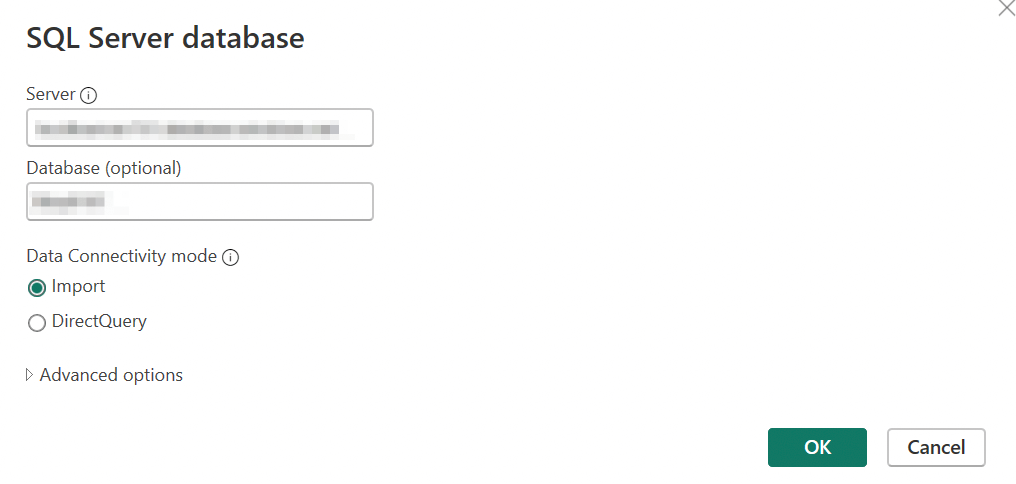
- Enter the SQL Server database information. You must have received this via the activation email sent by Datawarehouse.io.

- Select the Import button for Data Connectivity mode, and click OK.
- Select Database from the left-hand pane, and enter your Username and Password received via the activation email. You must also ensure to select your database in the Select which levels to apply these settings to dropdown, and not just the server. Finally, click on Connect.

- Now, from the Navigator, you should be able to pull any data tables hosted on your SQL server.

- Once you’ve selected the checkboxes that you’re willing to create reports on, click on Load and start visualizing your data.
Let’s have a look at some of the pros and cons of using Datawarehouse.io now. One of the biggest pros it’s certified by HubSpot, and pretty easy to set up, too. It provides a 14-day free trial period, but you need to provide your card details for this. It’s a no-code method; however, there’s no built-in functionality to transform your data before loading. And they offer some free templates to use upon request.
How to move data from HubSpot to Power BI manually
This method does not allow you to connect HubSpot to Power BI but you can move data using it. First, you’ll need to export data from HubSpot in a CSV file. We described how you can do this in our HubSpot export guide. Then follow these steps:
- Go to Power BI, click on Get data, and then Text/CSV.

- Select the CSV file from your local machine, and click on Open.

- Once imported, you’ll see the data preview. Click on Load.
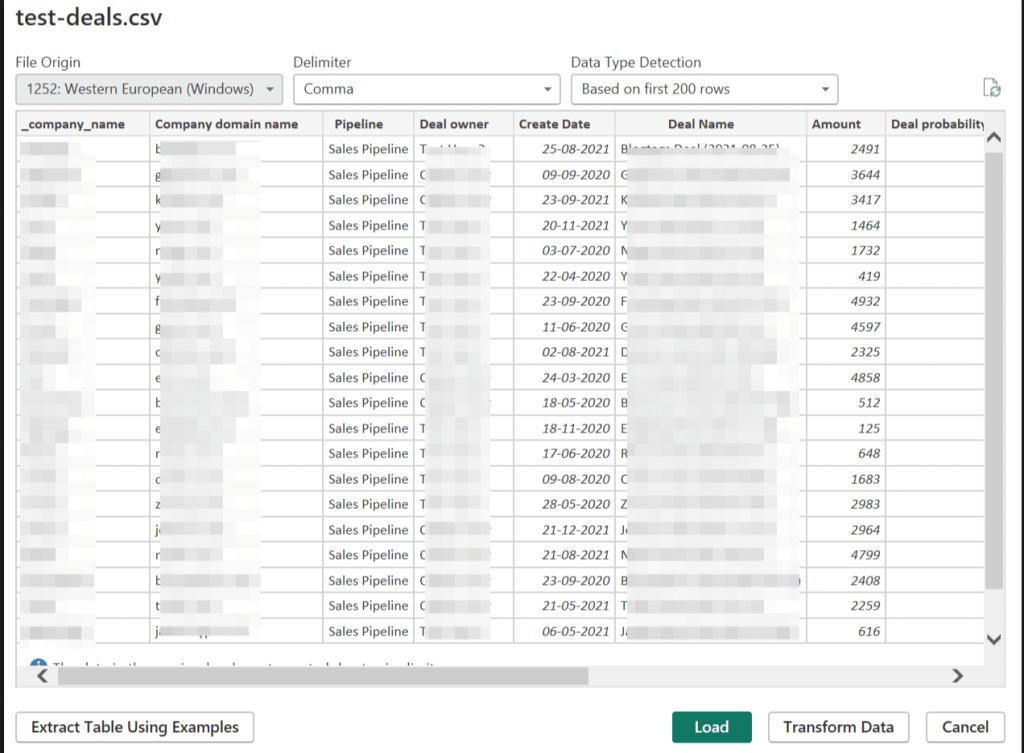
After loading the data, you should be able to see it in the Power Query Editor.
The downside of the native method is that it can be repetitive when you need to import multiple HubSpot data entities. And since you need to process a lot of data many times, this method isn’t scalable enough.
On the contrary, the good side is that when you need to review data, this method can prove to be helpful.
What can you do with HubSpot and Power BI integration?
Now, let’s see what makes this integration worthy. Among the numerous advantages that you can leverage with just one powerful integration, we have listed a few use cases here if you need any inspiration:
- Real-time reporting: With HubSpot and Power BI integration, when you set up scheduled data refreshes, your reports and dashboards are always up to date with the latest HubSpot data.
- Analyze marketing tactics: By visualizing key metrics such as click-through rates, bounce rates, or website traffic data, you can monitor the performance of your marketing strategies.
- Identify patterns: Thanks to some of Power BI’s analytical features, you can recognize certain aspects that might go unnoticed otherwise. For instance, if some of your deals aren’t making any progress at all, create an interactive report in Power BI to visualize data to identify the marketing tactics behind successful deals and simply replicate them.
- Monitor sales pipeline: A good way to keep track of the trajectory of your sales pipeline for each lead, Power BI dashboards can help you bifurcate the sales pipeline of all your leads, deals, and customers and identify bottlenecks. You can then work on areas of improvement.
Benefits of HubSpot Power BI integration
HubSpot Power BI integration can make your everyday business hours easy-going. Once integrated and automated, you can focus on innovation, creativity, and inventing data-driven solutions. Some of the most common benefits across all industries are:
Business intelligence: By combing through HubSpot data, Microsoft Power BI reports and dashboards allow you to gain insights on business processes that you can repurpose later.
Customized reports and dashboards: A not-so-unique but fundamental benefit when it comes to data analysis. Customized reports and dashboards give users the ability to visualize complex HubSpot data by simplifying it. This, in turn, helps in focusing on identifying and implementing advanced approaches for business improvement.
Share and collaborate: Easily share your reports and dashboards, including visualized and transformed data, with your peers, clients, and stakeholders. This is a constructive way to seek feedback, solutions, and ideas from them, which can further help identify and eliminate bottlenecks.
The best fit: which HubSpot Power BI integration should you choose?
There’s no right answer to this, as the choice you make will ultimately depend on your business needs. When choosing a Power BI connector, it’s important to weigh the pros and cons, especially your requirements. Since every option offers different features, the decision really depends on what features are most valuable to your business.
Finally, realize the power of integration to have insightful data-driven reports and dashboards, deeper analysis leading to powerful solutions, and a lot more. This is just the tip of the iceberg. HubSpot Power BI integration can prove to be useful for everybody, from data analysts to salespeople across all industries.
All you have to do is make a choice about which option you would pick to connect HubSpot to Power BI. So, choose wisely, and happy integration!
Automate data export with Coupler.io
Get started for free