
QuickBooks tracks your revenue, expenses, invoices, and cash flow, but analyzing that data alongside other sources or running SQL queries against it requires a warehouse like BigQuery. Loading QuickBooks data into BigQuery lets you join financial records with marketing, sales, or operations data, run ad hoc queries without touching your accounting system, and build reports that update on a schedule.
Learn how to connect QuickBooks to BigQuery with Coupler.io, set up dashboards and AI-driven financial analysis, and explore the key reasons teams move QuickBooks data into a warehouse. I’ll also cover a manual CSV option if you need a one-time upload.
How to connect QuickBooks to BigQuery using Coupler.io
Coupler.io is a data integration platform and AI analytics solution that connects QuickBooks to BigQuery without code. You select the QuickBooks entities you need, apply filters or transformations, and schedule automatic refreshes as often as every 15 minutes. The same data flow can feed other destinations too: Google Sheets, Data Studio, Power BI, Snowflake, or AI tools like Claude and ChatGPT.
Just explain what data flow you want, and the Coupler AI agent will build it for you.
Let Coupler AI do the data work for you
Tell Coupler AI what you need to know, from which source, and how often. It connects your account, sets up the data flow, keeps it refreshed, and lets you analyze the results inside Coupler.io or another AI tool.
Try for free
At the same time, it only takes a few steps to integrate QuickBooks with BigQuery manually for backup, analytics, reporting, or another purpose you need:
Step 1: Collect data from QuickBooks
Create a new data flow in Coupler.io or simply click Proceed in the form below, where I’ve preselected QuickBooks as a source and BigQuery as a destination. You’ll be offered to get started with Coupler.io for free with no credit card required.
Note: Coupler.io also allows you to export reports from QuickBooks. For this, change the source app from QuickBooks to QuickBooks Reports.
Connect your QuickBooks Online account, then select the source data to import, like invoices or customer lists. You can also combine data from multiple data entities and/or reports in a single data flow.
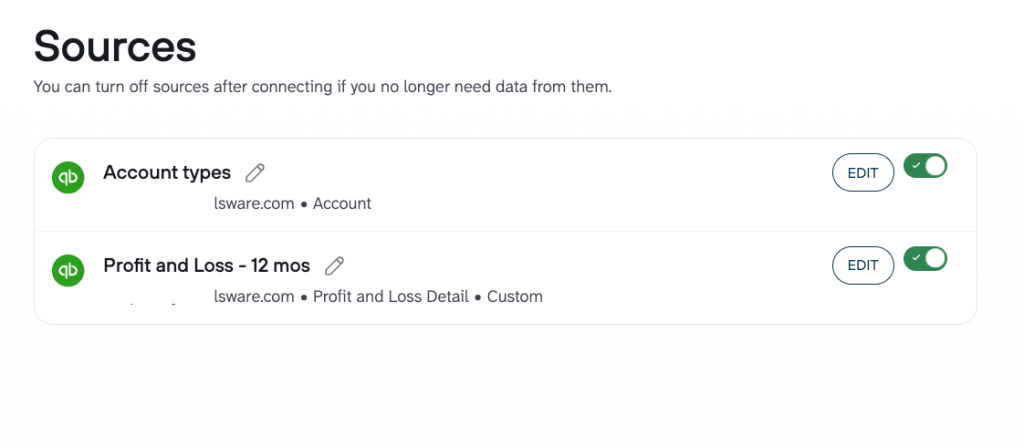
Coupler.io connects to 400+ sources, so if your financial analysis involves data from Xero, Stripe, or Shopify alongside QuickBooks, you can pull from multiple sources into the same workflow. Add another account or app, then append or blend the datasets in the next step.
Step 2: Make your data analysis-ready
Coupler.io lets you prepare your QuickBooks data before it reaches BigQuery. You can filter rows to extract specific subsets, rename fields for clarity, add columns with custom formulas, hide unnecessary fields, reorder columns, and blend data from multiple sources into a single dataset.
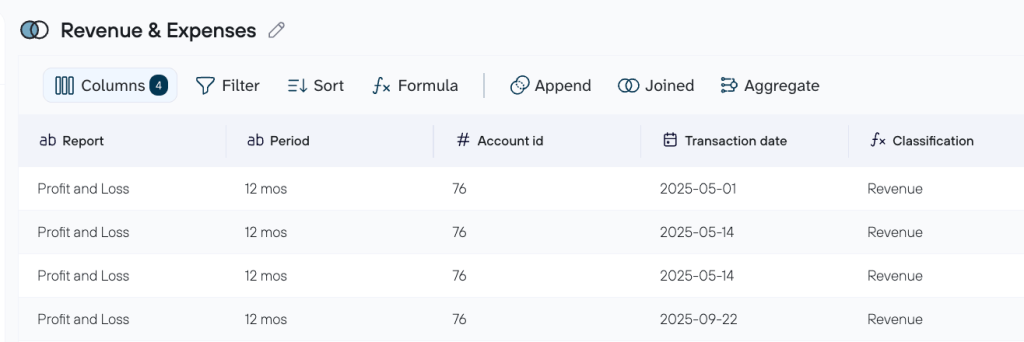
This is also where you control what reaches downstream tools. If you plan to analyze QuickBooks data with AI later, the filters and column settings you configure here determine what the AI layer can see. Sensitive fields you hide stay hidden. The QuickBooks data connector by Coupler.io lets you add business context to describe what each data flow contains, which improves the quality of AI analytics down the line.
Coupler.io includes 25+ dataset templates for QuickBooks that give you a head start on common financial analyses. Templates like P&L Annual, Cash Flow This/Last Month, Sales by Customer, Balance Sheet Annual, and Invoices come with pre-built transformations so you don’t have to configure everything from scratch.
Step 3: Load data and schedule refresh
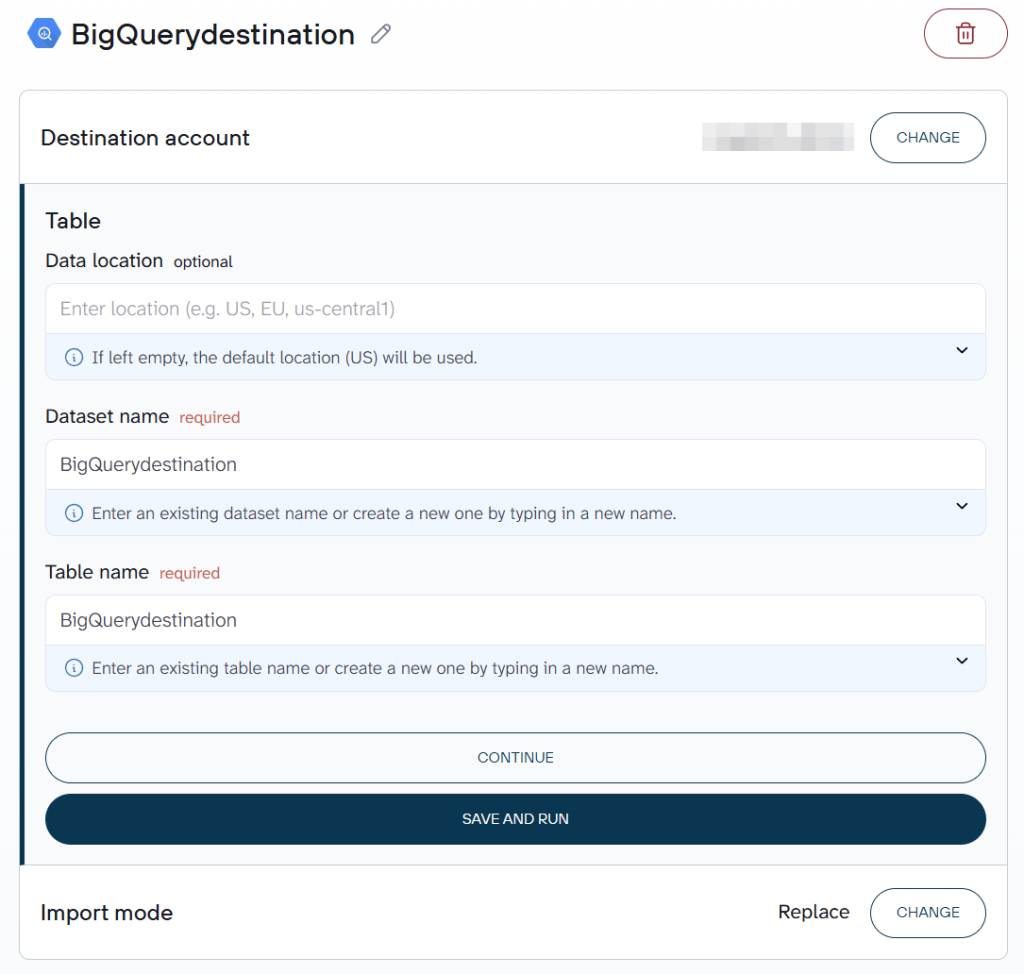
To link BigQuery to Coupler.io, you’ll need to upload your Google Cloud key file. After establishing the connection, you can either specify an existing dataset and table or create new ones by entering their names.
Coupler.io’s Autodetect Table Schema feature automatically determines the structure of your data during import, simplifying the integration process. If you prefer to define the schema manually, you can disable the autodetect option and specify the desired schema according to your requirements.
Coupler.io also allows you to connect QuickBooks to Google Sheets and several BI platforms.
Before loading, choose an import mode. Append mode adds new records below the previously imported entries, while Replace mode overwrites old entries with the latest data from QuickBooks.
BigQuery doesn’t have to be your only destination. Within the same data flow, add Google Sheets, Data Studio, Power BI, or AI tools as additional destinations, so the same QuickBooks data flows to your warehouse, dashboards, and AI analytics from a single setup. Read more about multiple destinations in Coupler.io.
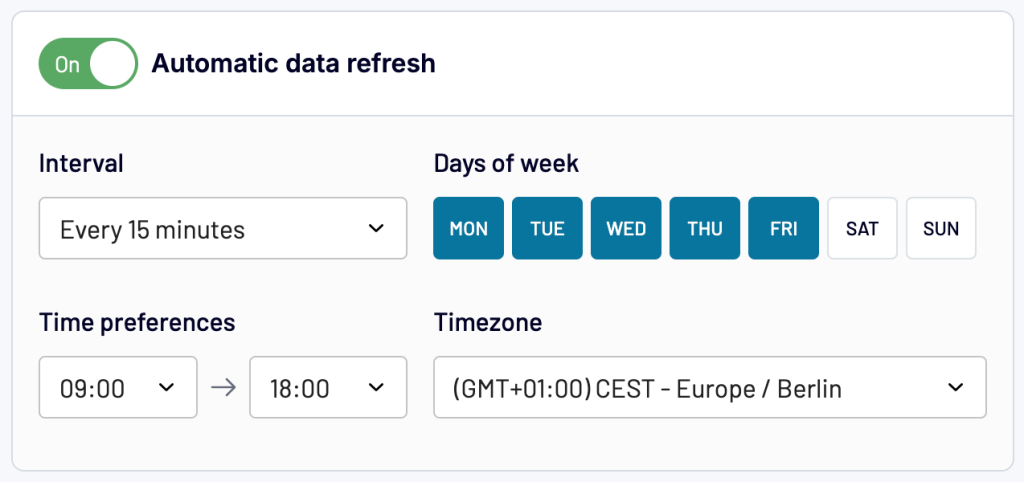
After completing the previous steps, enable automatic data refresh. You can schedule updates monthly, daily, every hour, every 30 minutes, or every 15 minutes. Once set, click Save and Run to load data from QuickBooks to BigQuery.
Now you can access your dataset with the exported QuickBooks data within BigQuery.
Bonus step. Analyze QuickBooks data with AI
Once your QuickBooks data is flowing into BigQuery, you can go a step further and ask questions about it in plain English using AI Agent. It works directly inside Coupler.io on any active data flow. Ask about outstanding invoices, cash flow trends, expense breakdowns by vendor, or revenue changes month over month. Coupler.io’s Analytical Engine runs the calculations first and passes only computed results to the AI, so the numbers you get back are based on your actual data, not guesses.
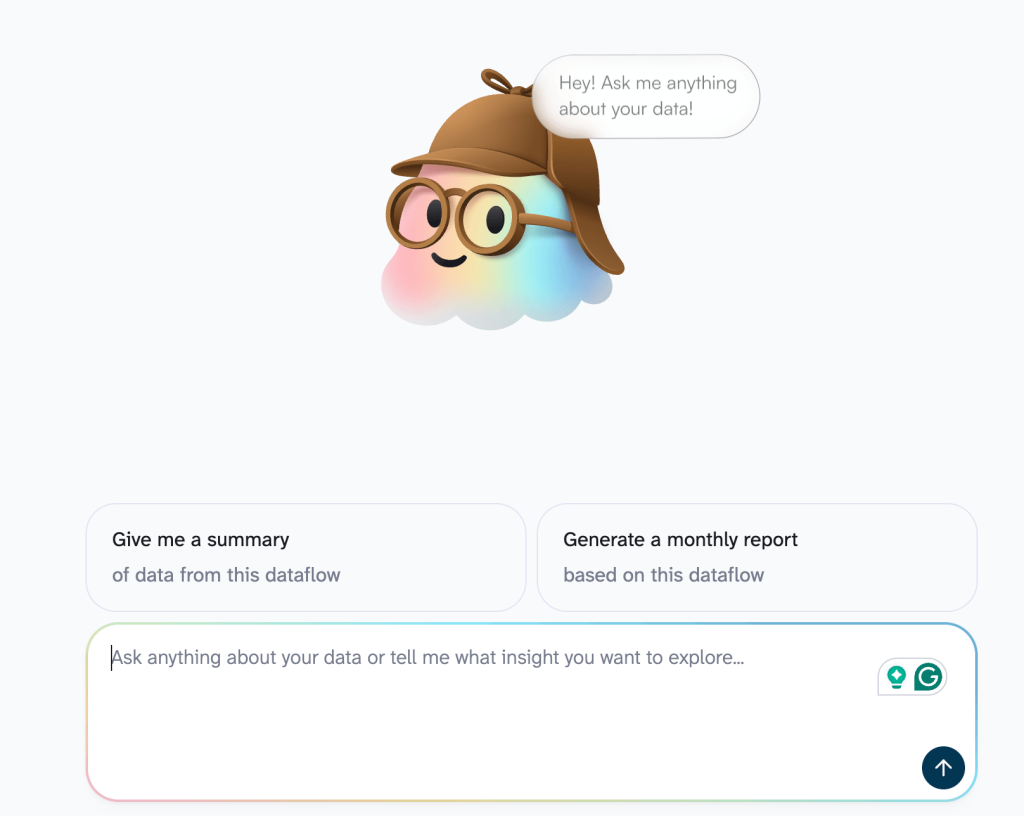
AI never connects to your QuickBooks account directly. It works only with the structured dataset you built in Coupler.io.
If you prefer working in external AI tools, AI Integrations let you send your prepared QuickBooks data to Claude, ChatGPT, Gemini, Perplexity, and other platforms through Coupler.io’s MCP server. The same data controls apply: the AI tool receives the filtered, structured dataset, not raw access to your books.
What data can you load from QuickBooks to BigQuery using this integration?
Coupler.io gives you two ways to pull QuickBooks data: entity-level exports and report-level exports.
QuickBooks entities
Entity exports pull structured records directly from your QuickBooks account. The connector supports 33 entity types. Here are the most commonly used ones:
| Entity | What it contains |
|---|---|
| Invoice | Billing amounts, due dates, payment status, and customer references |
| Bill | Vendor charges, due dates, balances, and payment tracking |
| BillPayment | Payment records tied to specific bills and vendors |
| Payment | Customer payments received, including method and amount |
| Customer | Contact details, balances, and account status |
| Vendor | Supplier information, credit limits, and contact details |
| Item | Products and services with pricing, type, and active status |
| Account | Chart of accounts with classification, type, and balance |
| Employee | Staff records including hire dates and contact information |
| Estimate | Quotes and proposals with line items and totals |
| Purchase | Direct spending transactions including checks and credit card charges |
| PurchaseOrder | Orders placed with vendors, including line items and delivery status |
| Transfer | Funds moved between accounts |
| Deposit | Bank deposits with associated transaction details |
| JournalEntry | Manual adjusting entries with debits and credits |
| Budget | Budget allocations by account and period |
You can also export CreditMemo, SalesReceipt, RefundReceipt, ExchangeRate, TaxCode, TaxRate, and other entities. The full list is available on the QuickBooks connector page.
QuickBooks reports
To export reports, select QuickBooks Reports as the source app instead of QuickBooks (as noted in Step 1). Reports give you pre-aggregated financial data rather than individual records, which is often what you need for P&L analysis, cash flow monitoring, and sales breakdowns.
| Report | What it covers |
|---|---|
| Profit and Loss | Income, expenses, and net profit by period. Available as monthly, annual, detailed, and segmented by class and location |
| Cash Flow | Inflows and outflows by activity type. Available as monthly, annual, and by class |
| Balance Sheet | Assets, liabilities, and equity at a point in time |
| General Ledger | All transactions by account, type, and category over the past year |
| Transactions | Complete transaction history for audits and reconciliation |
| Sales by Customer | Revenue breakdown by customer, available annually and by class |
| Sales by Product | Revenue and quantity sold by product and category |
| Invoices | Invoice status, amounts due, and payment progress |
| Bills | Outstanding and paid bills by vendor and due date |
| Budget vs Actual | Budgeted amounts compared to actual spending by account |

Connect QuickBooks data and reports to BigQuery with Coupler.io
Get started for freeReady-to-use QuickBooks dashboard templates for instant financial analysis
BigQuery stores your QuickBooks data but doesn’t visualize it. For charts, trends, and interactive reports, you can use Coupler.io’s ready-made dashboard templates. Each template connects to your QuickBooks data through Coupler.io and is available in multiple formats.
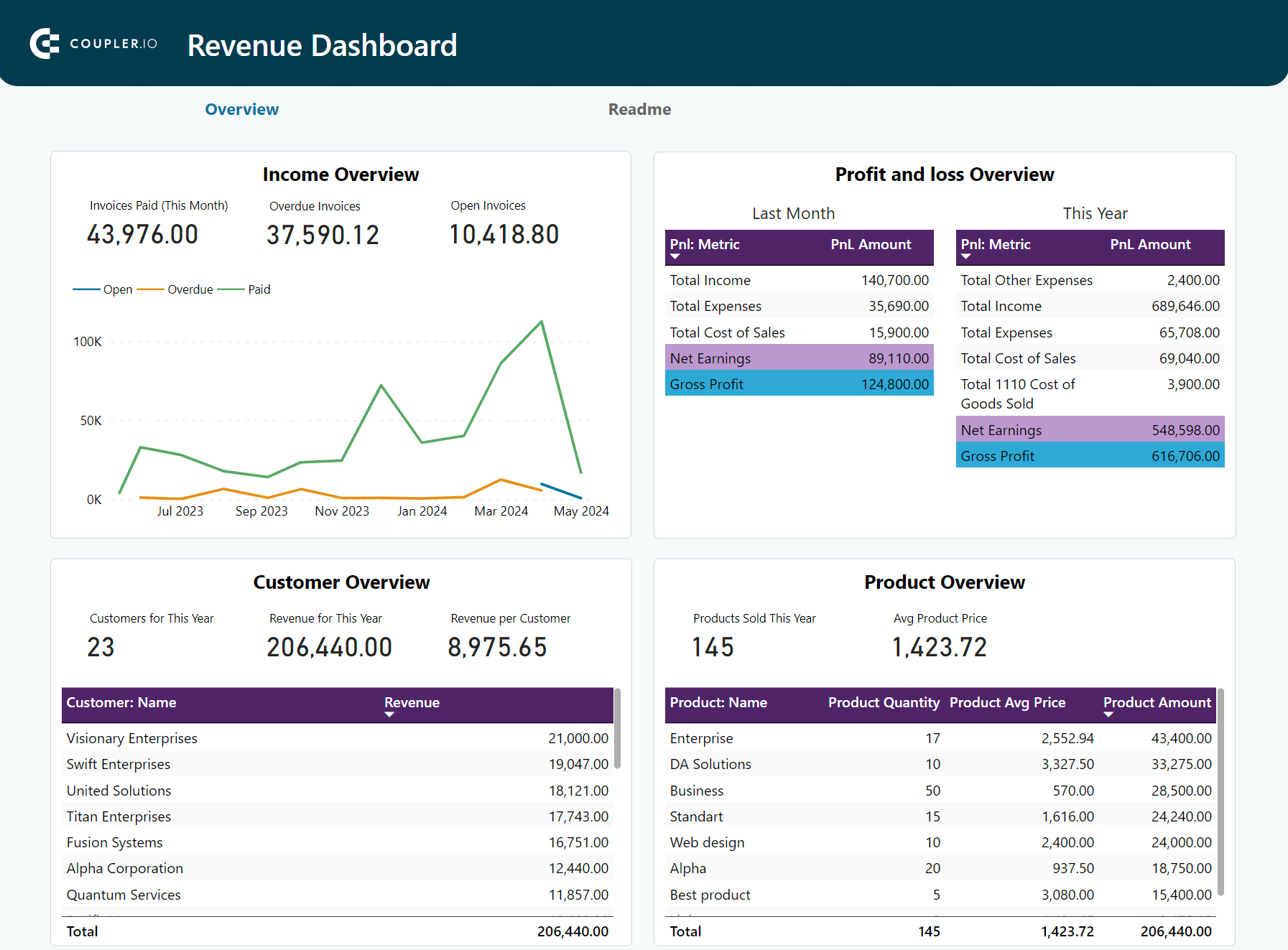
Revenue dashboard for QuickBooks
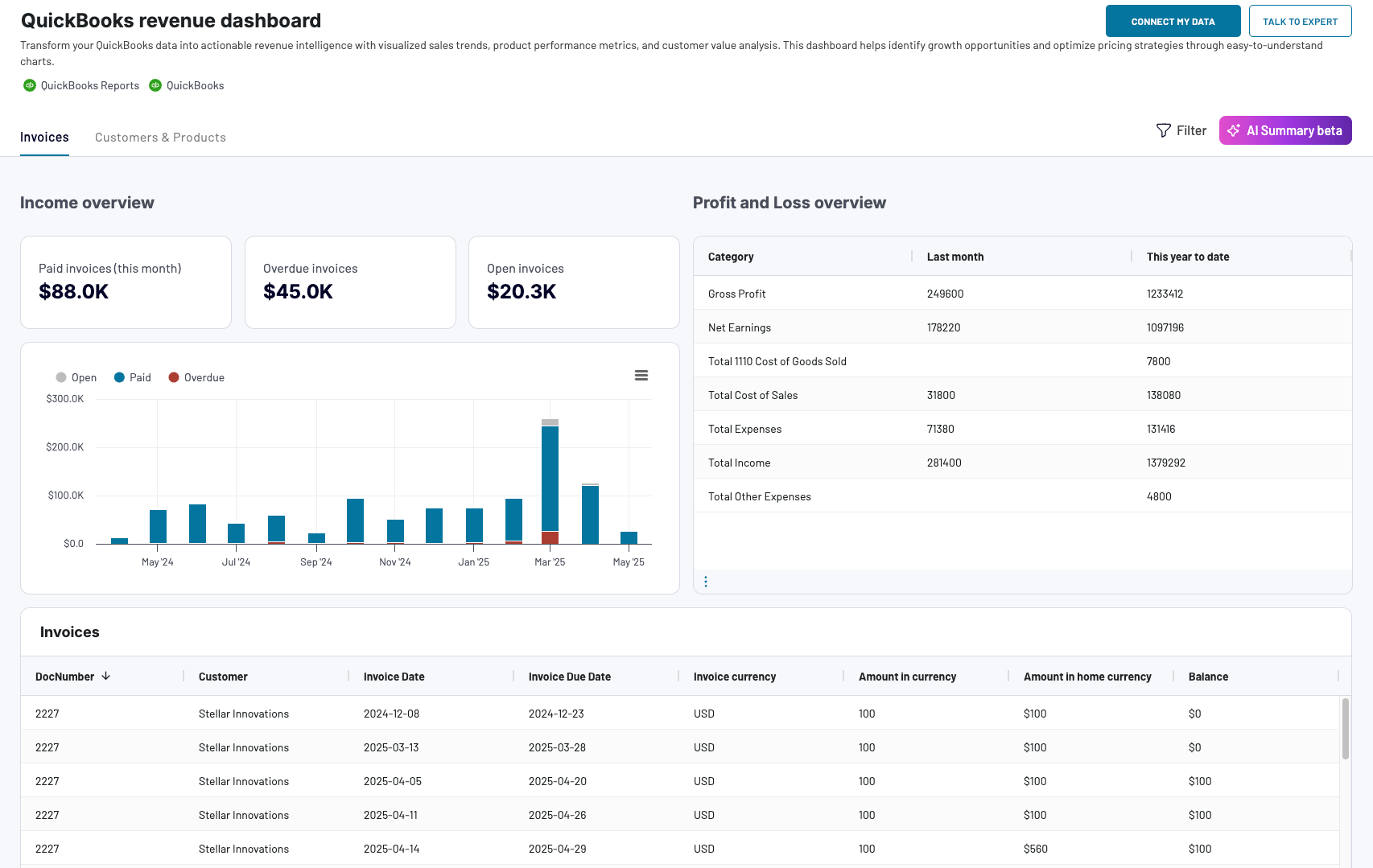
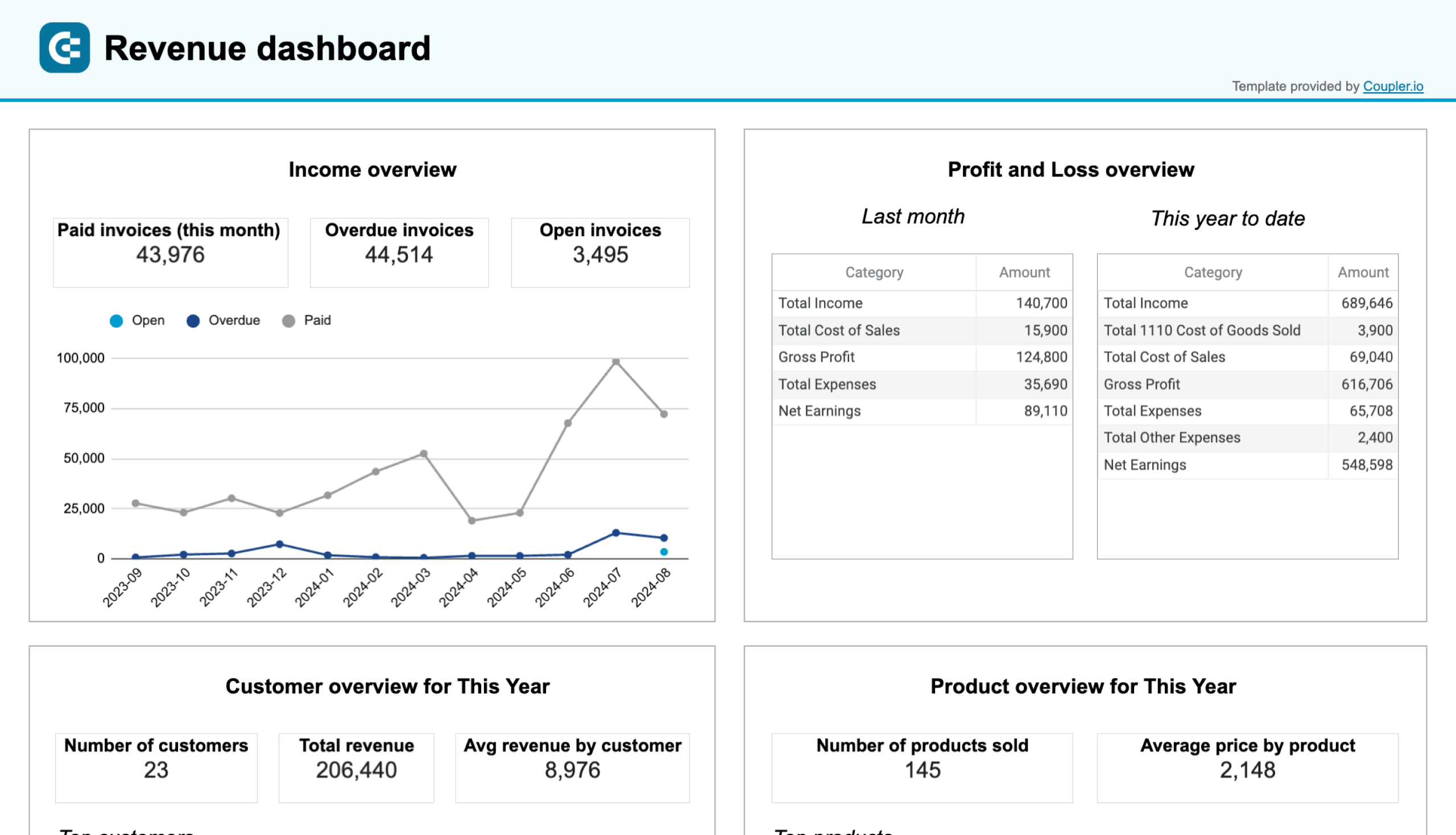
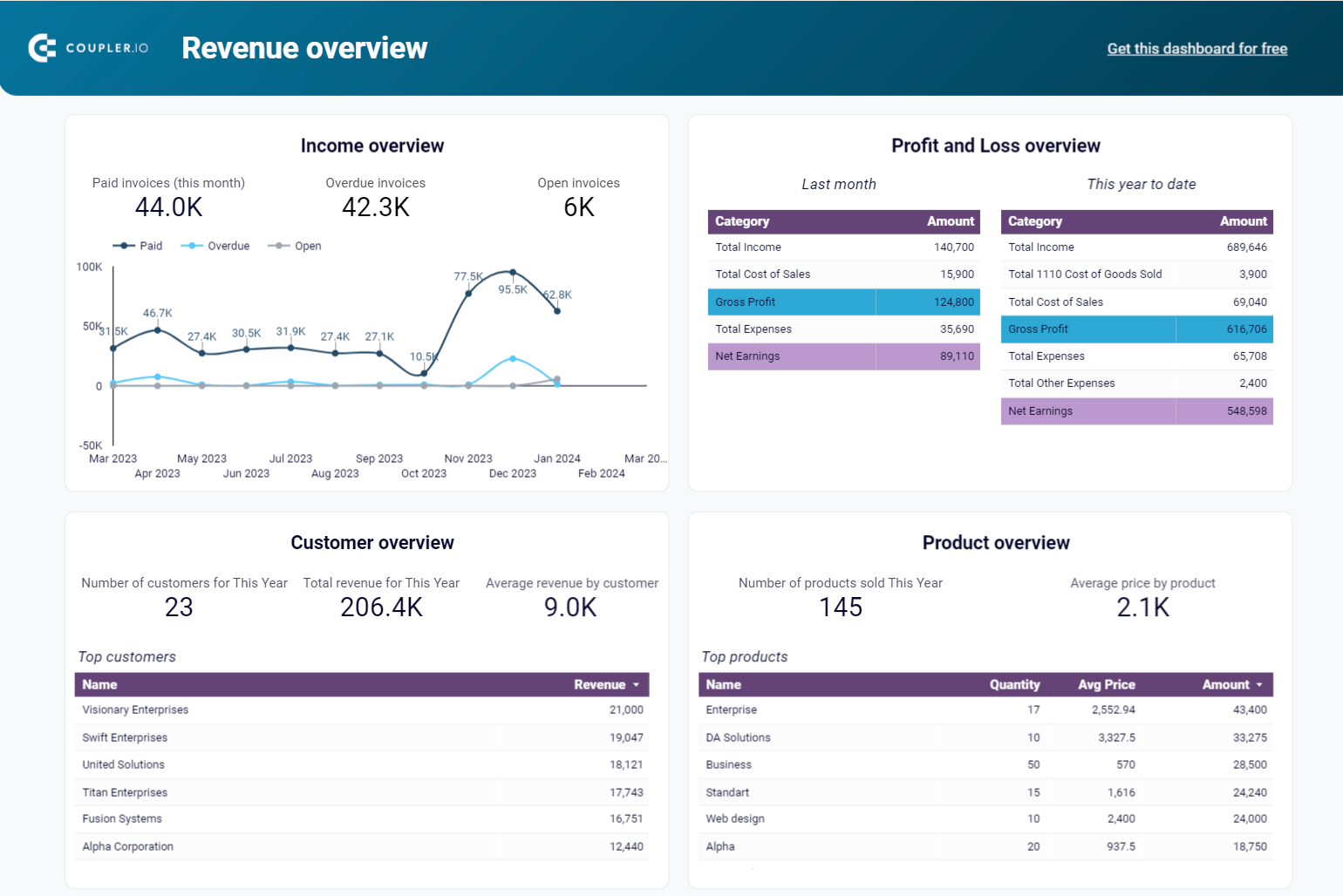
The revenue dashboard for QuickBooks is designed specifically for small business owners and accounting officers who use QuickBooks Online It helps you monitor your income and expenses in real-time and provides insights into your business’s financial health without the need to dive into complex spreadsheets.
QuickBooks revenue dashboard + AI insights
 Preview dashboard
QuickBooks revenue dashboard + AI insights
Preview dashboardThe dashboard tracks overall revenue trends for the last 12 months, compares revenue against expenses for budgeting, identifies your most valuable customers by revenue contribution, and shows which products generate the most income. You can run it directly in your Coupler.io account with AI insights included, or use it as a template in Google Sheets, Data Studio, or Power BI. Each version comes with a Readme tab containing setup instructions.





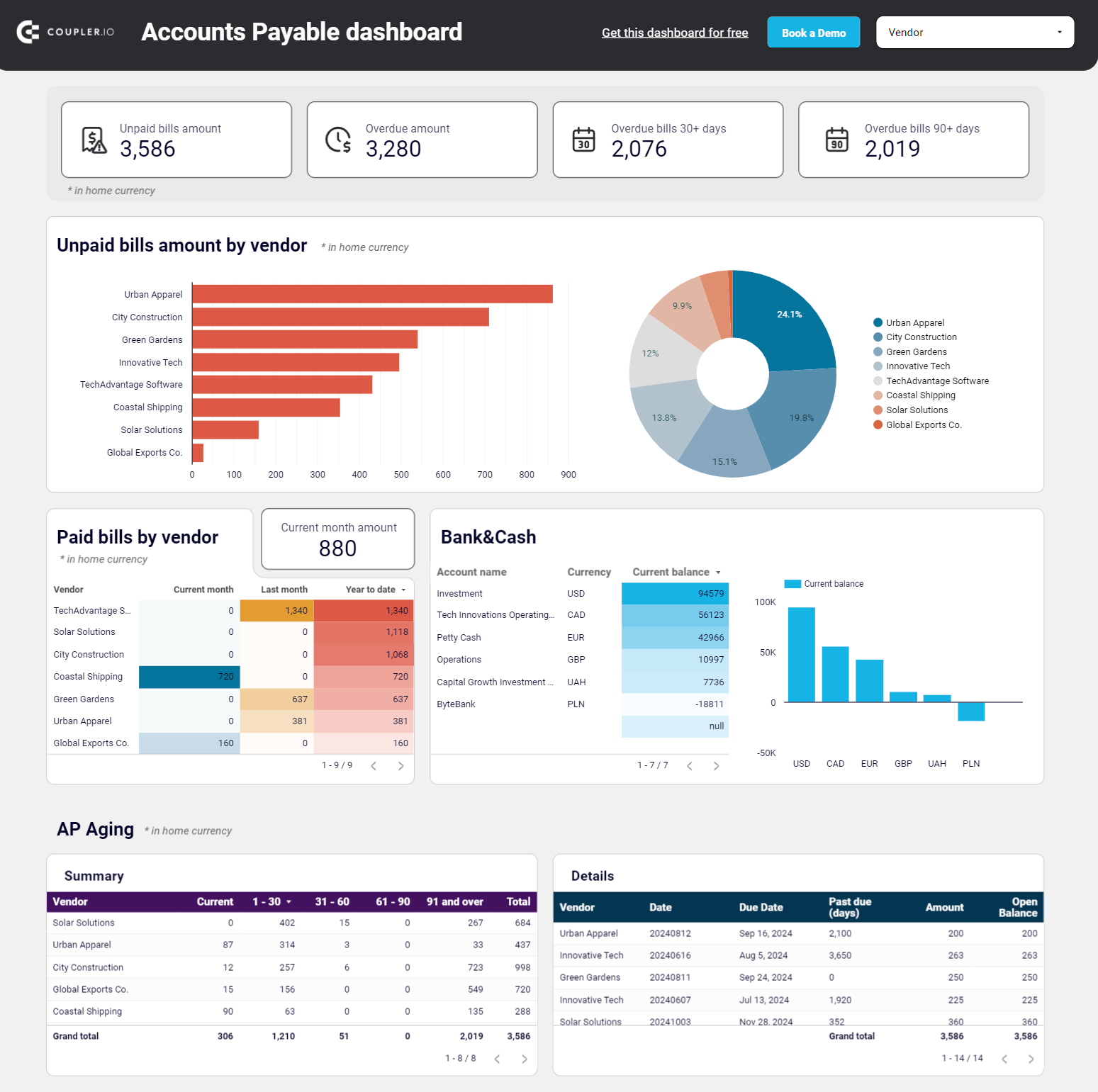
Accounts Payable dashboard for QuickBooks in Looker Studio
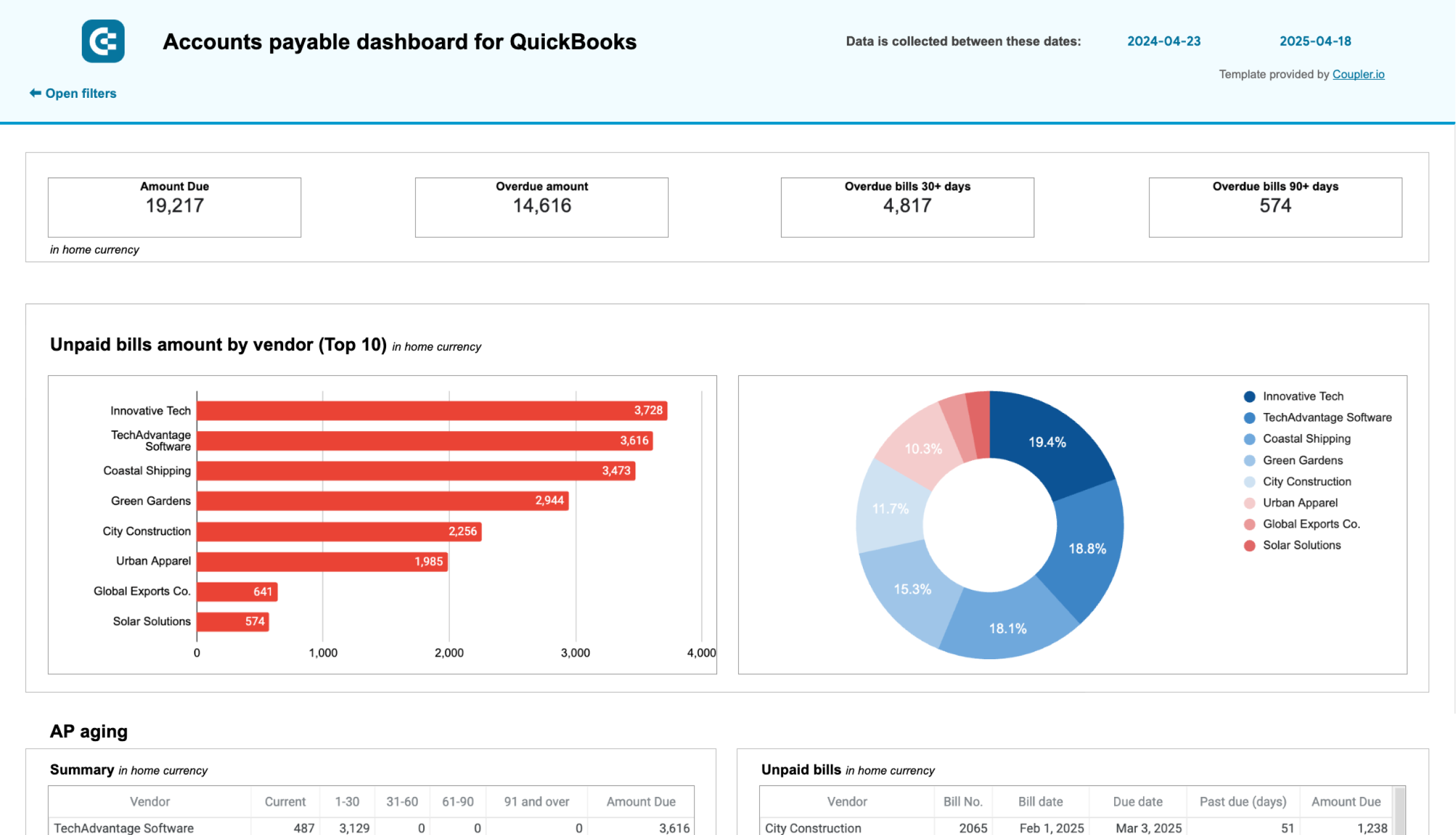
Also known as a creditor report, the Accounts Payable dashboard provides an overview of your financial obligations. It helps small business owners and accounting officers understand who their main creditors are and how much they owe them. This valuable information enables better cash flow management and payment prioritization.
Accounts payable dashboard for QuickBooks
 Preview dashboard
Accounts payable dashboard for QuickBooks
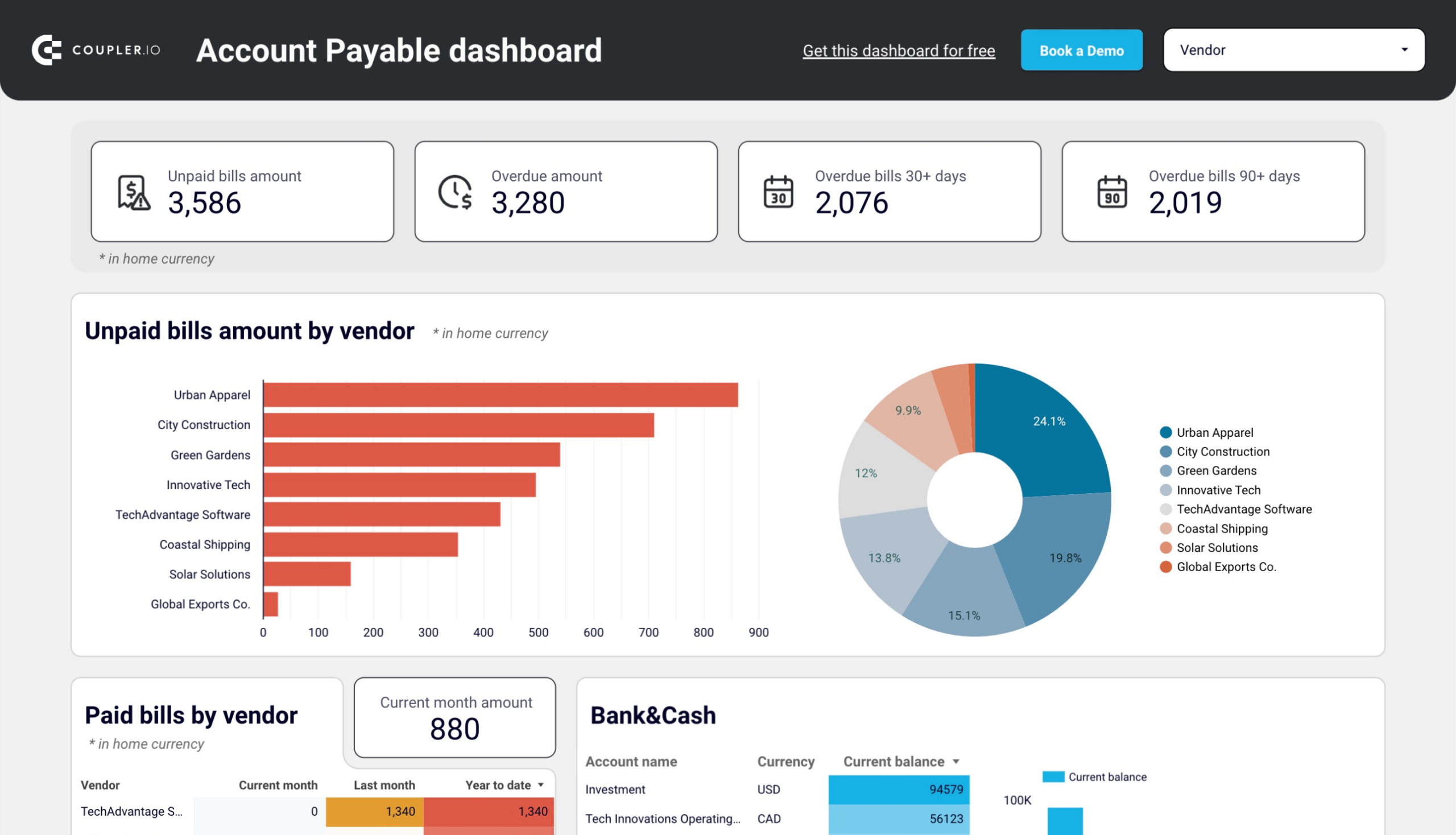
Preview dashboardThe dashboard covers unpaid and overdue bills filtered by creditor, vendor payment history, aging of payables across 30/60/90+ day time buckets, and current balances across all accounts and currencies. Check the Readme tab for instructions on connecting your QuickBooks account. Two versions are available so far.
Accounts Receivable dashboard for QuickBooks in Looker Studio
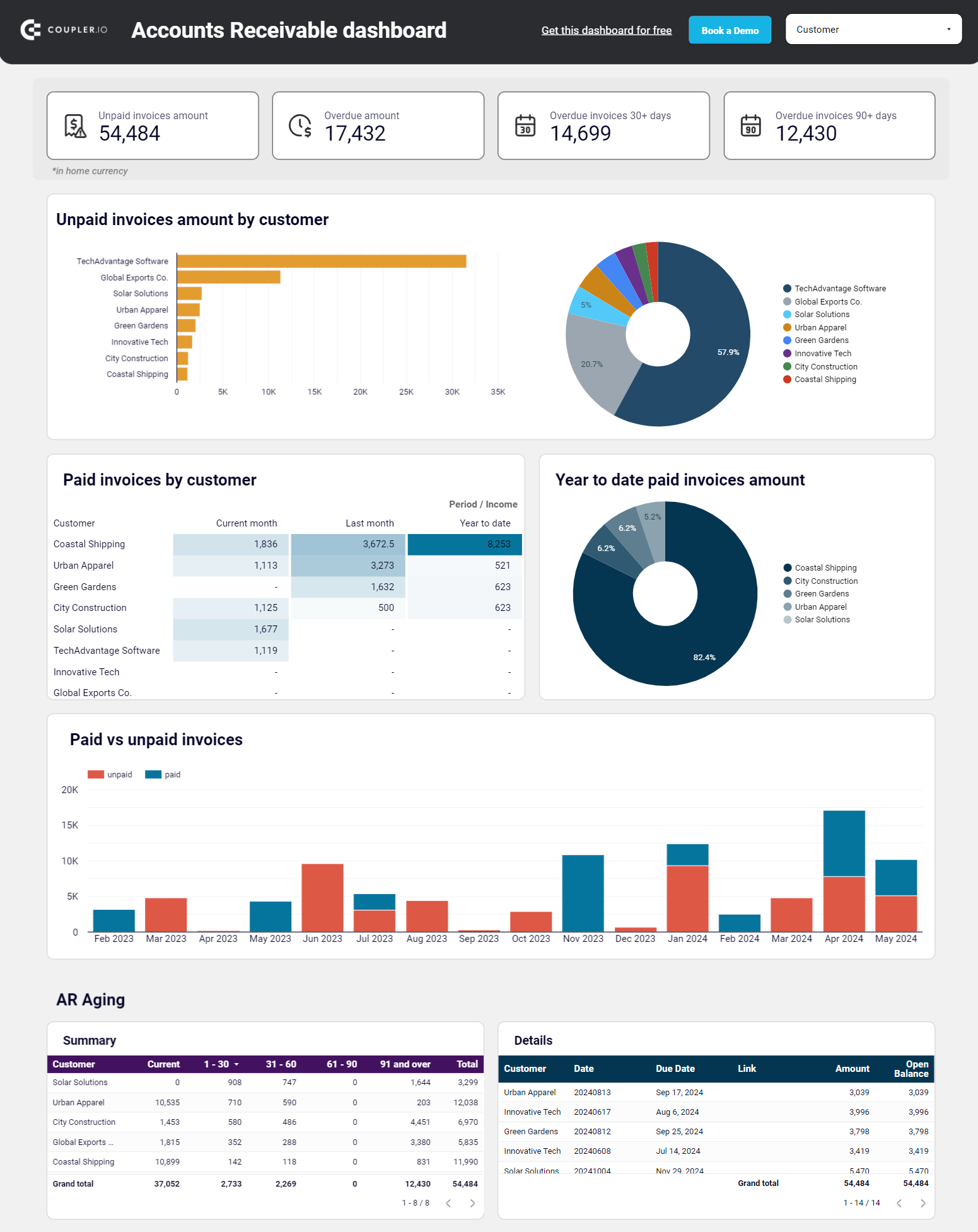
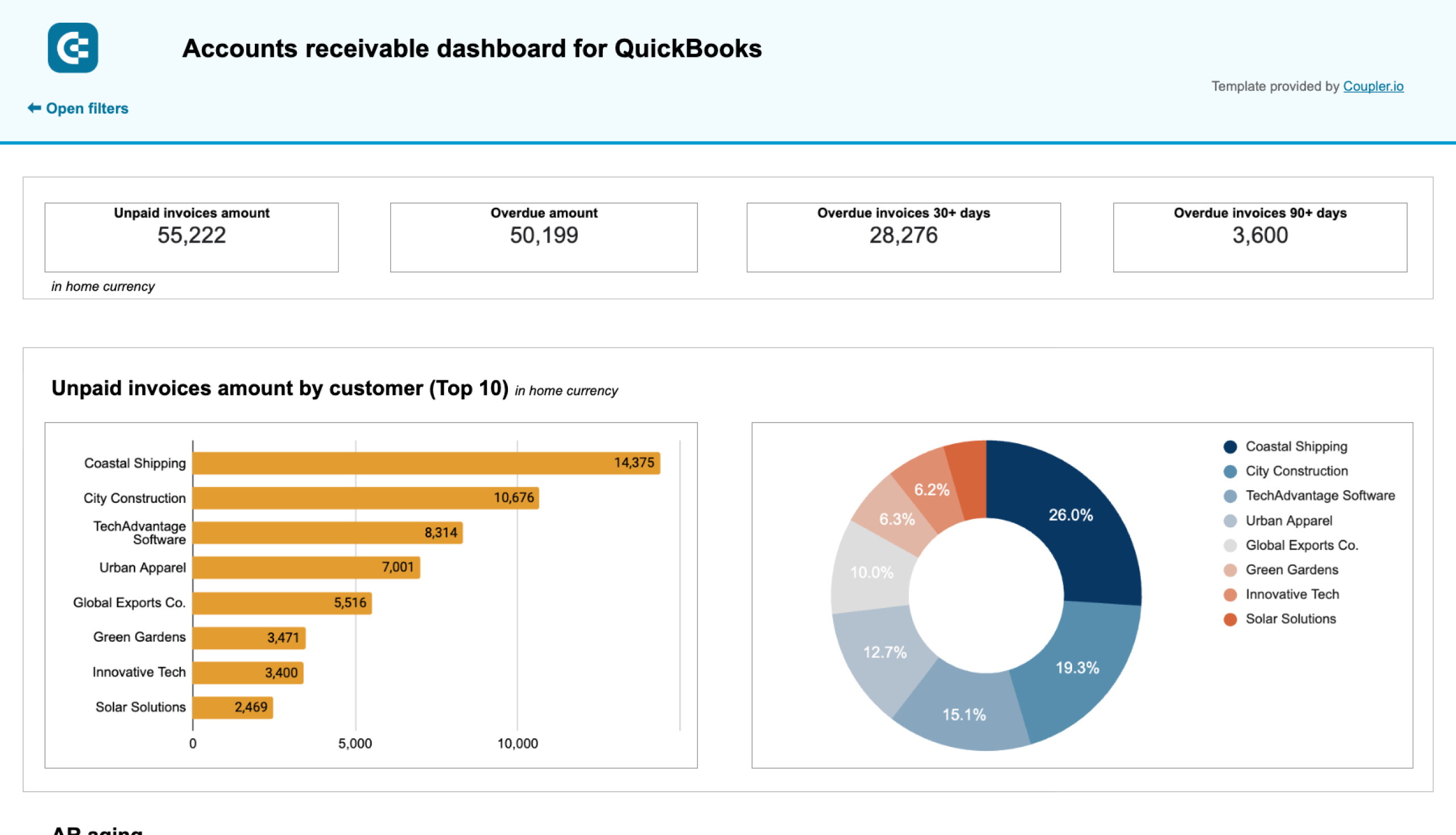
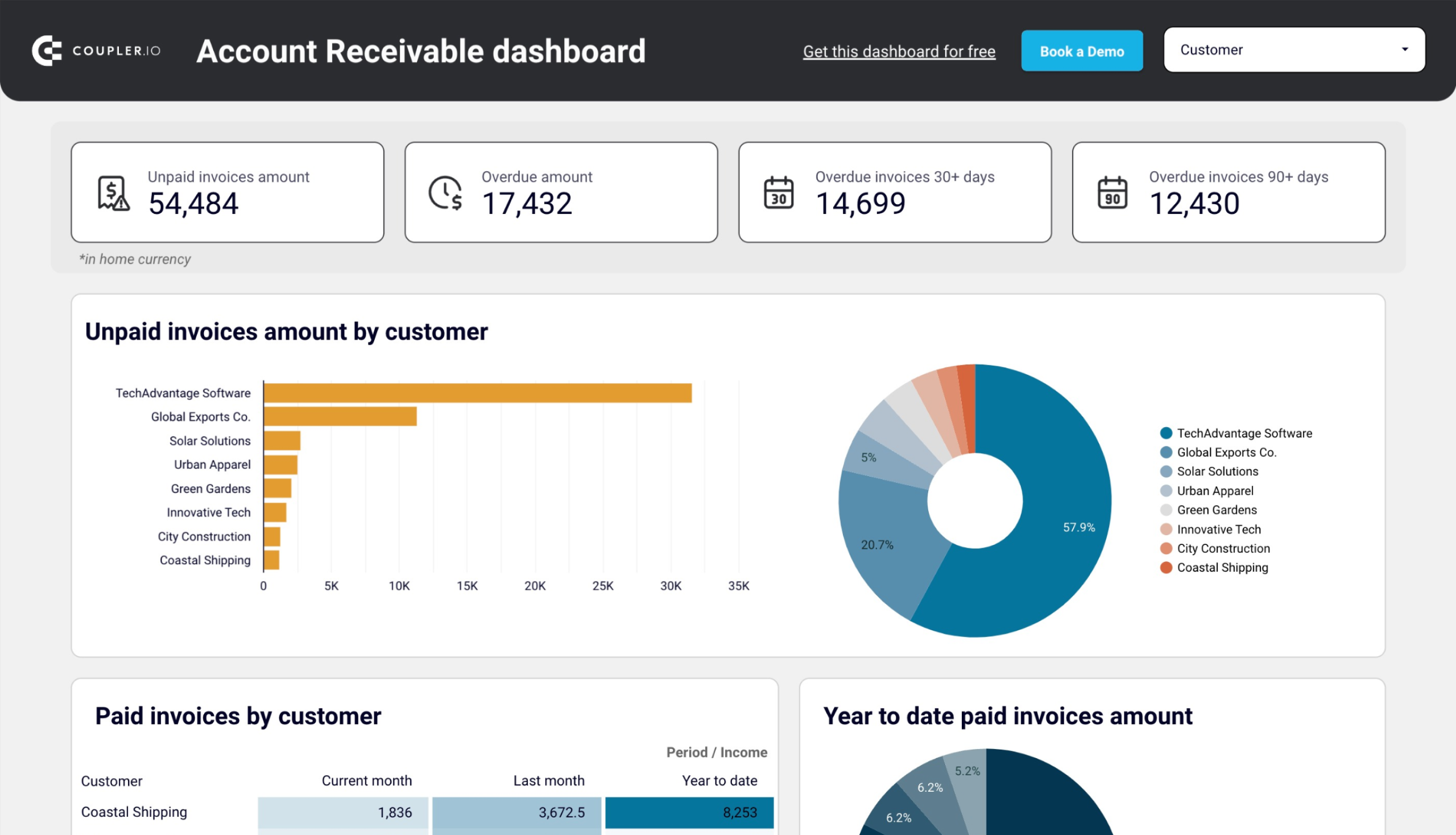
The Accounts Receivable dashboard offers small business owners and accounting staff a clear picture of who their main customers (debtors) are and how much they owe. This information is invaluable for proactive communication with customers about outstanding balances, preventing cash flow gaps, and optimizing collection efforts.
Accounts receivable dashboard for QuickBooks
 Preview dashboard
Accounts receivable dashboard for QuickBooks
Preview dashboardThe QuickBooks dashboard tracks unpaid and overdue invoices by customer, analyzes payment patterns over time, monitors monthly paid vs outstanding trends, and breaks down aging receivables by time period. Setup instructions are in the Readme tab. Two versions are available.
Financial dashboard for QuickBooks
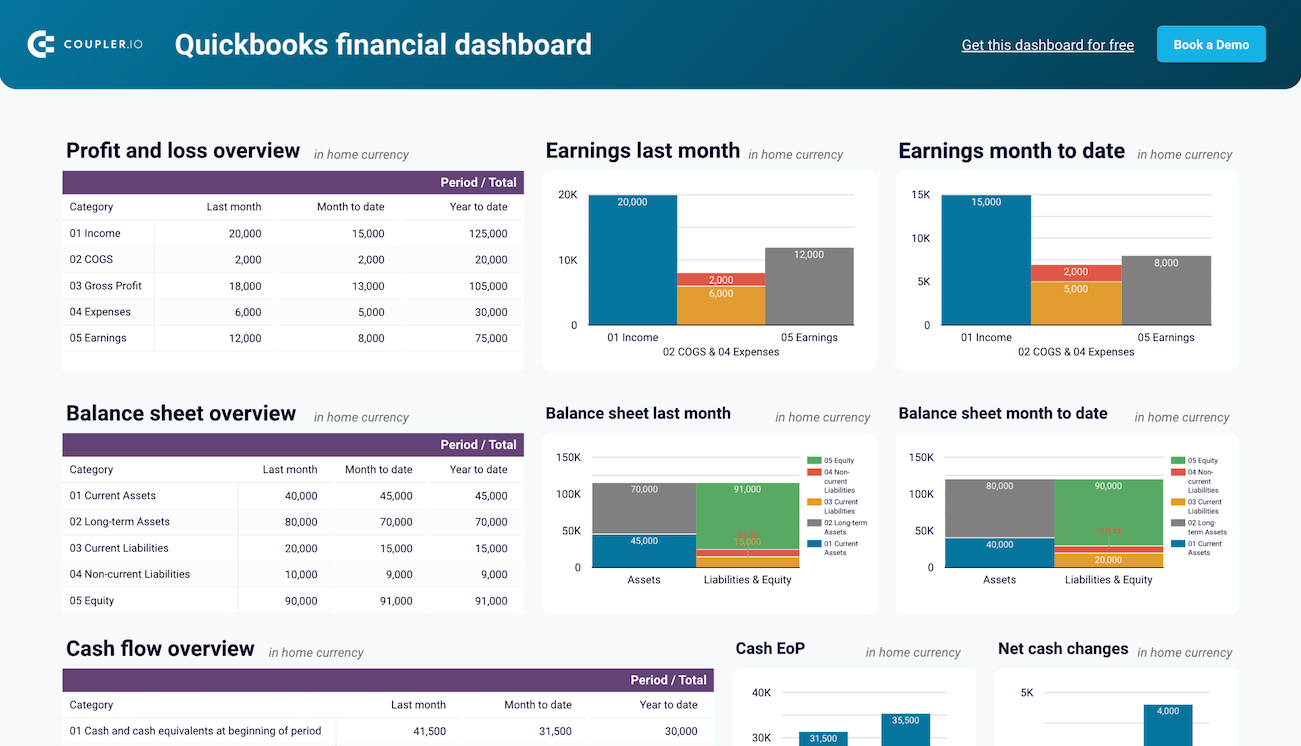
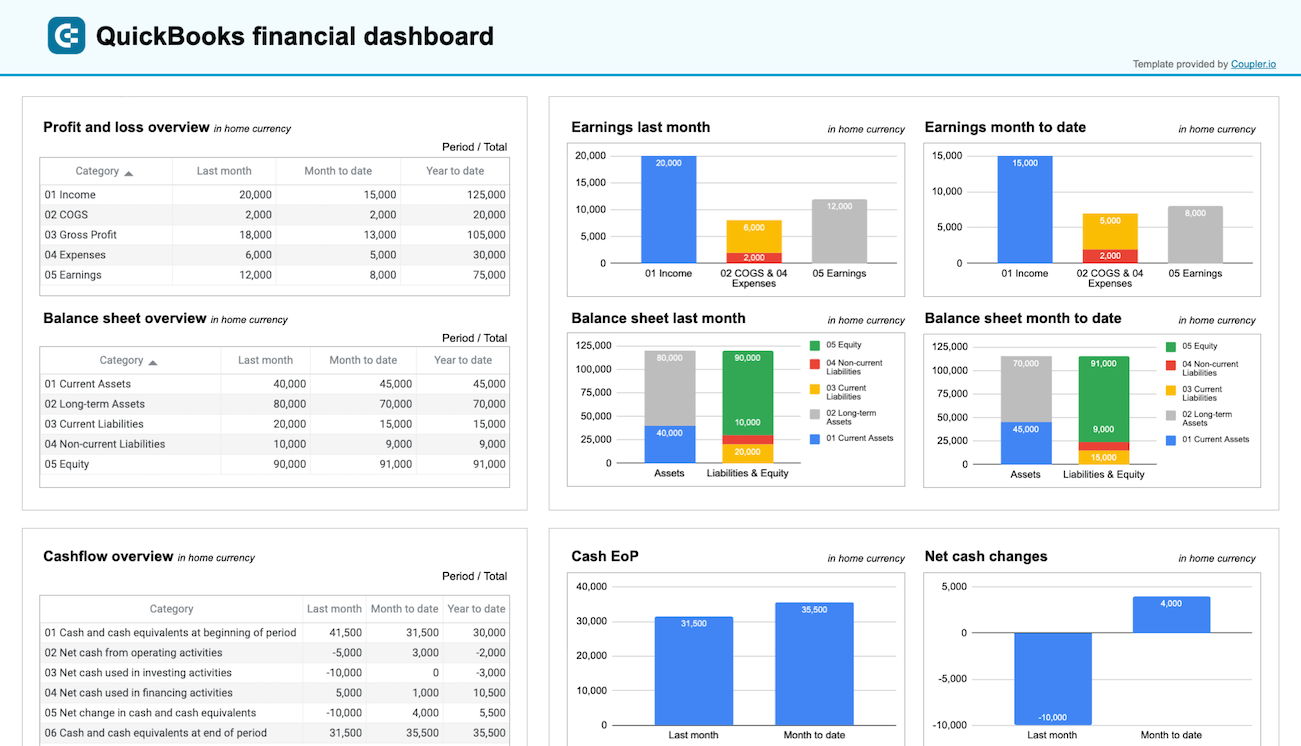
The QuickBooks financial dashboard delivers comprehensive insights into your company’s financial performance for small business owners, financial managers, accountants, and bookkeepers. By tracking earnings, cash flow, and balance sheet changes in real-time, this dashboard empowers better decision-making without requiring you to dig through detailed spreadsheets or complex reports.
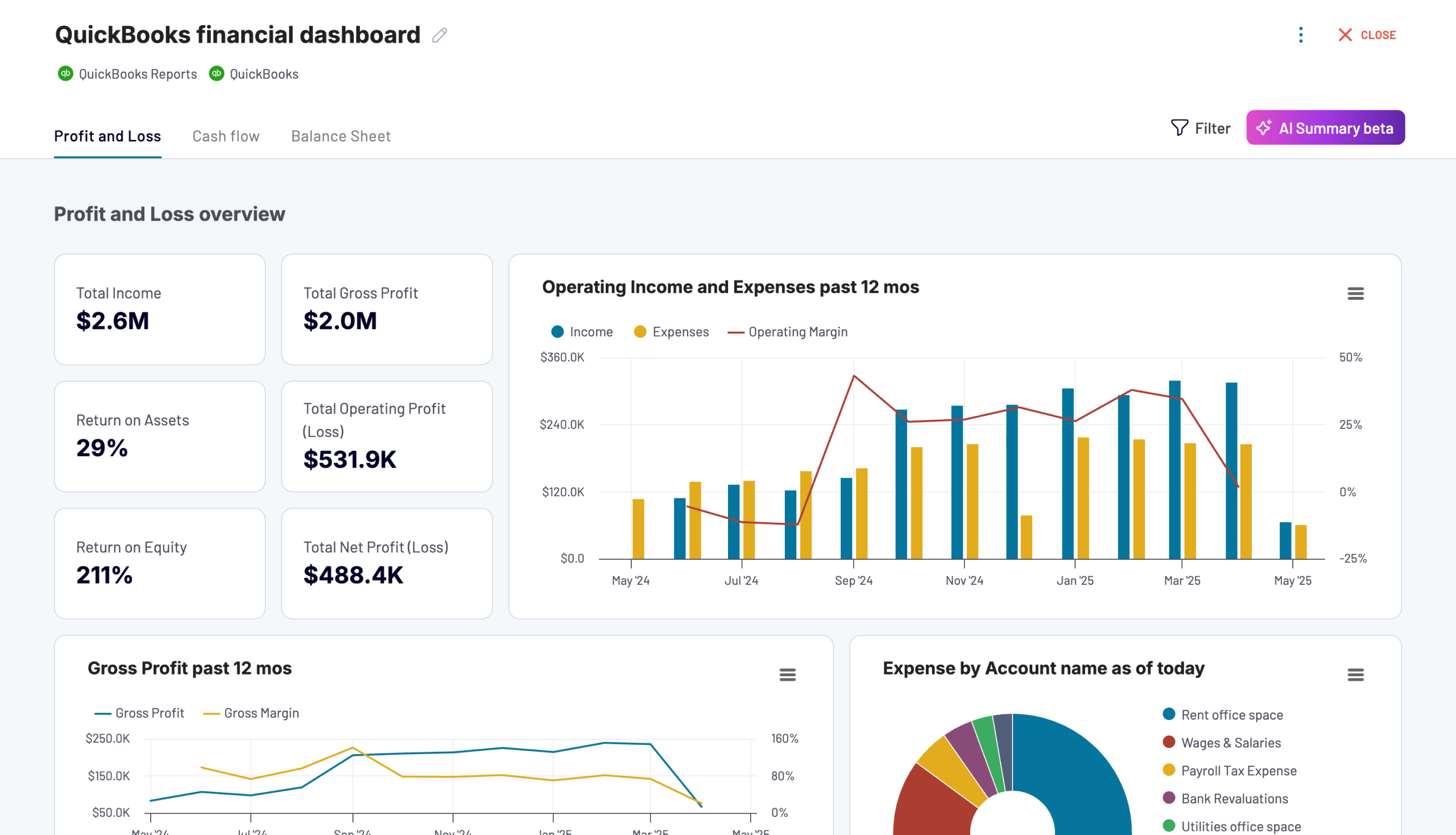
The dashboard covers P&L summaries across multiple time frames, balance sheet comparisons over time, cash flow monitoring with net cash changes, and bank account tracking with multi-currency support. You can use the Coupler.io version with AI insights, or set it up in Вфеф Studio or Google Sheets. Check the Readme tab for connection instructions.
Key use cases for a QuickBooks to BigQuery integration
Moving QuickBooks data into BigQuery opens up analysis that QuickBooks alone can’t support. Here are the most common reasons finance teams and analysts set up this integration.
Join financial data with other sources
QuickBooks keeps your books, but it doesn’t know about your ad spend in Google Ads, your pipeline in HubSpot, or your subscription metrics in Stripe. BigQuery lets you join all of that into a single dataset, so you can run queries that connect revenue to the campaigns or deals that generated it.
This is where Coupler.io’s multi-source capability pays off. You can pull data from 400+ sources into the same BigQuery project, then use SQL to join QuickBooks invoices with Salesforce opportunities, or match Stripe payouts against QuickBooks payment records. The data flows refresh on a schedule, so your joined datasets stay current without manual re-exports.
Run SQL queries without touching your accounting system
Giving analysts direct access to QuickBooks is rarely practical. Permission controls are limited, the interface isn’t built for ad hoc analysis, and there’s always the risk of someone modifying live records. BigQuery solves this by providing a read-only SQL environment where your team can write custom queries against invoices, bills, transactions, and P&L data on their own schedule. If a relational database fits your stack better, you can connect QuickBooks to PostgreSQL through the same Coupler.io flow.
Coupler.io keeps the data fresh through scheduled refreshes, so queries always run against recent numbers. And because the transformation step lets you filter and rename columns before loading, analysts get clean, well-structured tables rather than raw QuickBooks output.
Feed BI tools with warehouse-scale data
Google Data Studio, Power BI, and Tableau all perform better with BigQuery as a backend than with direct API connections to source systems. Query speeds are faster, you avoid API rate limits, and the data model stays consistent regardless of which visualization tool your team prefers.
Once your QuickBooks data lands in BigQuery through Coupler.io, any BI tool can connect to it. If you don’t want to build dashboards from scratch, Coupler.io also offers ready-made QuickBooks dashboard templates for Looker Studio, Power BI, and Google Sheets that pull data through the same integration.
Consolidate multi-entity financials
Companies running multiple QuickBooks accounts for different subsidiaries, regions, or business units need a single place to compare and consolidate. BigQuery handles that scale without the row limits or performance issues you’d hit in a spreadsheet.
Coupler.io lets you pull from multiple QuickBooks accounts into the same dataset. In the transformation step, you can append records from different entities, add a column to tag which subsidiary each row belongs to, and load everything into one BigQuery table. From there, consolidation queries and cross-entity comparisons run like any other SQL analysis.
Build a financial data layer for AI analytics
Loading QuickBooks data into BigQuery through Coupler.io also gives you a path to AI analysis. The same data flow that feeds your warehouse can feed AI Agent for plain-English questions about your finances, or connect to Claude, ChatGPT, and other tools through AI Integrations.
BigQuery becomes the structured foundation and AI becomes the conversation layer on top. Instead of exporting a CSV and pasting it into ChatGPT, you get a live connection where the AI works with your latest financial data. The filtering and column controls you set up in Coupler.io determine what the AI can access, so sensitive fields stay out of the conversation.
Automate QuickBooks data reporting with Coupler.io
Get started for freeHow to export data from QuickBooks and import it to BigQuery manually
Coupler.io handles the connection, scheduling, transformations, and AI analytics for you. But if you need a quick one-time snapshot of your QuickBooks data in BigQuery, a manual CSV upload works fine.
Step 1: Export QuickBooks as a file
Log into your QuickBooks account and go to the report or data section you want to export. Then, save the data as a CSV file by clicking on the Export icon.

Open the file to check that field names and data types match the BigQuery’s format. Once you have checked the file and everything seems correct, save it in CSV format for easy import.
Step 2: Upload the file to BigQuery
Log into your Google BigQuery account. Select your project, and then create a table within a dataset in your BigQuery Studio.
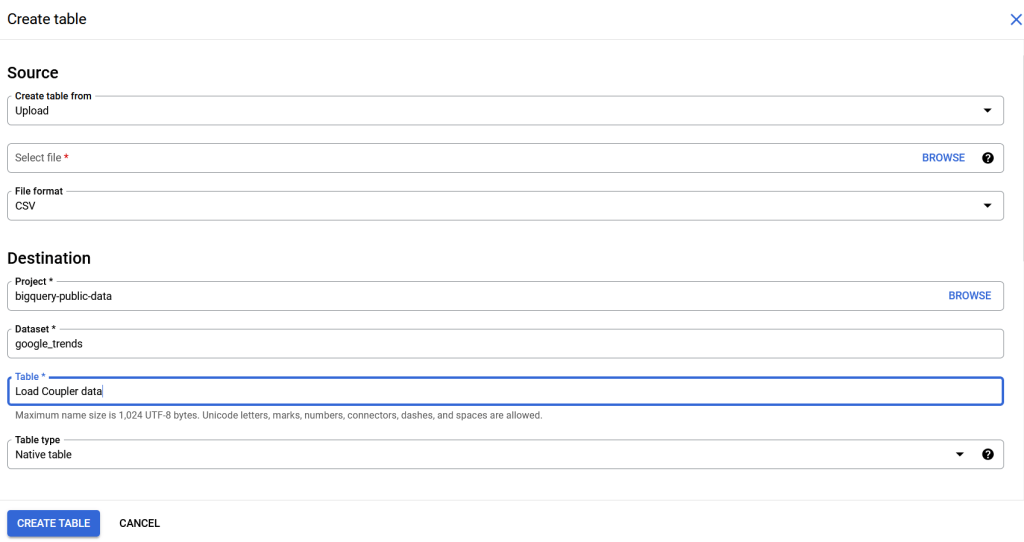
After uploading your file and naming your table, change the file format from Avro to CSV. Then click on Create Table. Review your data to confirm its accuracy by navigating to your data set and selecting the table you created.
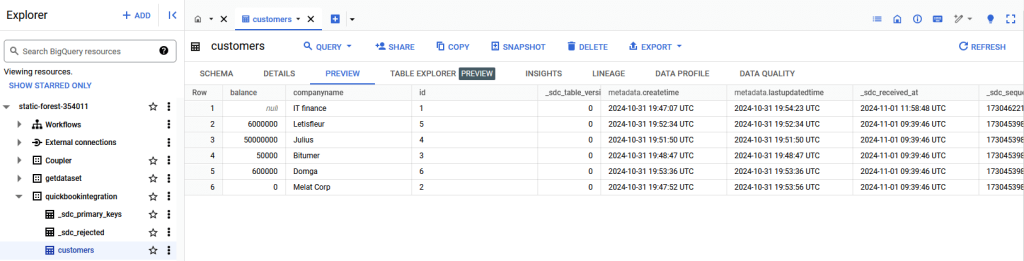
Setting up the QuickBooks to BigQuery connection is the first step. The real value comes from what you do with the data once it’s there: joining it with other sources, querying it with SQL, building dashboards that refresh on their own, or asking AI questions about your cash flow and receivables in plain English. Coupler.io handles the pipeline so you can focus on the analysis.
Automate QuickBooks reporting with Coupler.io
Get started for free