
Each ad you run on Facebook generates a lot of performance data, such as spend, impressions, clicks, conversions, leads, etc. On a small scale, you can analyze all of this inside Ads Manager. But when you need to report to stakeholders, analyze cross-channel campaigns, or ask deeper questions, it makes sense to export Facebook Ads data outside the platform.
Learn how you can automate Facebook Ads data export to multiple destinations with Coupler.io and other ways to get data into the tool of your choice.
How do you export Facebook Ads campaigns with Coupler.io
Coupler.io is a data integration platform and AI analytics that connects Facebook Ads to spreadsheets, BI tools, data warehouses, and AI tools. No coding or API work is needed to connect Facebook Ads to ChatGPT, Google Sheets, BigQuery, or another destination. You set up a data flow once: pick Facebook Ads as the source, choose where the data should go, filter and transform what you need, and schedule automatic refreshes as often as every 15 minutes. The steps below walk through the full setup.
To export campaigns automatically, select the destination for your Facebook Ads data in the form below and click Proceed. You’ll be offered to get started with Coupler.io for free with no credit card required
Step 1. Collect data from Facebook Ads
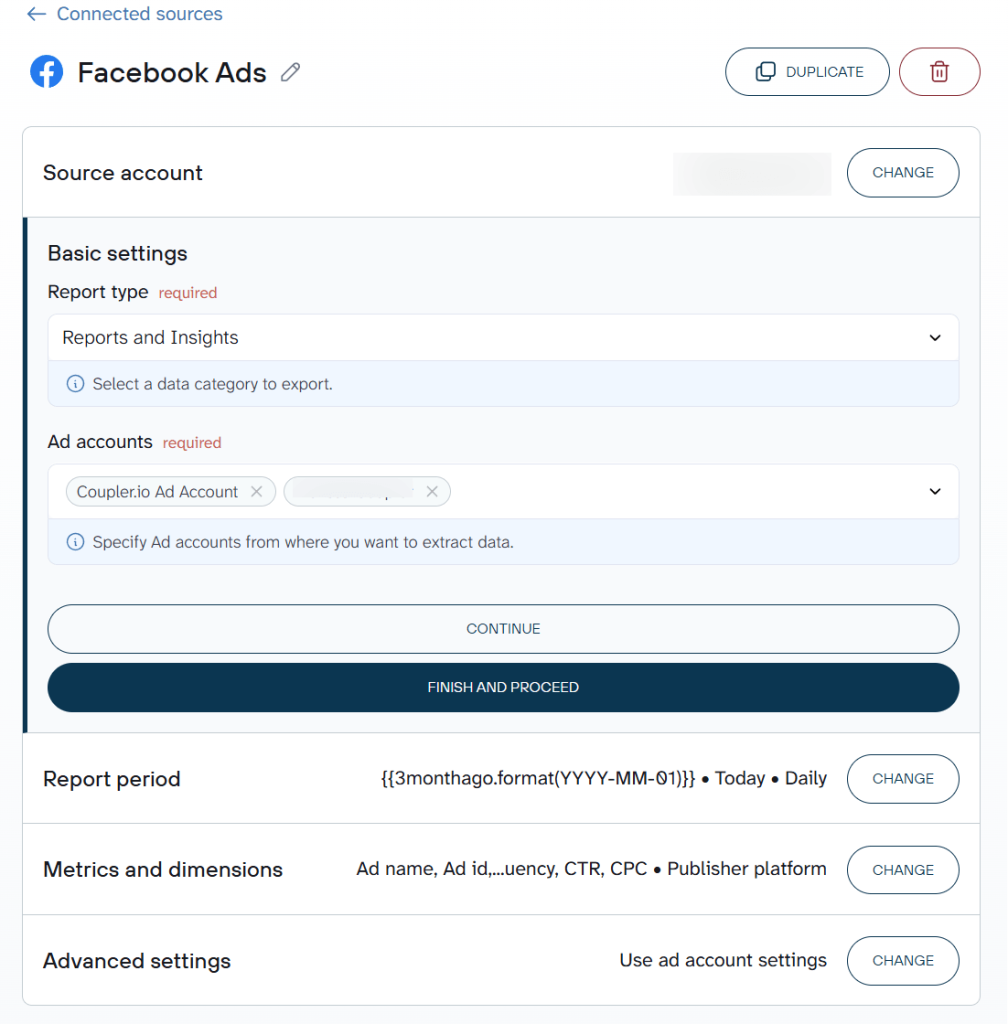
Connect your Facebook account, the one that has access to your Facebook Ads Manager. You’ll be taken to Facebook to sign in and authorize Coupler.io to export the data on your behalf. Next, decide which Report type you want to export, like Reports and insights, List of sponsored leads, List of Ad sets, etc.
For each report type, you’ll also need to specify the required parameters. For example, if you choose Reports and insights, select ad accounts from where to extract data, as well as specify the report period (start and end dates) and metrics+dimensions.
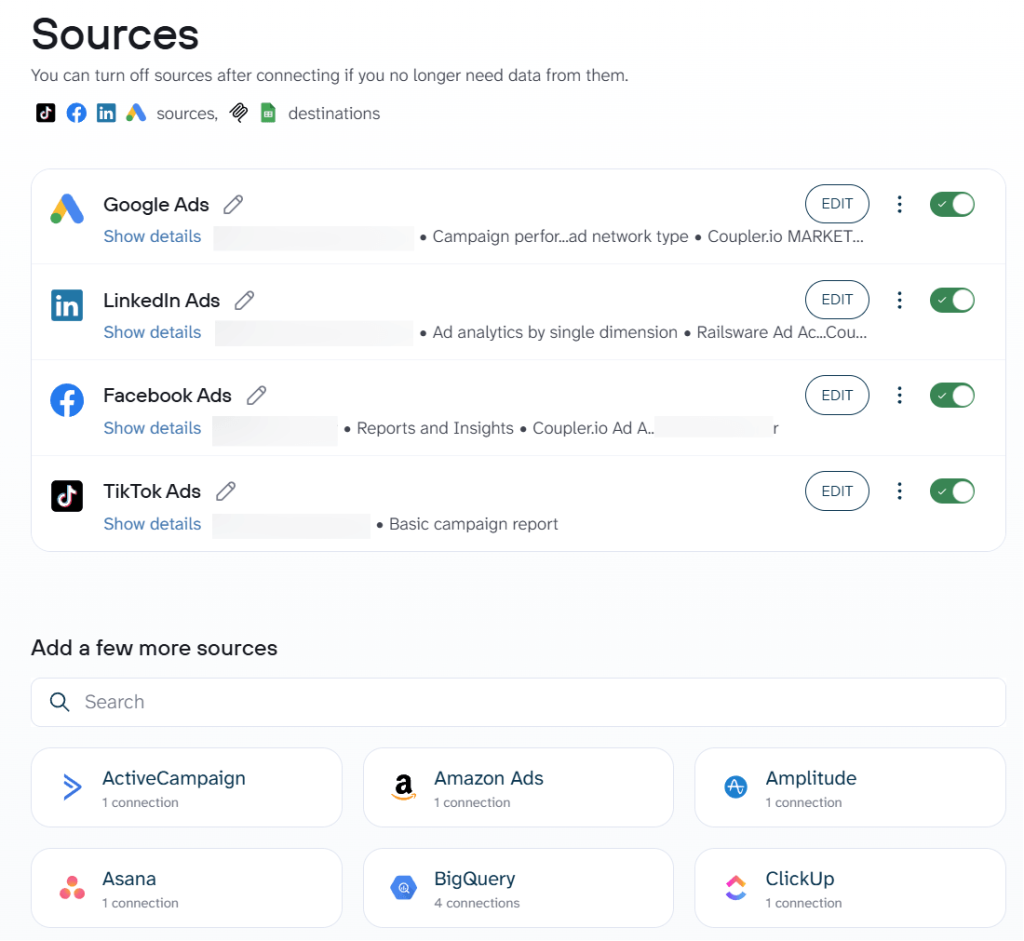
Before moving next, Coupler.io also allows you to connect more sources. This is useful for creating multi- or cross-channel PPC reports like Google Ads and Meta Ads campaign performance dashboard.
All you need to do is select the needed source and set up the Facebook Ads connector.
Step 2. Transform data from Facebook Ads before loading it to the destination
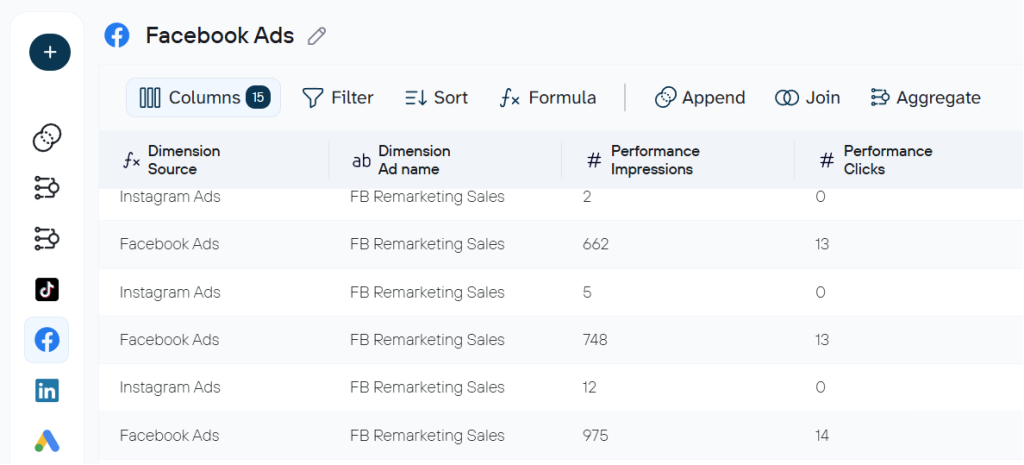
At this step, Coupler.io enables you to turn your raw Facebook Ads data into a report. You can do this on your own if you’ve created a data flow from scratch. Or use a prebuilt data set template which already has certain data transformations implemented. Here are the available options to make your data analysis-ready:
- Sort and filter data based on the selected criteria and specified value.
- Manage columns (hide, rename, reorder, change data type).
- Add new columns using supported calculation formulas.
- Summarize data by performing operations like sum, average, count, min, or max on specific columns.
- Append or join data if you’ve connected multiple data sources.
These transformations also prepare your dataset for AI analysis. If you plan to ask AI questions about your Facebook Ads data later, filtering out irrelevant columns and hiding sensitive fields at this stage means AI only works with the data you’ve approved. Coupler.io also allows you to add context about your data, which is crucial for efficient conversational AI analytics. You control the scope before anything reaches the AI layer.
Step 3. Load data and schedule data refresh
Now, onto the destination settings. Follow the in-app instructions to connect and load your Facebook Ads report to the chosen destination. For example, to export Facebook ads data to Google Sheets, you’ll need to connect your Google account, select the spreadsheet and sheet to import the data to. You can create a new sheet by typing a new sheet name.
Coupler.io allows you to export Facebook Ads to Excel or connect Facebook Ads data to BigQuery.
For conversational PPC analysis, it makes sense to connect Facebook Ads to Claude.
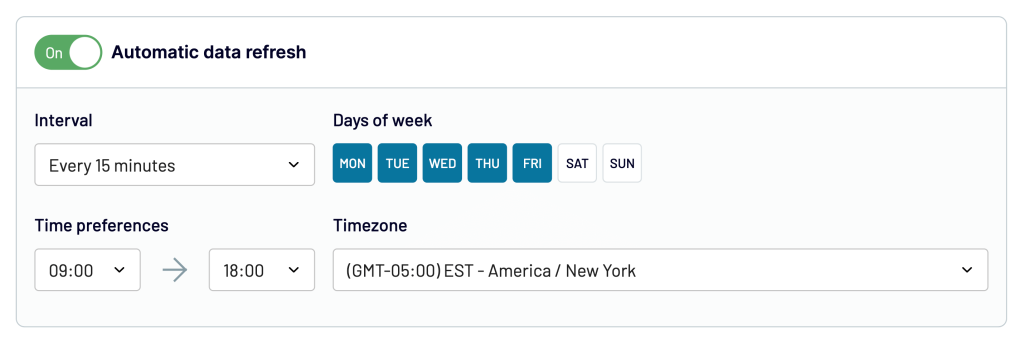
After that, toggle on the Automatic data refresh feature and decide on the schedule that will govern the data refresh. You can have your data updated as frequently as every 15 minutes.
When you’re finished, press Save and run to launch the data flow from Facebook Ads to your destination.
Step 4. Analyze exported Facebook Ads data with AI Agent
Your Facebook Ads export is now running on a schedule. Instead of manually reviewing every campaign, ad set, and ad each time the data refreshes, you can ask AI to surface what matters.
Coupler.io’s AI Agent lets you do this directly inside the platform. Ask questions about your Facebook Ads data in plain English and get answers backed by verified calculations. The AI doesn’t guess. Coupler.io’s Analytical Engine queries your dataset, runs the math, validates the results, and passes only confirmed numbers to the AI. You get precise answers, not approximations.
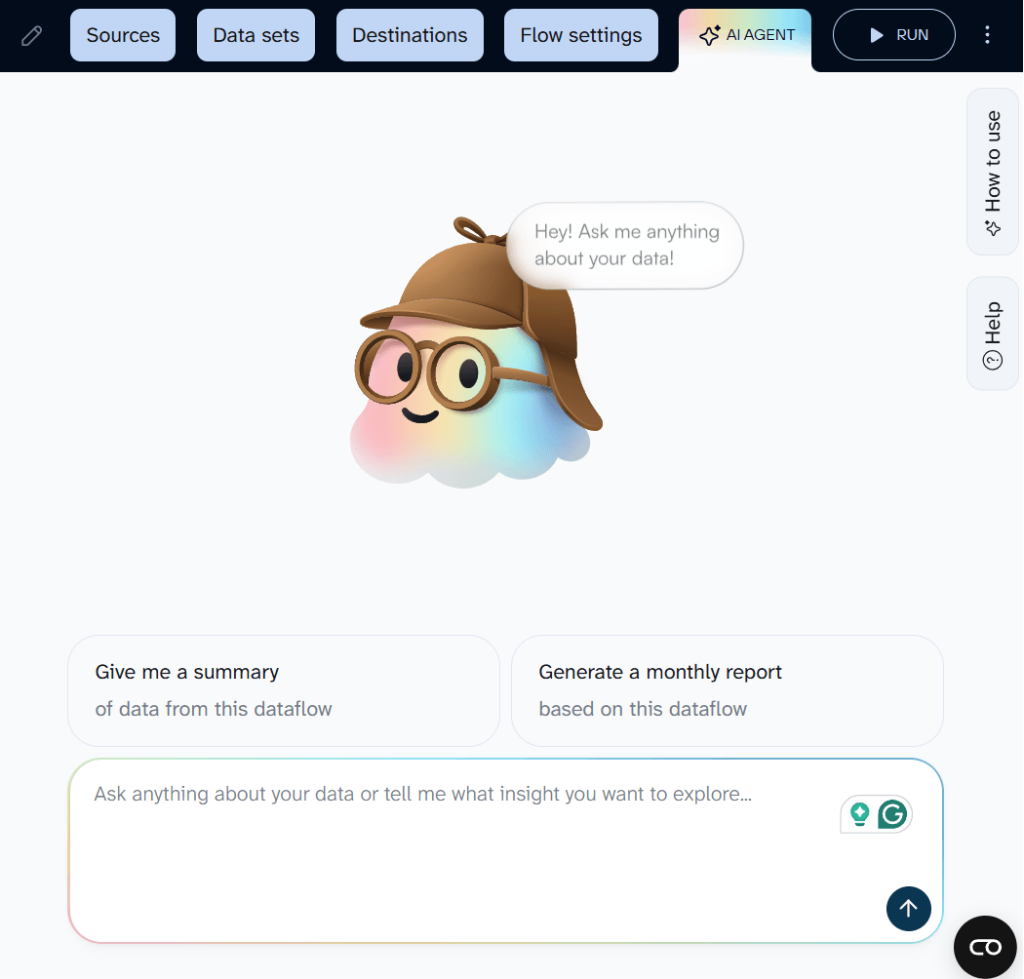
If you prefer working inside Claude, ChatGPT, or another AI tool, Coupler.io enables you to integrate your data with AI using the Facebook Ads MCP. This lets you have conversations about your ad performance directly in the AI tool you already use, with the same structured data and verified calculations under the hood. You can also use AI Integrations to send your prepared dataset to any supported AI platform.
One thing worth noting: the filtering and column management you set up in Step 2 also controls what AI sees. AI never connects to your Facebook Ads account directly. It works only with the structured, approved dataset you built in Coupler.io. If you hid sensitive columns or filtered out irrelevant campaigns during the transformation step, that same scope applies when AI analyzes the data.

Connect Facebook Ads data to any reporting or AI tool with Coupler.io
Get started for freeWhere you can export Facebook Ads campaigns
With Coupler.io, you can send your Facebook Ads data to any of the following destinations:
- Spreadsheets: Google Sheets, Microsoft Excel
- BI and dashboard tools: Looker Studio, Power BI, Tableau, Qlik
- AI tools: AI Agent (built into Coupler.io), ChatGPT, Claude, Gemini, Perplexity, CursorAI, OpenClaw — via MCP and AI Integrations
- Data warehouses: BigQuery, Snowflake, PostgreSQL, Redshift
- Other: JSON, CSV, monday.com
Your choice of destination depends on how you plan to use the data. Spreadsheets work for manual analysis and quick sharing. BI tools are better for ongoing visual reporting. Data warehouses suit teams that centralize data across multiple sources. And if you want to ask questions about your Facebook Ads performance in plain English, AI tools and AI Agent let you do that without building another dashboard.
Turn Facebook Ads data into insights with free dashboard templates
Once your Facebook Ads data is flowing into Coupler.io, you can go beyond raw exports and start answering specific questions about your campaigns. The fastest way to do that is with a ready-made dashboard template.
Each template below connects to your Facebook Ads account in minutes, auto-refreshes on a schedule, and gives you a specific view of your ad performance. Pick the one that matches what you need to know.
Get a one-page overview of all your campaigns
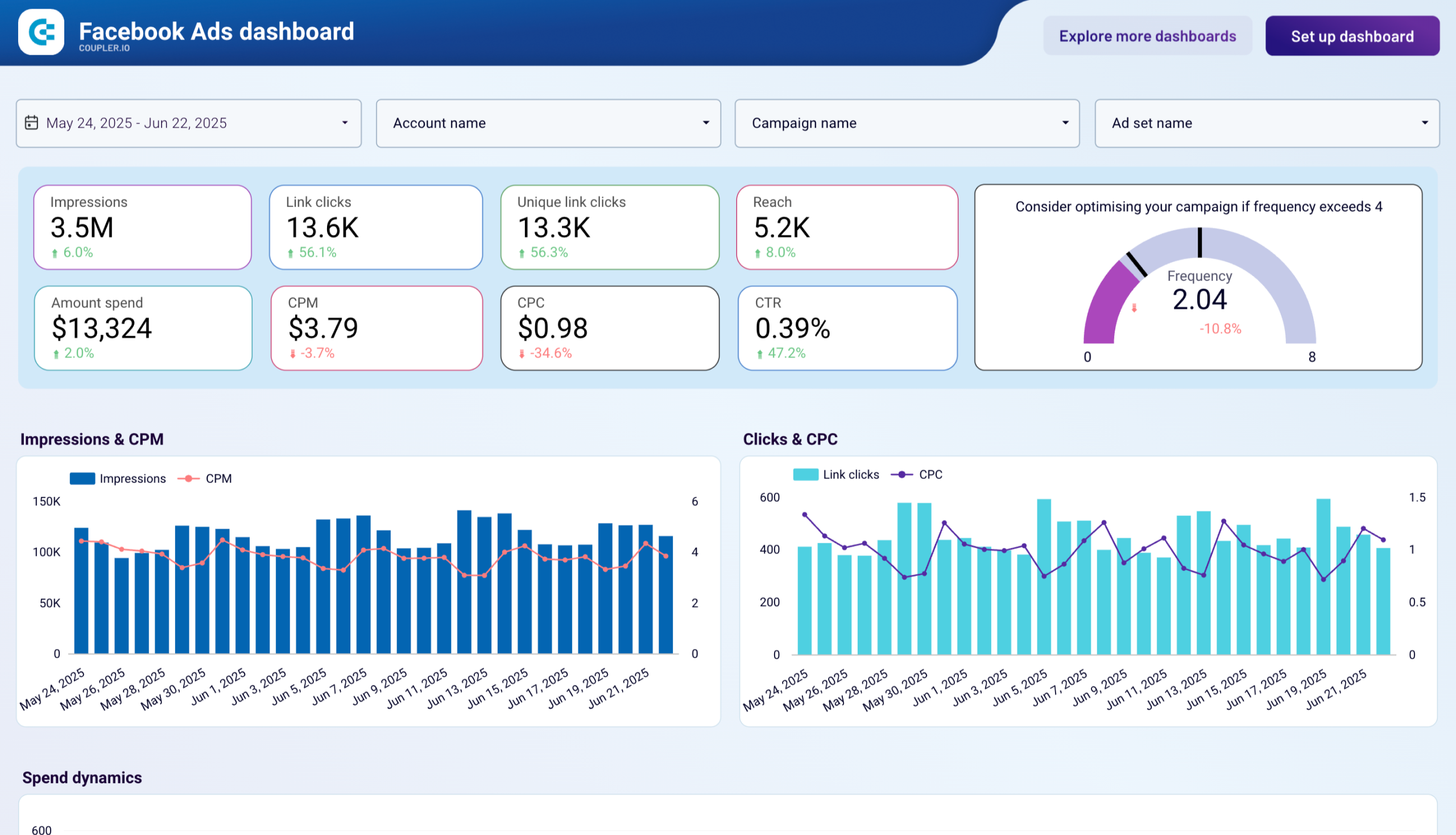
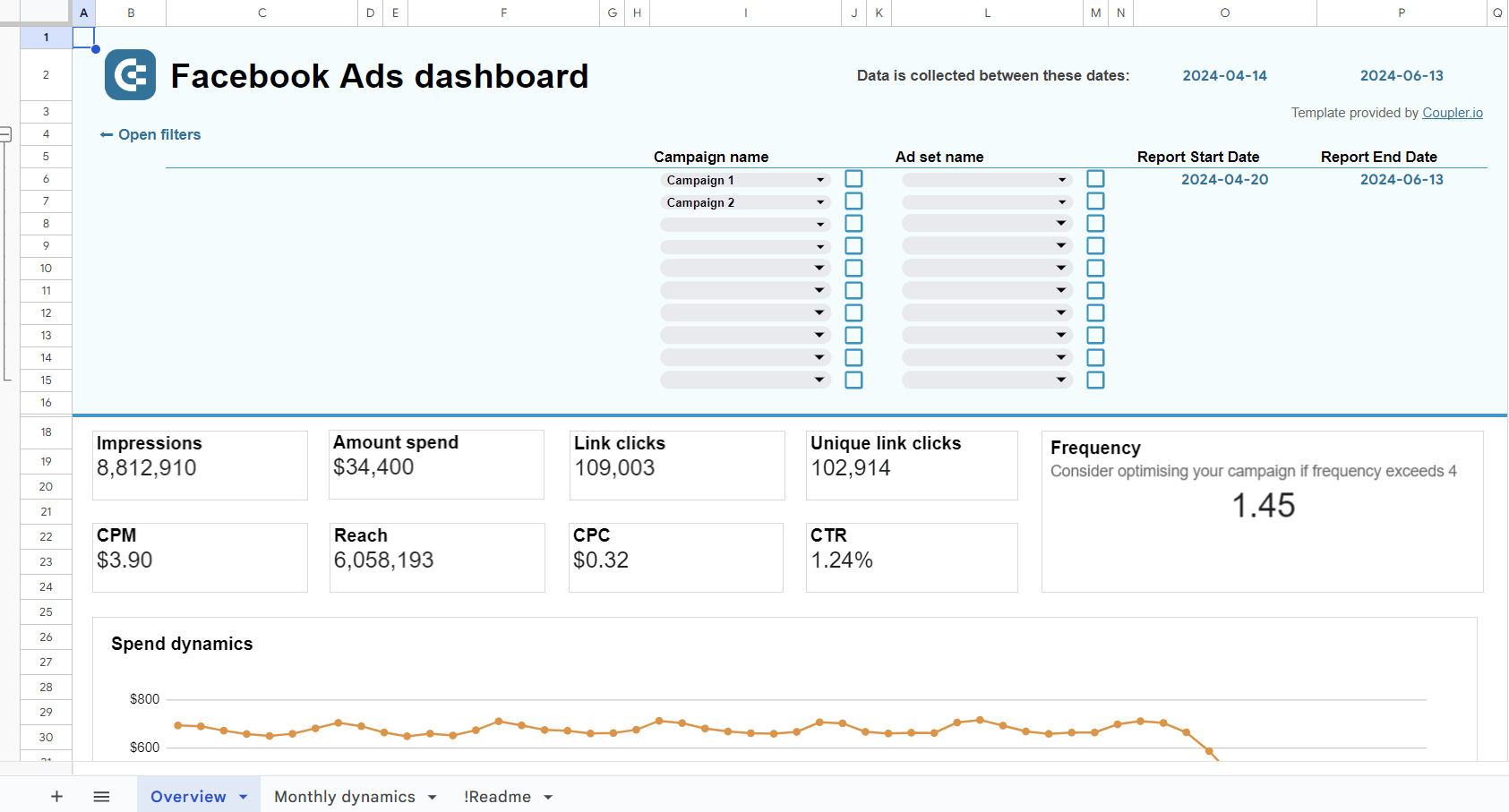
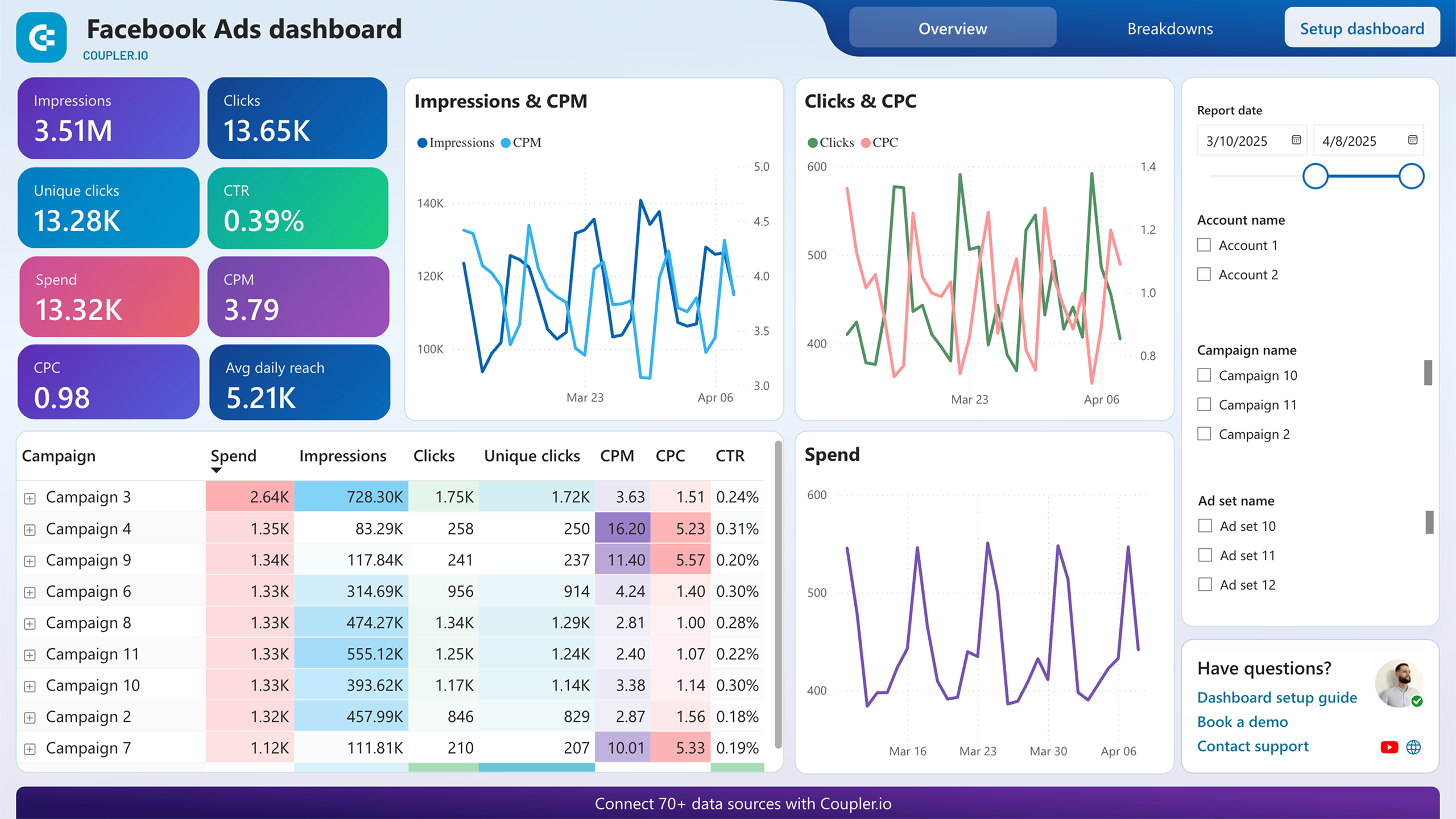
This Facebook Ads dashboard puts total spend, clicks, impressions, CTR, and CPC across every active campaign on a single screen. You can see how ad frequency changes over time. It’s useful for catching the point where overexposure starts dragging down engagement. The country breakdown shows which regions respond best to your targeting, and the monthly trends view makes it easier to notice momentum shifts in impressions and clicks before they show up in your budget reports.
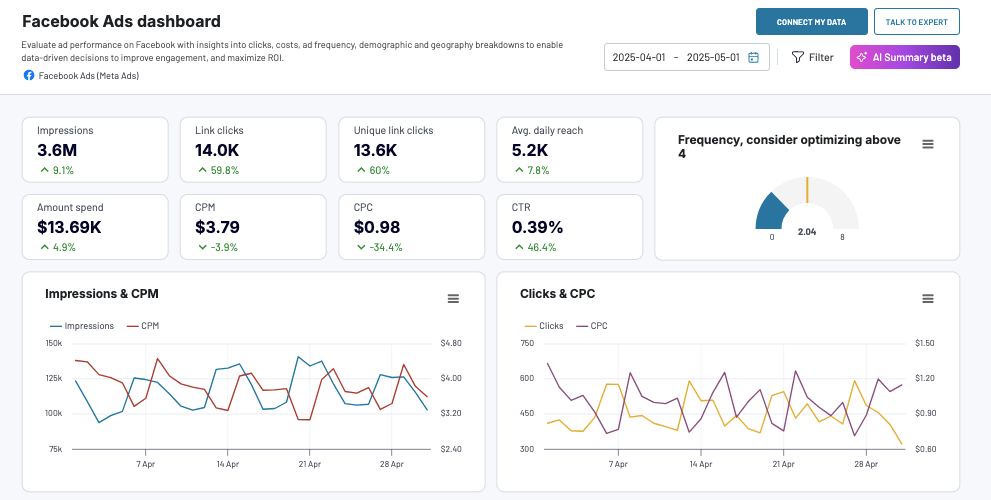
If you prefer managing your reporting in external BI tools, check out the Facebook Ads dashboard templates available for Looker Studio, Power BI, and Google Sheets. Pick the version that meets your reporting needs and try it out.


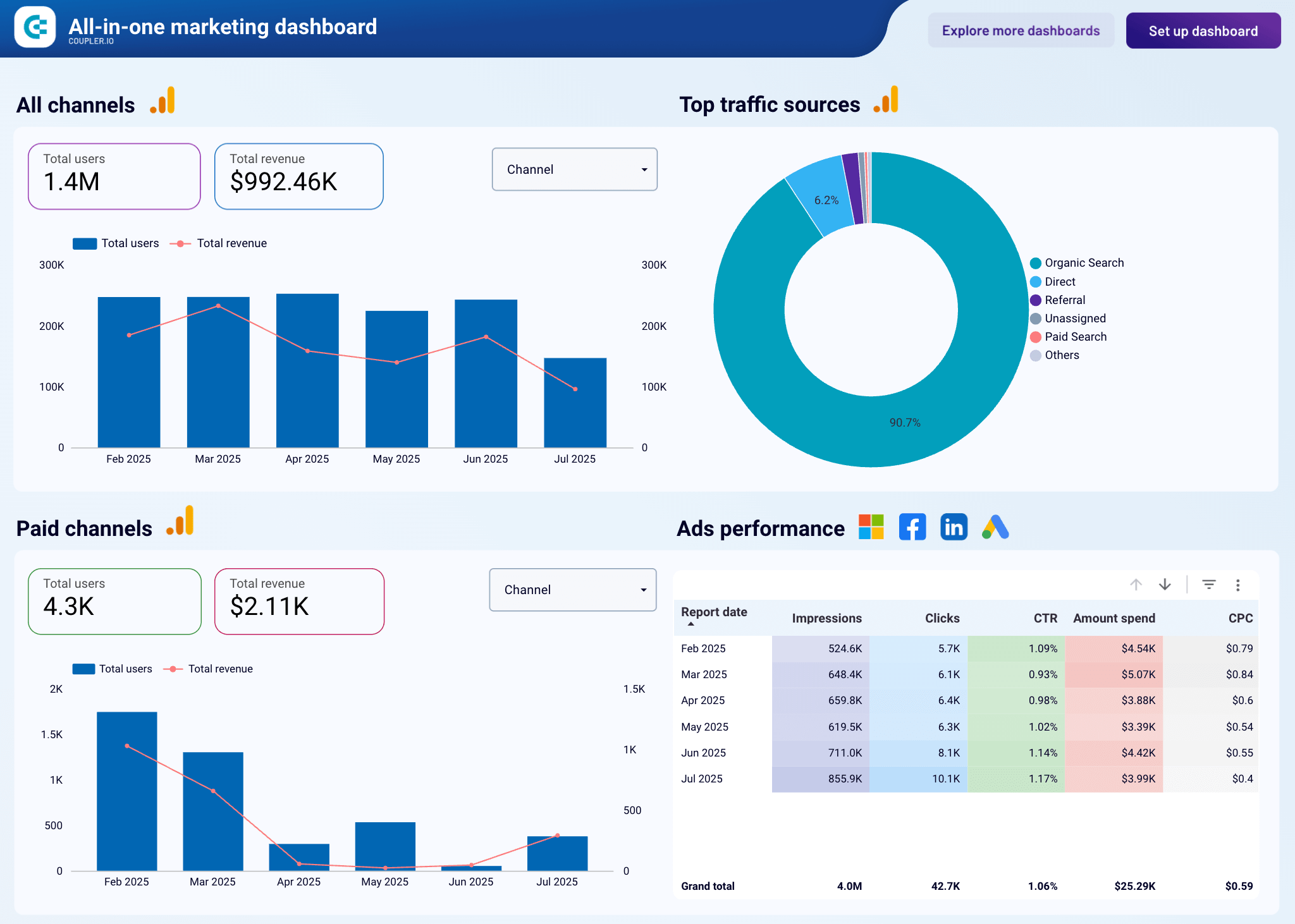



Track monthly performance across Facebook and Instagram ads
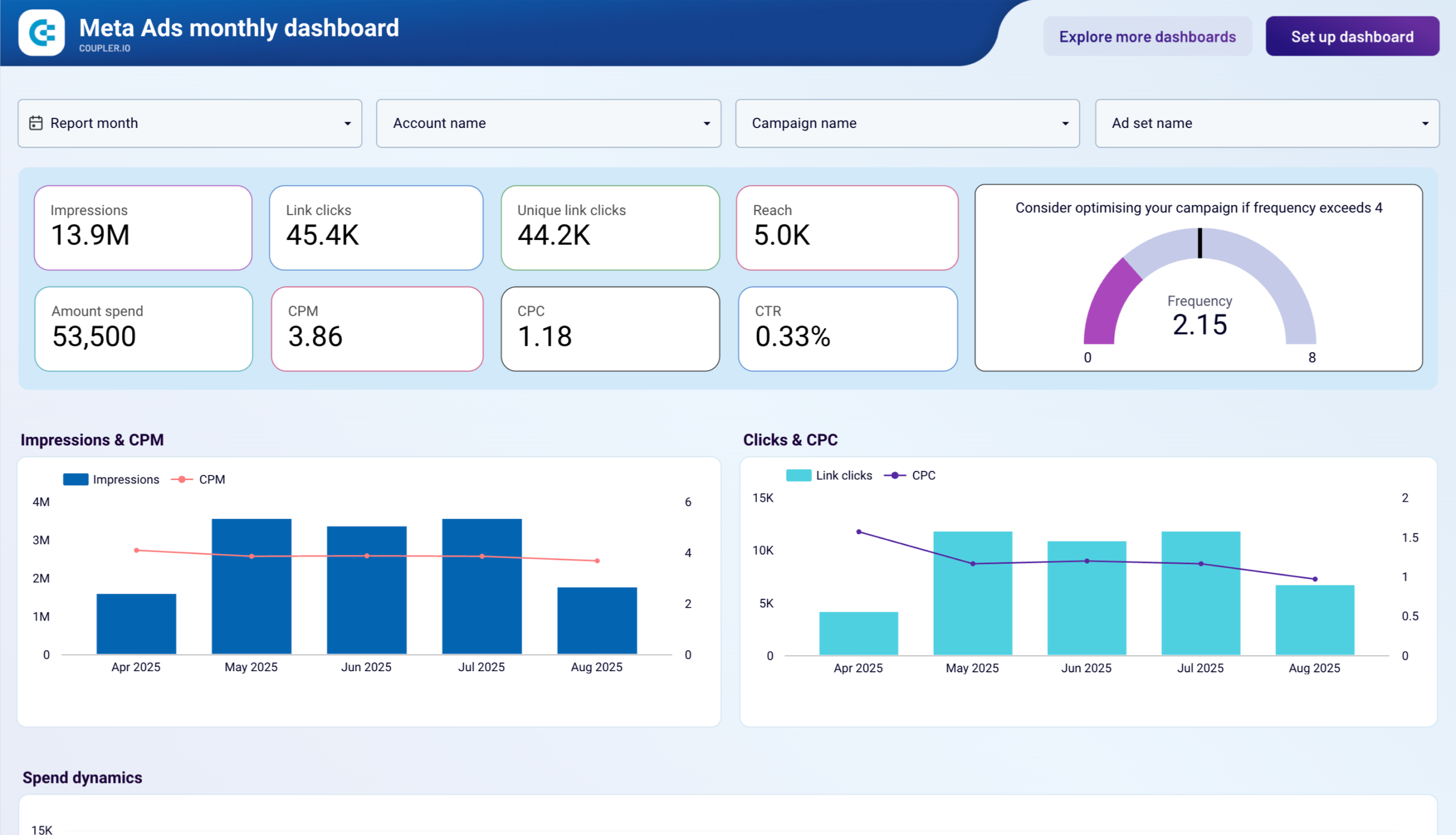
The Meta Ads monthly performance dashboard compares month-over-month results across both platforms in one place. It breaks down engagement by age group and gender, so you can see which demographics respond differently on Facebook versus Instagram. There’s also a device-level view. For example, if mobile CTR drops while desktop holds steady, that usually points to a creative format issue rather than a targeting one. Seasonal patterns in performance become easier to spot when you’re looking at several months side by side.
Meta Ads monthly performance dashboard
 Preview dashboard
Meta Ads monthly performance dashboard
Preview dashboardBreak down lead generation by campaign
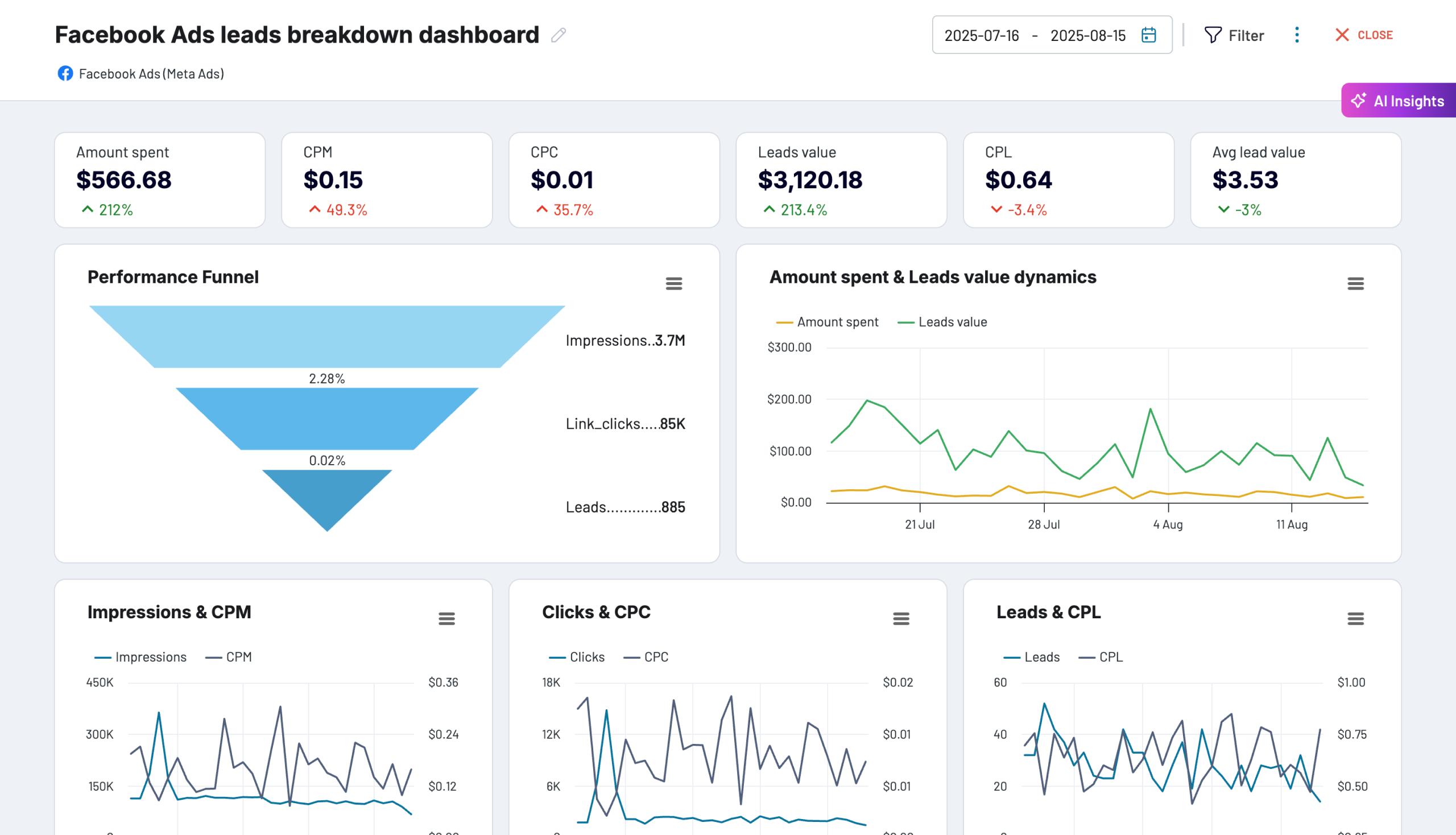
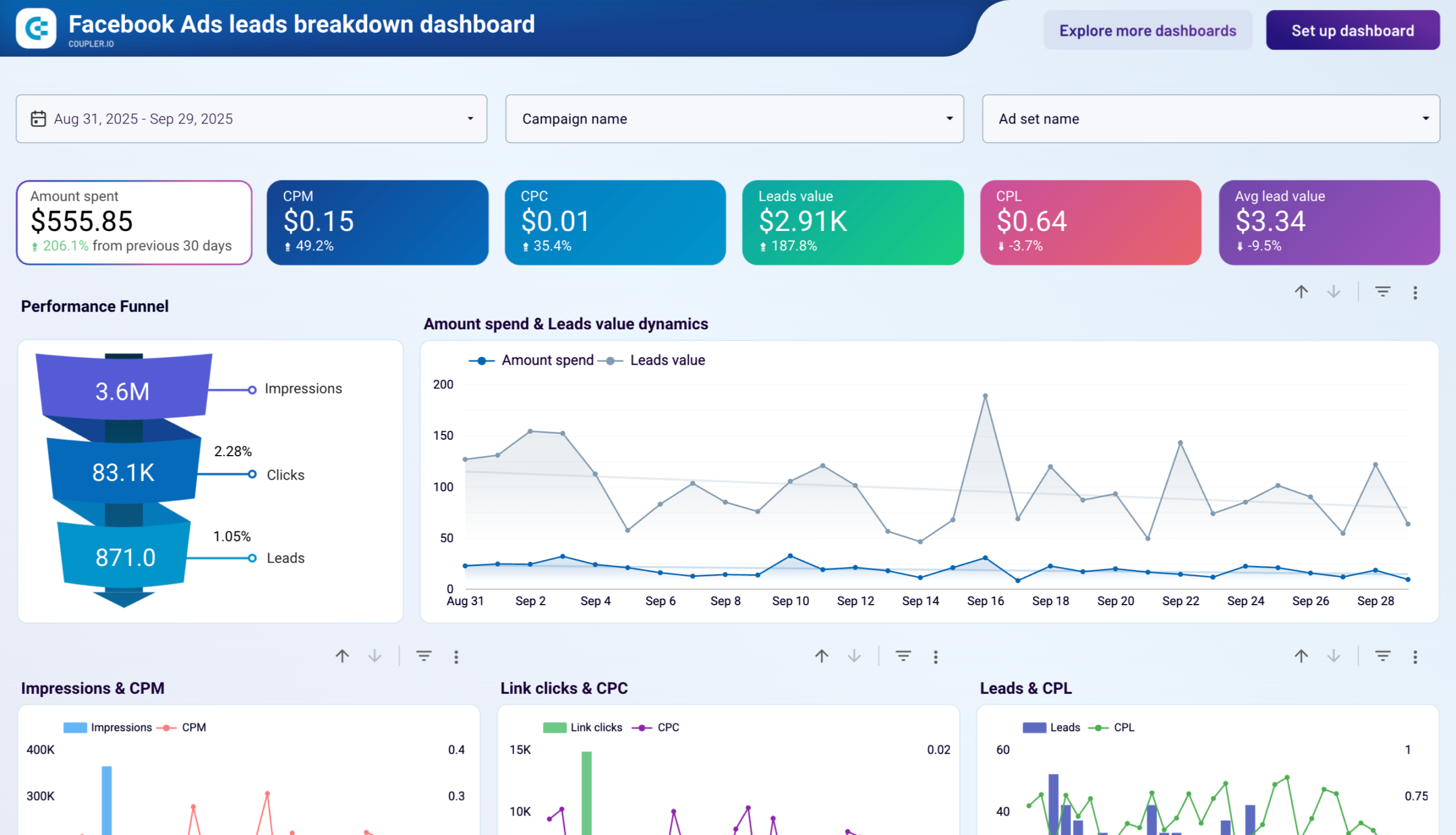
The Facebook Ads leads breakdown dashboard shows which campaigns actually produce leads, what each lead costs, and where it came from. The funnel view tracks the full path from impressions to clicks to leads for each campaign, so you can see exactly where people drop off. Cost per lead is broken down month over month, and the demographic and geographic views show which audience segments generate the highest volume at the lowest cost.
Facebook Ads leads breakdown dashboard
 Preview dashboard
Facebook Ads leads breakdown dashboard
Preview dashboardThis automated template is designed in Coupler.io and is also available as a Data Studio template. Just connect your Facebook Ads account to a comprehensive report showing how your ads perform in terms of lead generation.

Measure purchase value and ROAS by campaign
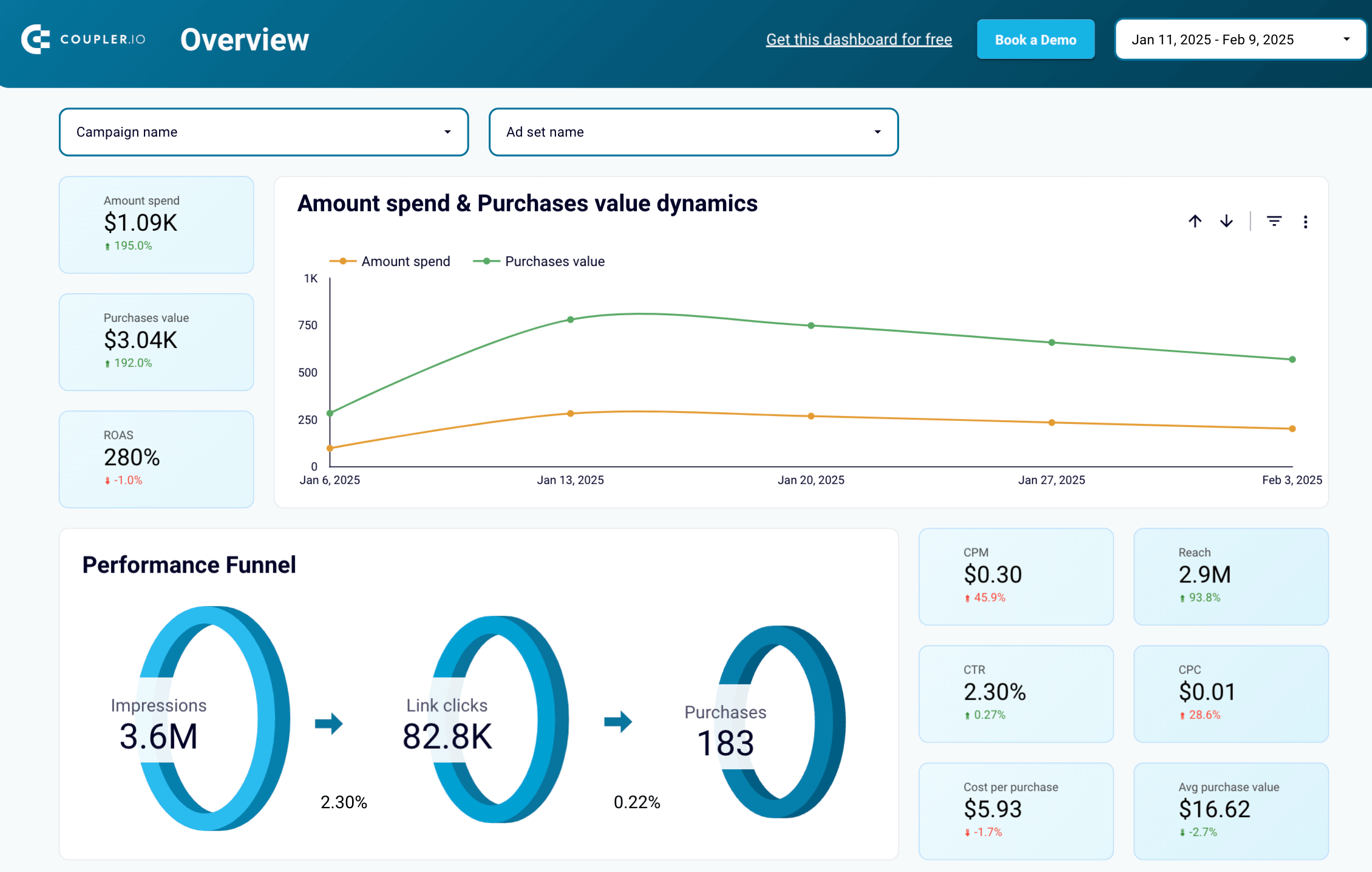
The Facebook Ads purchases breakdown dashboard compares purchase count and value across campaigns alongside ad spend. It allows you to see whether higher budgets are producing proportional revenue. The monthly view tracks clicks and purchases over time. If those two lines diverge, conversion efficiency is shifting. Demographic and geographic breakdowns show who’s actually buying and from where, not just who’s clicking.
Facebook Ads purchase breakdown dashboard
 Preview dashboard
Facebook Ads purchase breakdown dashboard
Preview dashboardLoad data from your Facebook Ads account using the Coupler.io connector and get a ready-to-use view of purchases driven by your campaigns.
Evaluate mobile app install and purchase performance
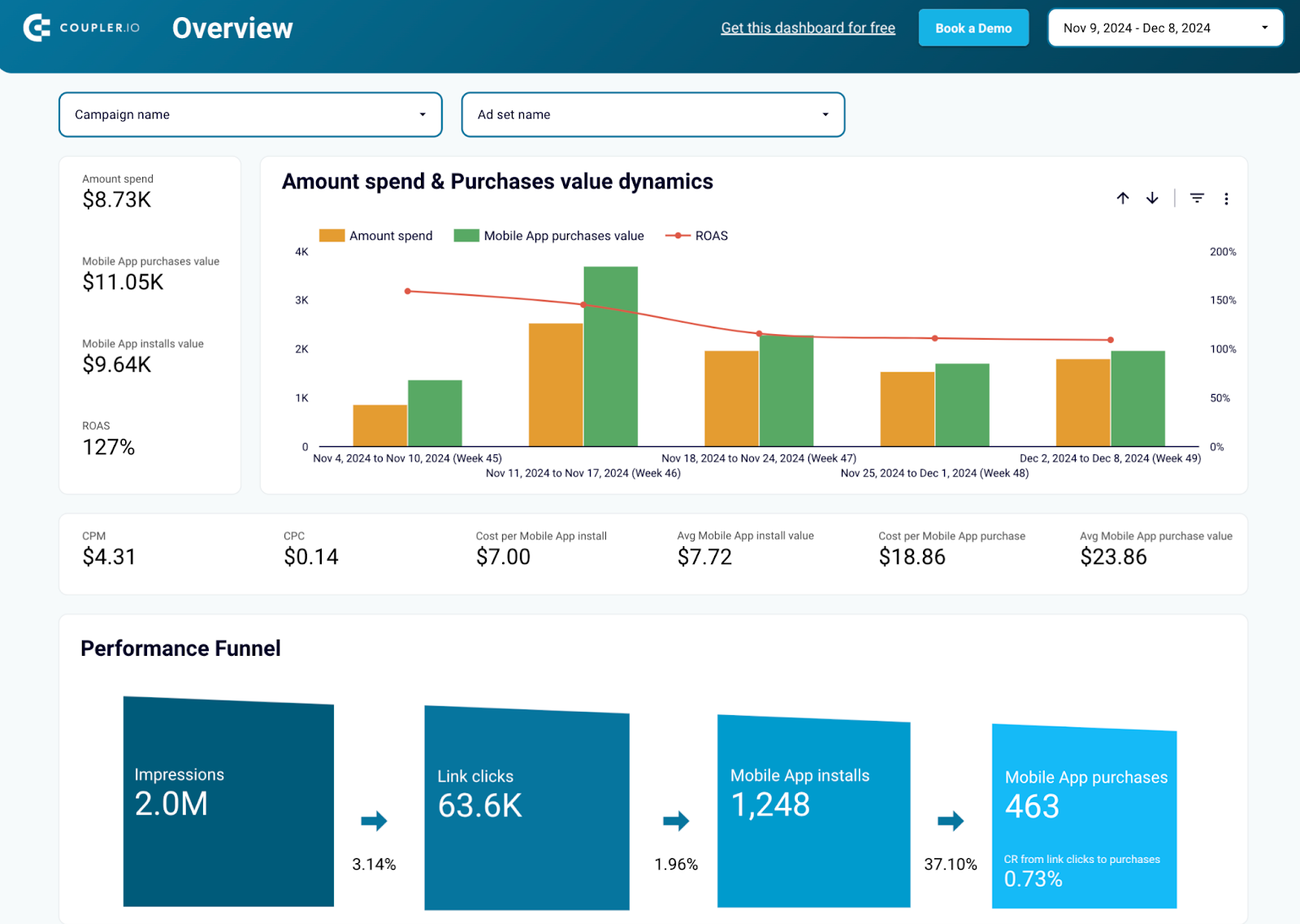
The Facebook Ads performance for mobile apps dashboard tracks the full path from impression to app install to in-app purchase. Cost per install is broken down by country and platform, which makes it straightforward to compare where acquisition is cheapest. The spend-versus-revenue view shows whether your ROAS stays positive over time, and the monthly trends make it easier to see if install quality is improving or degrading as campaigns mature.
Facebook Ads performance for mobile apps dashboard
 Preview dashboard
Facebook Ads performance for mobile apps dashboard
Preview dashboardCompare creative performance across campaigns
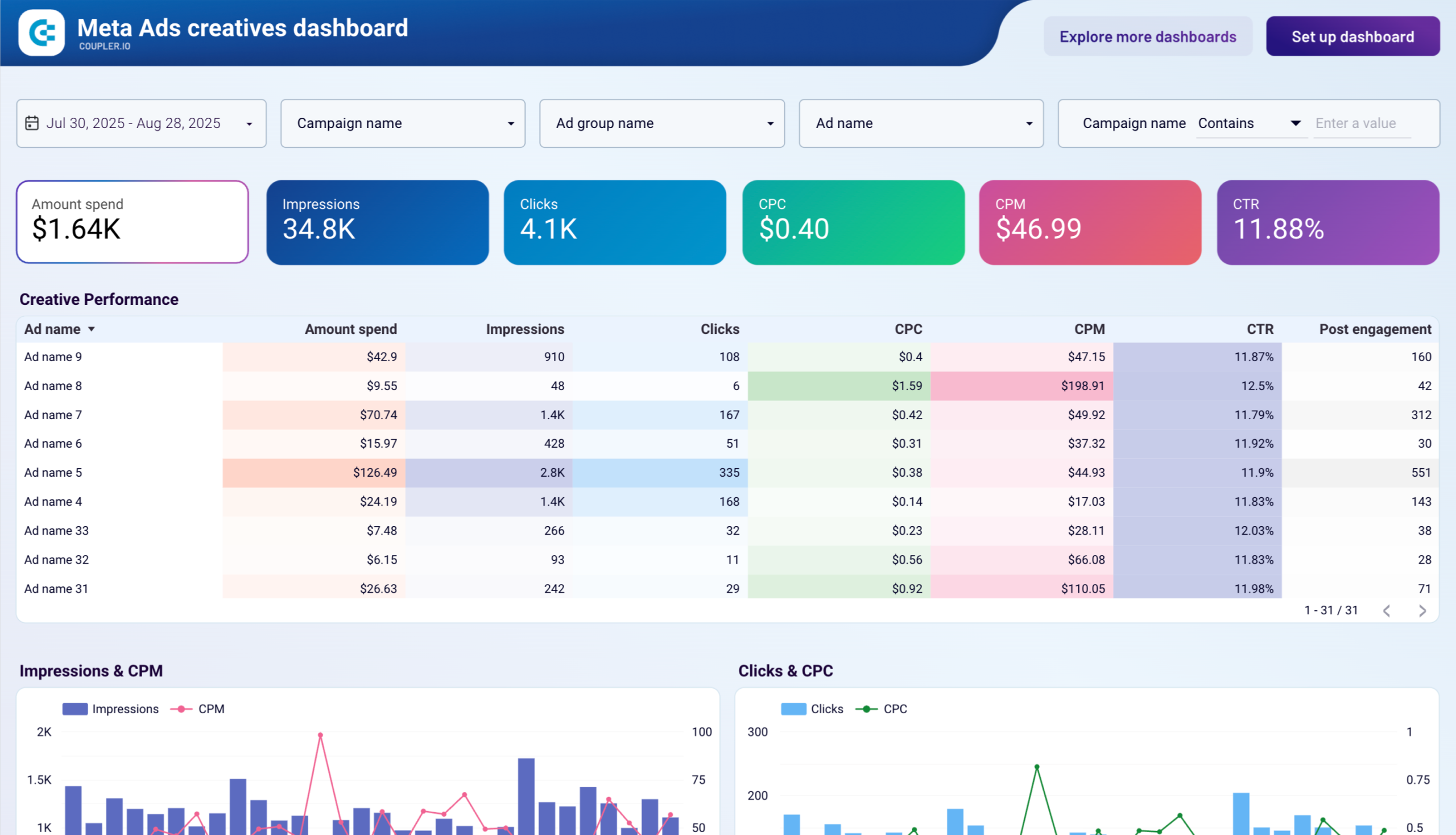
The Meta Ads creatives dashboard breaks down each ad creative by CTR, CPC, CPM, conversions, and total spend. You can see how spend is distributed across creatives over time and whether that distribution actually matches performance. When a creative’s impressions stay high, but CTR and conversions start declining, that’s typically creative fatigue . This dashboard makes that pattern visible before it wastes meaningful budget.
Use cases to export specific Facebook Ads data
The walkthrough above covers the general Facebook Ads export flow. But the ad platform has several distinct data entities, and each one requires slightly different settings in Coupler.io.
Below are the most common ones: all ads, targeting parameters, daily spend, campaign results, and leads. In each case, the setup follows the same steps. The difference is which report type you select and which fields become available.
How do you export all Facebook ads?
It’s also very easy to export all ads from your ad accounts. Follow the steps above to set up a data flow in Coupler.io. When choosing a Report type, select List of Ads. It will fetch all the ads from the selected accounts.
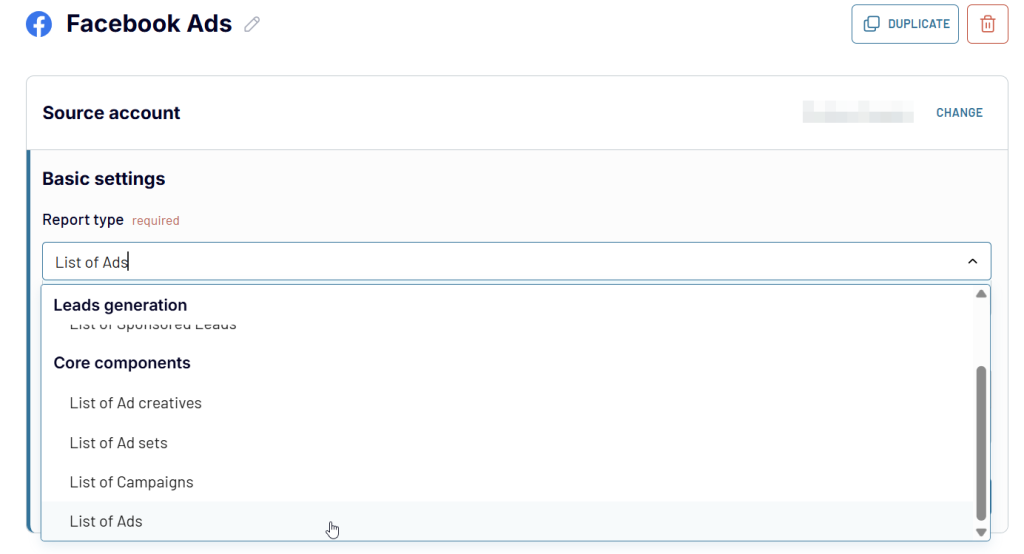
Now, run the data flow and the data will be imported into the destination of your choice.
How to export all of your targeting parameters in Facebook Ads?
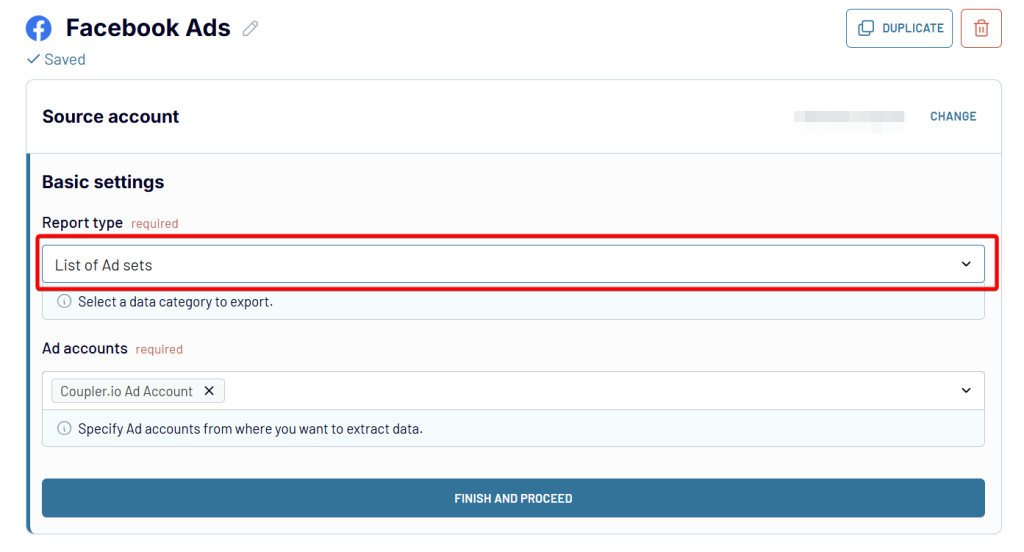
The targeting parameters are available with the export of ad sets. That’s another data entity you can fetch with Coupler.io by following the steps above.
When setting up, choose List of Ad sets as a Report type.
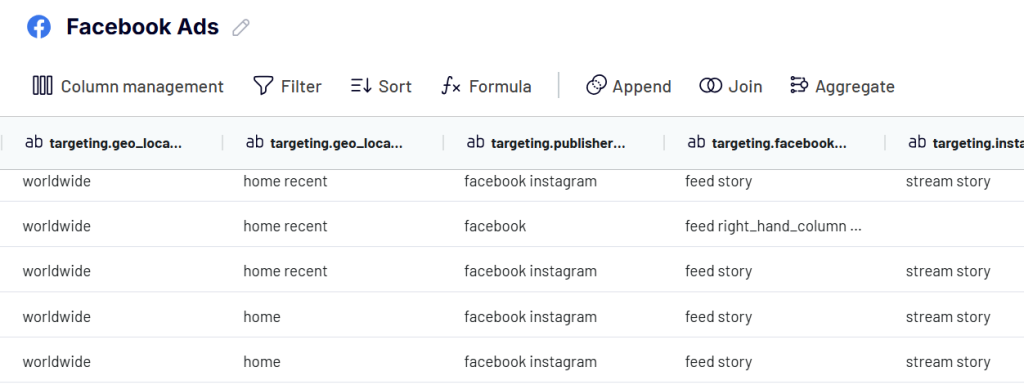
At the Transformation step, you’ll see various fields containing all the targeting parameters used with particular ad sets.
How do you export Facebook Ads spend per day?
This is also possible with Coupler.io. The information about daily spending on ads is available in the Reports and insights data entity. Before you proceed, you’ll need to specify several details.
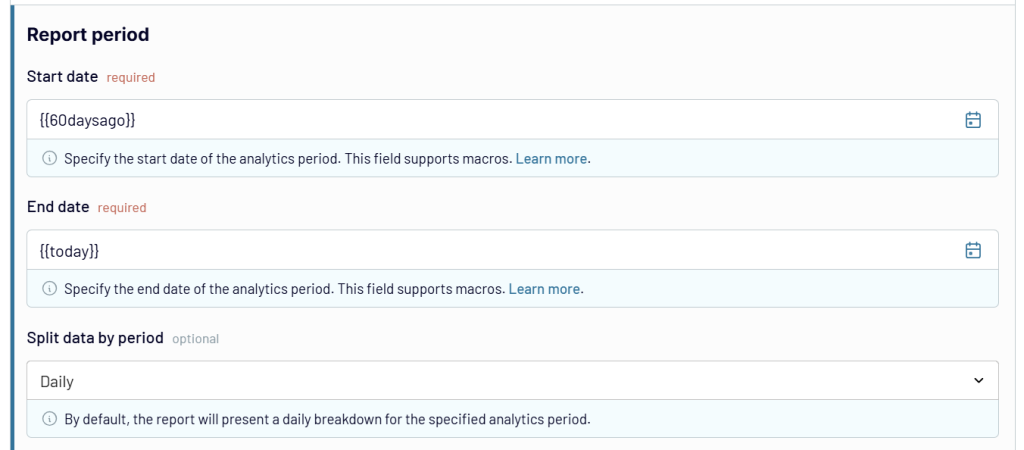
Select the period for your reports. If you wish to fetch historical data, just pick the desired dates.
For ongoing imports, it would make sense to use macros like {{yesterday}}, {{today}}, and so on. Each time, it would fetch the amount spent on ads during the specified period along with a number of other details, such as views, impressions, or conversions. There’s more information on using macros in our knowledge base.
Optionally, choose how you wish to split data by periods. Daily split is the default value for the entire reporting period.
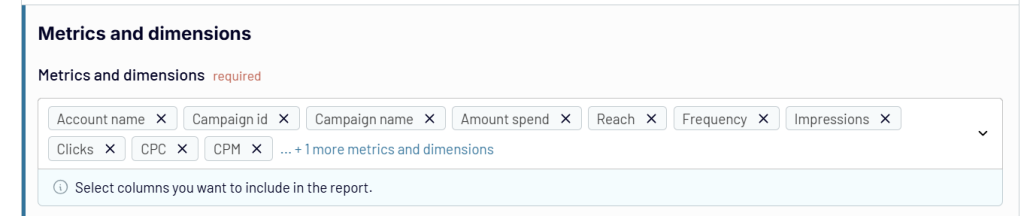
Finally, select the metrics to include in the report. You need the Amount spend column among the others.
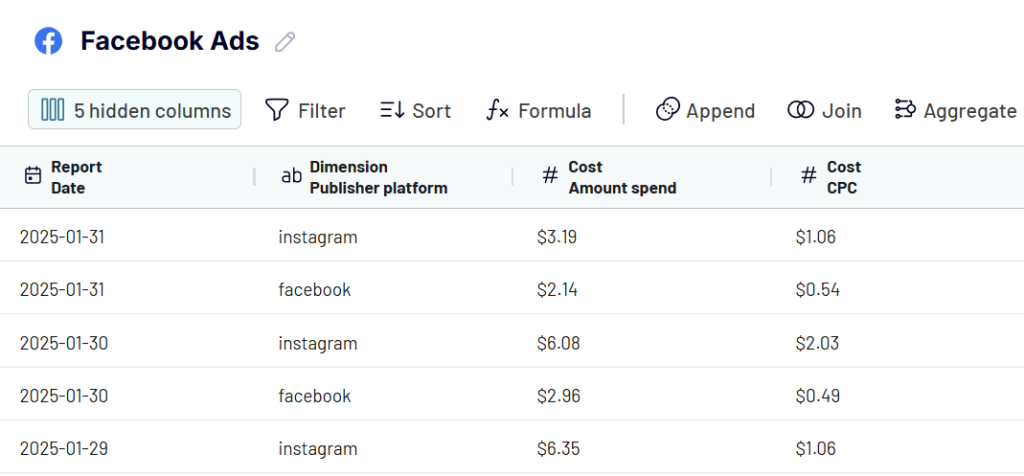
Here’s a piece of our sample export with the daily amount spend that you can preview right in the UI:
How do you export results data from Facebook Ads?
As was the case for daily spending, the other results of your ad campaigns are also available in the Reports and insights data entity. Select it when setting up your importer.
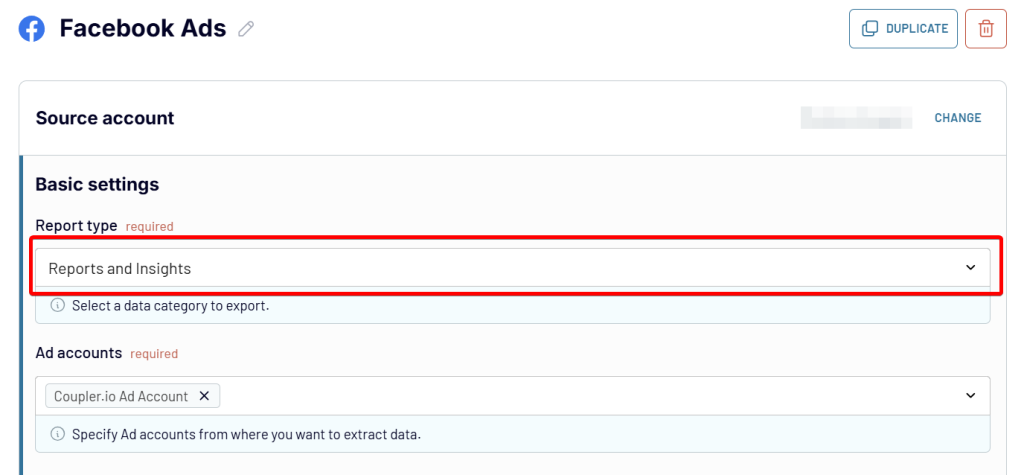
Select an Ad account for which you want to fetch the results. As was the case above, decide on the reporting period, how to split data, and the columns to include. The options are plentiful.
How do you export leads from Facebook Ads?
You can easily export leads from Facebook Ads manager with Coupler.io. When creating a data flow with Facebook Ads as the source, select the report type as List of Sponsored Leads data entity, select your page, and the lead forms. Just like in this video about exporting Facebook Ads leads to Google Sheets.
Select the report period using either actual dates or placeholders. If you’re using placeholders, ensure the duration does not exceed 90 days as leads will automatically disappear 90 days after they’re acquired.
To avoid losing this data, make sure to run this process regularly.
In the next step, you’ll see the list of leads collected in a table. You can organize this data by hiding unnecessary columns, sorting and filtering data, and more.
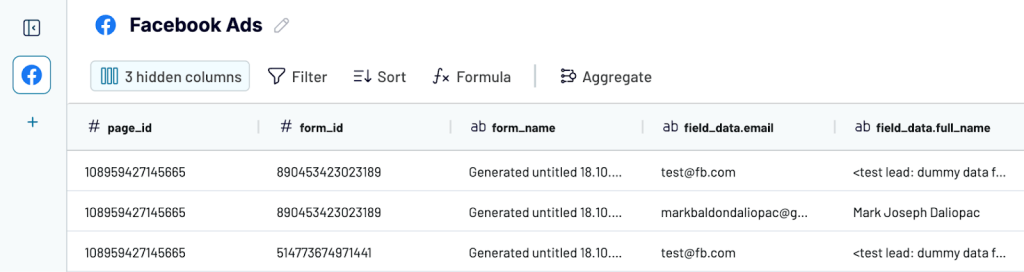
After this, configure the destination settings and set a data refresh schedule. Your leads data will now be automatically updated in the destination.
Alternatively, there are two more ways to fetch leads from Facebook Ads:
- Manually export leads into a .csv or .xlsx file.
- Use the leads_retrieval permission of Facebook’s Graph API to pull specific or all leads associated with your ads.
To fetch the leads manually:
- Jump to the Business Suite.
- Open the menu to the left, select All Tools and then find Instant Forms.
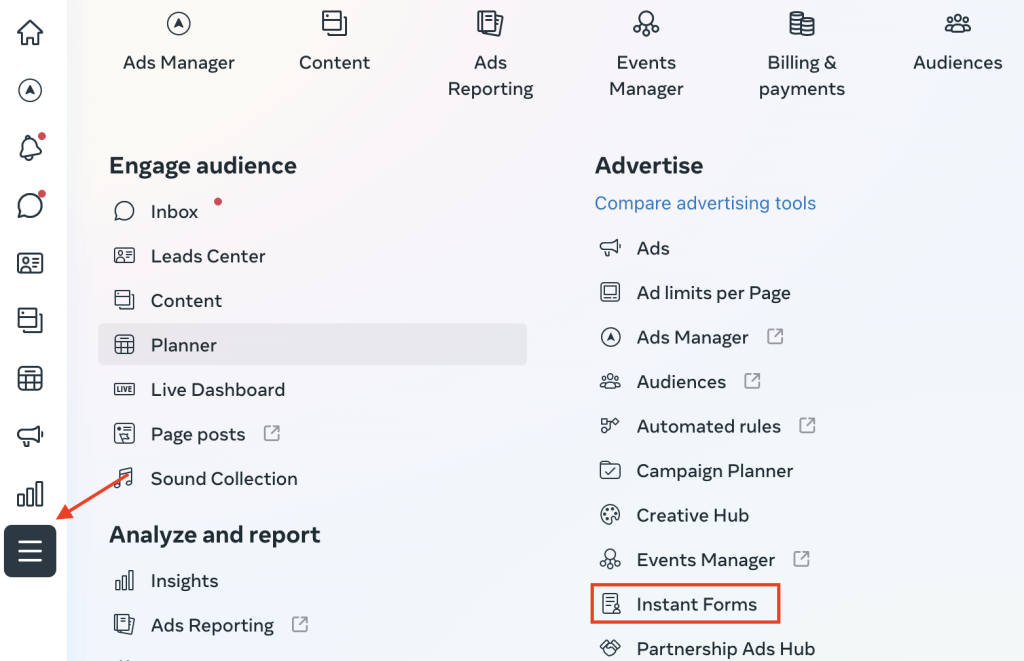
- Pick either of your forms and press Download next to it. You can either:
- Download New Leads – fetch only the leads acquired since the last download, or
- Download by Data Range – which will fetch all leads acquired in the selected range.
- Choose the desired format for export.
Note that leads will disappear 90 days after they’re acquired so it’s important to be running this process regularly.
What’s included in the user export data from Facebook Ads?
The standard export of leads contains:
- The ID of the lead.
- The ID & name of an ad, an ad set, and a campaign that led to capturing this lead.
- Form ID and name.
- Is_organic field that tells you whether a lead was obtained via organic measures.
- A platform that a lead used to leave their contacts
- Answers to any custom questions you added to the form.
Note that to see all this data, you need to meet two criteria:
- You need to be an admin of the respective Facebook page.
- You need to have the permissions sufficient to see all of the lead data in your ad account.
If you don’t fulfill either of these conditions, you may still be able to export the data but the export will be limited.
How to export data from Facebook Ads Manager?
Facebook Ads Manager is the center of reporting on ads. Here, you’ll see all campaigns, ad sets, and ads you’ve run and will be able to dig deeper into Facebook Ads management.
Before you export Facebook ads, first decide on precisely what you want to pull from Facebook. Select specific campaigns or opt to fetch all of them. Decide on one of the preset timeframes (e.g., “last 7 days”, “this month”, etc.) or pick a custom date. Finalize the details and then click on the Reports menu in the top-right corner of the page.
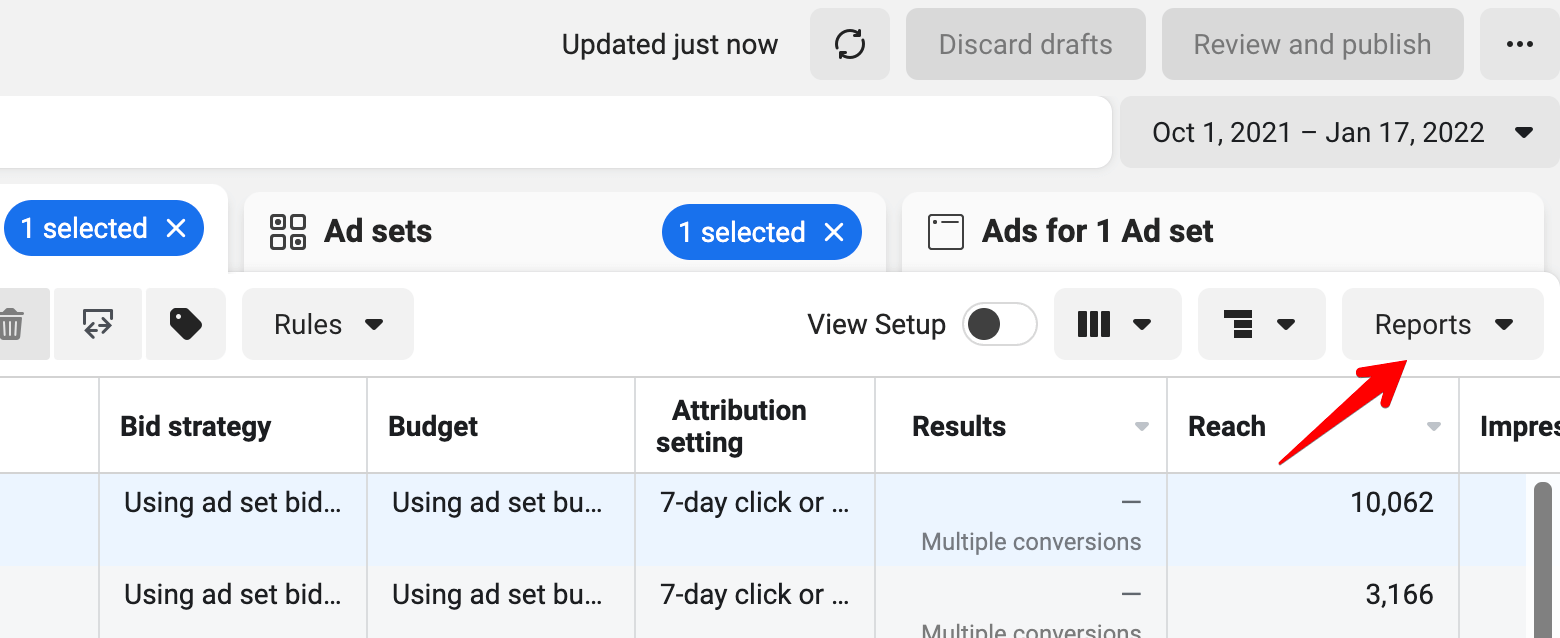
Then, select Export Table Data and pick the desired format. Among the available options are .csv and .xlsx. You can also get the data ready to be used with built-in Ads Reporting and Facebook Ads Manager for Excel.
If you picked .csv or .xlsx, you can now import it into the tool of your choice. .xlsx are mostly suitable for Excel, while .csv will work with virtually any tool willing to accept your data.
Export Facebook Ads Manager data to CSV every month
The method above requires you to manually export the report every time you need the fresh data. This won’t work for many. Luckily, there’s a way to automate the export of Facebook Ads data and have a report emailed to you at a chosen frequency.
Back on the Ads Manager homepage, click the Reports button once again. Choose to Create Custom Report.
Here, decide on the type of report (pivot table, trend, or bar chart). Add any fields you would like and decide on the timeframe. As it will be a recurring report, using one of the presets makes sense. For a monthly report, a “last month” preset seems to make the most sense.
When you’re ready, press the button to the right of the report name.
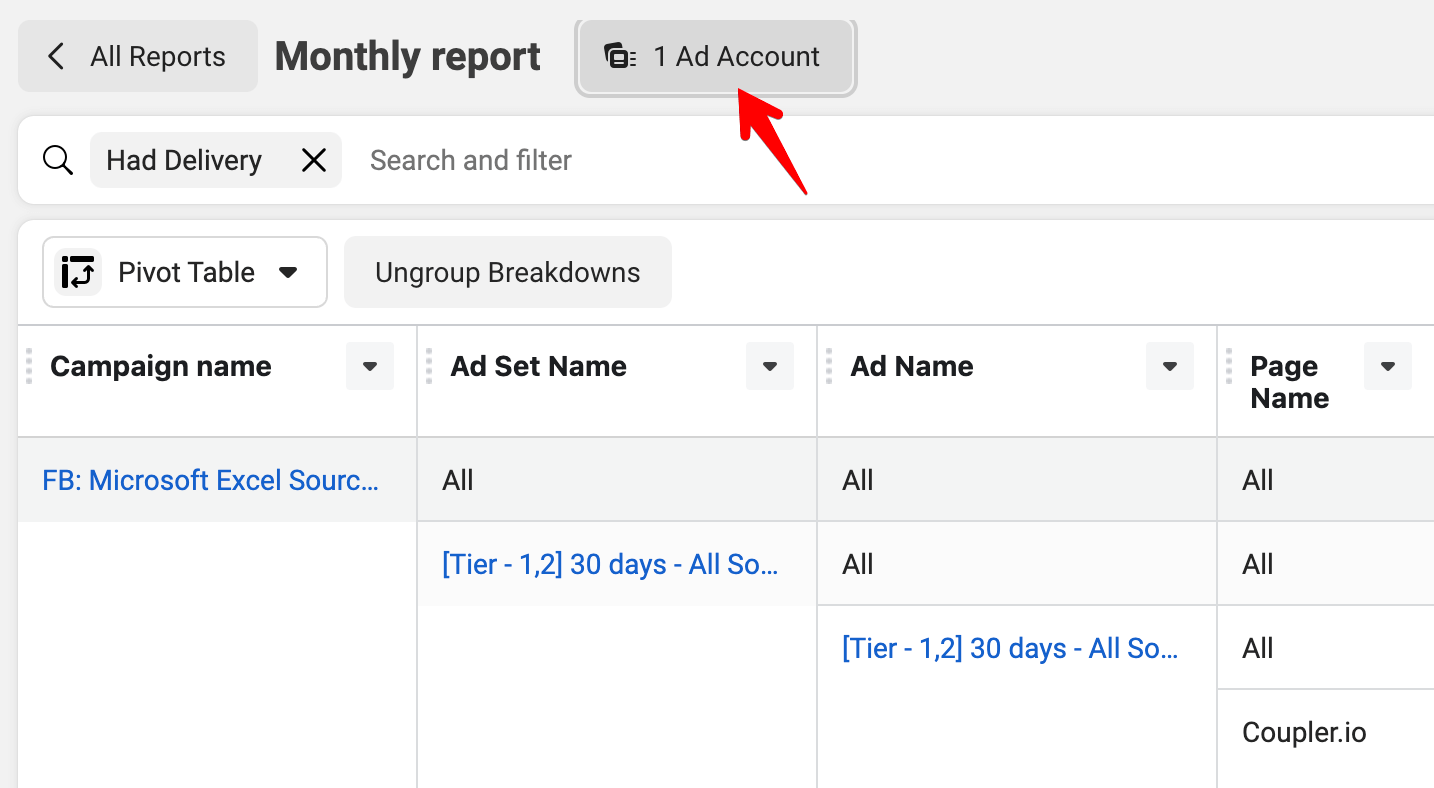
Decide on the Ad Account. Then, toggle on Schedule Email. Choose when the report should be delivered and select who should receive it. Then, press Apply.
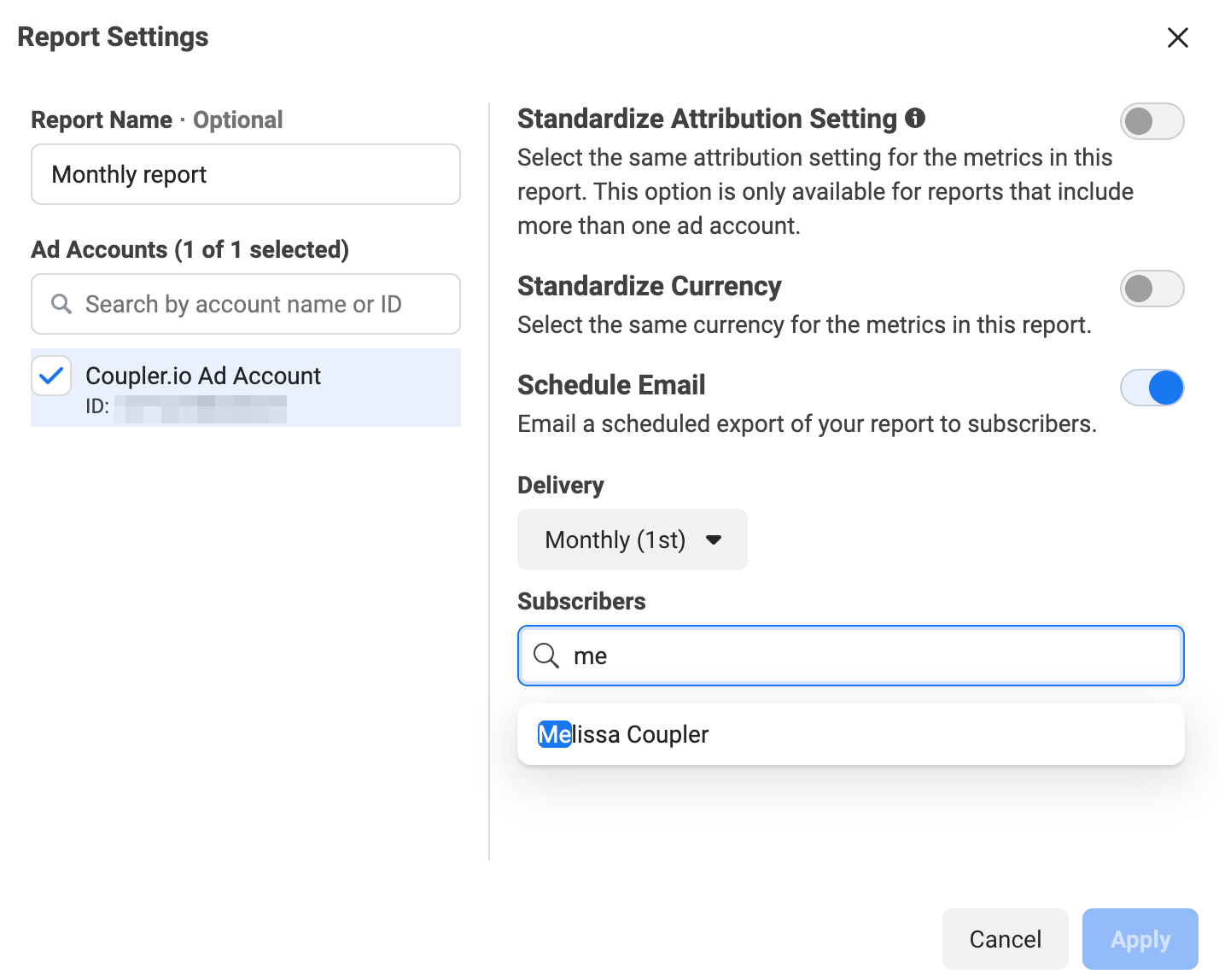
Note that you’ll only be able to add people with access to the Ads Manager as recipients. If you’d like to email an external stakeholder, you’ll need to download a report first and then send it to them manually.
Alternatively, you can automatically export a Facebook Ads report into a dashboard or a tool of your choice. That’s something we’re going to discuss next.
Why export Facebook Ads?
Exporting Facebook Ads data opens up opportunities for much deeper analysis. The most basic thing is to pull the data into your favorite spreadsheet tool, be it Excel, Google Sheets, or any other. With little effort, you’ll be able to see trends, evaluate the profitability of different approaches, and see what works best for your business. It can also give you ideas on how to optimize your Facebook Ads funnel.
Facebook ads data can easily be synced with Facebook Ads reporting tools, or you can connect Facebook Ads to Tableau and other data viz tools like Power BI or Looker Studio. With either of them, you can build beautiful, customizable dashboards, and share them with your teammates and stakeholders. Check out some of the best Looker Studio Facebook Ads templates that we collected for you.
Also, exporting data from Facebook makes sense for the sole purpose of combining it with other data at your disposal. It could be advertising data from other channels, website analytics, user data, or virtually anything else that will enhance your Facebook data.
Do I need to write a program to export Facebook Ads Manager data automatically?
Aside from this handy feature that emails you a report every now and then, Facebook doesn’t have automatic exporting capability. To schedule automatic data exports, you would normally need to delve into Facebook Ads API and write a script that would be querying specific endpoints at regular intervals.
However, you don’t need to do that as there are tools that can export Facebook Ads data for you. The Facebook Ads integration by Coupler.io is a popular choice among advertising specialists since it lets you pull the data into Google Sheets, Excel, BigQuery, Looker Studio, and Power BI on the chosen schedule. This approach doesn’t require any coding and is very quick to set up.
Automate Facebook Ads data export with Coupler.io
Get started for freeHow to optimize Facebook Ads export?
Automating your Facebook Ads export is the first step. The real value comes from what you do with the data once it’s flowing.
Set up a data flow in Coupler.io, schedule automatic refreshes, and use the transformation step to filter and structure the dataset. From there, load it into a dashboard for visual reporting, send it to a spreadsheet for manual analysis, or ask AI Agent to tell you what’s working, what’s not, and where to shift your budget next.
The less time you spend pulling data out of Ads Manager, the more time you have to act on it.